



Qdrant 1.20 - Full-Text Search Improvements
Andrey Vasnetsov
·October 22, 2026

On this page:
Qdrant 1.20.0 is out! Let’s look at the main features for this version:
BM25 on Full-Text Indexes and Code Search: Rank by BM25 straight from your payload text, with no embeddings to generate. Plus, better code search with a new code tokenizer.
Faster Nested Filters: A new per-element payload index answers nested filters without reading payloads, making them faster.
16-Bit and 8-Bit TurboQuant: A 16-bit TurboQuant datatype that halves vector storage without accuracy loss, and an 8-bit TurboQuant datatype and quantization option with recall close to float16.
BM25 Scoring on Full-Text Indexes

In addition to vector search, Qdrant also supports full-text search, which finds results by the exact words they contain. Until now, ranking those results with BM25, a commonly used ranking function for keyword search, meant converting your text into sparse vectors.
That approach has a few drawbacks. Every document and every query has to go through an inference step to produce its sparse vector. You also have to keep track of the average document length yourself to get accurate scoring. Because that value is fixed in every stored vector, it can’t adapt as your data changes, and updating it means converting all your documents again.
Version 1.20 solves these challenges with BM25 scoring directly on a full-text index. Qdrant derives all BM25 statistics from your data. That includes the average document length, so scoring is accurate out of the box. You don’t need to generate embeddings. Text that’s already in your payload becomes searchable as soon as you index it.
How It Works
To rank points with BM25 on a full-text index, use the new text query. For example, to search a books dataset by title, first create a full-text index on the title field with the bm25 scoring type:
PUT /collections/books/index
{
  "field_name": "title",
  "field_schema": {
    "type": "text",
    "scoring": {
      "type": "bm25"
    }
  }
}
Then query the index, and pass the indexed field in using:
POST /collections/books/points/query
{
  "query": {
    "text": "time travel"
  },
  "using": "title"
}
You can set the BM25 parameters k and b per query, so tuning them doesn’t require rebuilding the index. A text query works anywhere in the Query API. Combine it with dense vector search in hybrid search, or use it to rescore points retrieved by another query.
Migrate from Sparse BM25
BM25 on sparse vectors remains supported. If your text is already stored in the payload, you can switch to a full-text index without uploading your data again. Create a full-text index with scoring enabled, configure the same text processing as your sparse BM25 model, and replace your sparse vector queries with text queries.
Better Code Search with the Code Tokenizer

A common use case for full-text search is searching through source code. A full-text index uses a tokenizer to split text into the words, or tokens, that you can search for. The default word tokenizer splits text on spaces and punctuation, which doesn’t work well for code, because identifiers combine several words in different naming conventions. For example, it indexes getUserName as a single token, so a search for user name or get_user_name doesn’t find it.
This release adds a new code tokenizer that splits identifiers on underscores and case changes, including acronyms. As a result, getUserName, get_user_name, and user name all match each other. It also indexes the full identifier, so hashmap still finds HashMap. Combined with BM25 scoring on a full-text index, this lets you rank code search results without generating embeddings.
Faster Nested Filters with Per-Element Indexes

Payloads often contain arrays of objects, such as a product with several offers, each with its own shop and price. A nested filter finds points where a single element matches all conditions, for example an offer from a specific shop below a certain price.
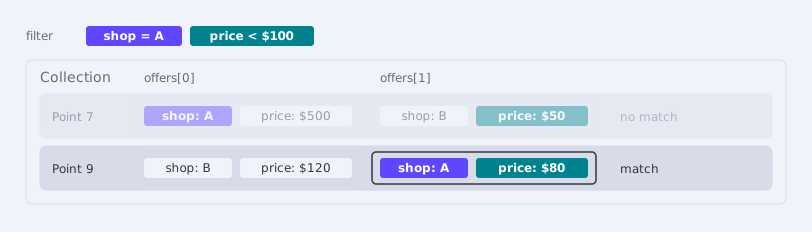
Until now, payload indexes couldn’t answer these filters on their own. Indexes on offers[].shop and offers[].price could only narrow down the candidates. Qdrant then read the payload of every remaining candidate, usually from disk, to check the conditions per element. When many candidates remained, nested filters got slow.
With version 1.20, every payload index type gets a new nested parameter, which creates a per-element index that stores each array element separately. When every condition in a nested filter uses a field with a per-element index on the same array, Qdrant can answer the filter from the indexes alone, without reading any payloads. The search API doesn’t change, so existing nested filters get faster as soon as you create the indexes.
We benchmarked per-element indexes against regular indexes with payload reads, using three nested filters on 100,000 points. Even with every payload already in memory, the best case for reading payloads, per-element indexes were 7 to 38 times faster. Because they skip payload reads entirely, the gap is likely larger when payloads have to come from disk.
16-Bit and 8-Bit TurboQuant

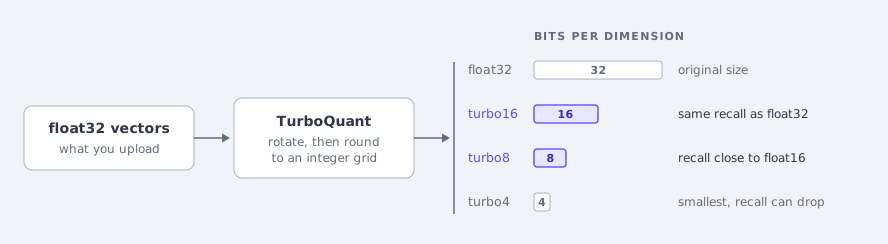
A vector’s datatype determines how Qdrant stores vectors. The default, float32, uses 32 bits per dimension. To save storage and memory, and to speed up search, you can use a datatype with fewer bits per dimension, at some cost in accuracy.
Until now, Qdrant offered three lower-precision datatypes. The turbo4 datatype, introduced in version 1.19, is the most compact option at 4 bits, but on some datasets it has a significant negative effect on recall. float16 keeps more precision at 16 bits, but takes four times the space. uint8 sits in between at 8 bits, but unless your embedding model already outputs 8-bit integers, you have to quantize vectors yourself before uploading them.
This release adds two TurboQuant datatypes. turbo16 uses the same 16 bits as float16, but with lower error, and cuts the storage of float32 vectors in half with no loss in accuracy. turbo8 uses 8 bits per dimension like uint8, but takes regular float vectors and quantizes them for you. It halves storage again, with recall close to float16. Version 1.20 also brings the 8-bit encoding to TurboQuant quantization.
turbo16 Datatype
turbo16 uses 2 bytes per dimension, the same as float16. float16 keeps the same relative precision for every coordinate, so a large coordinate gets a large rounding error. That costs precision on embeddings with a few very large coordinates, such as OpenAI’s text-embedding-ada-002, CLIP, and Cohere. turbo16 fixes that by first applying the TurboQuant rotation, which spreads values evenly across coordinates, and then storing each vector on a single 16-bit integer grid.
We compared turbo16 with float16 and float32 in two ways. In a study of reconstruction error over 13 datasets, turbo16 had 7.5 times lower error than float16. In search benchmarks on 12 datasets, turbo16 recall@10 with exact search matched float32 within 0.001 on every dataset, while float16 dropped to 0.995 on the ada-002 and CLIP datasets.
In the same search benchmarks, turbo16 was also faster than float16 for HNSW search, with a median latency of 0.81 times that of float16 on x86 and 0.83 times on ARM.
turbo8 Datatype
turbo8 stores each dimension in 1 byte, half the size of float16. We benchmarked it separately, on 11 datasets. The following chart shows recall@10 for turbo8 compared to turbo4 and float16 on six of them. Benchmarks ran on x86 with HNSW configured with m=16 and ef_construct=100, searching with hnsw_ef=128.
turbo8 recall comes close to float16 at half the size, and the gain over turbo4 is largest at low dimensions, such as SIFT and Deep-image. turbo8 is also faster than float16. Across all 11 benchmarked datasets, its searches were 1.1 to 2.4 times faster than float16, and on most datasets within 10% of turbo4.
On the same datasets, we also compared turbo8 with float32 vectors and scalar quantization, with rescoring enabled. turbo8 had higher recall on 10 of 11 datasets and tied on the other, at similar latency. Because scalar quantization keeps the float32 originals, turbo8 stores only about a fifth of the bytes.
bits8 Quantization
The 8-bit encoding is also available as TurboQuant quantization over regular float vectors. Set bits to bits8 in the quantization config to use it. bits8 compresses vectors about four times, compared to eight times for bits4. bits4 remains the default.
If you’re currently using scalar quantization, consider benchmarking bits8 as an alternative. It compresses vectors by the same four times, and in the turbo8 benchmarks, the same encoding had higher recall than scalar quantization.
Memory Tiers for More Components

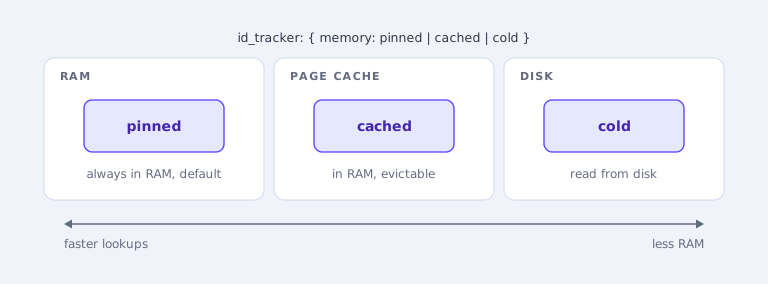
Version 1.19 introduced memory tiers: a single memory parameter that controls whether each component of a collection is pinned in RAM, cached, or cold on disk. Version 1.20 extends memory tiers to the ID tracker and removes the duplicate copy of vectors that inline storage used to keep.
ID Tracker Placement
The ID tracker maps each point’s ID to its internal location and version. Until now, Qdrant always kept it in RAM, at about 52 bytes per point. For a collection with 100 million points, that’s about 5 GB of RAM.
You can now choose a memory tier for the ID tracker of each collection. pinned keeps the ID tracker in RAM and remains the default. cold keeps it on disk and reads it on demand. cached also keeps it on disk, but loads it into the page cache when Qdrant opens a segment.
Inline Storage Without Duplicate Vectors
Inline storage speeds up searches on an HNSW index that’s stored on disk, by placing the original vectors in the index file next to the graph links. Until now, Qdrant stored those vectors twice: once in the regular vector storage and once in the index file. Qdrant now stores the original vectors only in the HNSW index file, which reduces disk usage.
Because the vectors are now part of the index, they follow the memory tier of the index instead of their own. For example, if the vectors are cold and the index is pinned, the vectors are now pinned in RAM along with the index, which increases RAM usage. The reverse also applies: a cold index makes its vectors cold. Before upgrading, check that the memory tier of the index fits these vectors.
Cluster Security Hardening

In a distributed deployment, Qdrant peers communicate over an internal gRPC API. In this release, the internal API becomes harder to reach and harder to misuse: it now requires authentication by default, and you can bind it to a separate network interface.
Internal Authentication by Default
When an API key is configured, Qdrant now requires it on internal requests by default and rejects requests to the internal port that don’t carry a valid key. The internal API also accepts only read-write keys, and rejects the read-only key and all JWTs.
Clusters without an API key aren’t affected. If api_key is set, rolling upgrades from 1.19 are safe, because peers have sent it on internal requests since version 1.18. Some setups, such as clusters with only a read-only key, need changes first. Read the upgrade notes before upgrading.
Bind the Internal Port to a Private Interface
Until now, the internal port listened on the same address as the public API. To keep it off a public network, you needed a firewall, a security group, or a similar tool.
The new cluster.p2p.host setting binds the internal port to its own address, so it can stay on a private network while the public API keeps its current address. The value must be an IP address, and the node’s peer URI must use the same address. If you don’t set it, the internal port keeps listening on the same address as the public API.
Also in This Release

- Snapshots on GCS and Azure Blob Storage: In addition to the local file system and S3-compatible storage, you can now store snapshots on Google Cloud Storage and Azure Blob Storage.
- Shared Snapshot Buckets: A new
prefixsetting for S3, GCS, and Azure lets several deployments share one bucket without overwriting each other’s snapshots. - Audit Logs to stdout or stderr: Audit logs can now go to stdout or stderr, instead of or in addition to files. This suits deployments that collect logs from container output.
- Collection Creation Time: For collections created in version 1.20 or later, collection info now shows when the collection was created.
- Safer Replica Removal: When you drop a replica, you can now require a minimum number of other active replicas of the same shard.
- Log Timestamps in Local Time: Log timestamps now follow the
TZenvironment variable. UTC remains the default. - Substring Match: A new
substringmatch condition selects points whose string value contains a given string, such as part of a URL, a file path, or a product code.
For a full list of all changes in version 1.20, see the changelog.
Upgrading to Version 1.20

On Qdrant Cloud, navigate to the Cluster Details screen and select Version 1.20 from the dropdown menu. The upgrade process may take a few moments.
We recommend upgrading versions one by one. Qdrant Cloud does this automatically when you select the target version. If you’re self-hosting, upgrade to the latest patch version of each intermediate minor version first, for example, 1.18.x→1.19.x→1.20.0.
Version 1.20 clusters enforce authentication on internal communication by default if API keys are set. This affects upgrades as follows:
- If no API key is set, nothing changes and rolling upgrades from 1.19 are safe.
- If
api_keyis set, rolling upgrades from 1.19 are safe.- In clusters with only
read_only_api_keyset, peers will no longer be able to communicate with each other. To fix this, setapi_key, or setenforce_internal_auth: false.- If your cluster sets only
alt_api_keyand runs 1.19.0 or 1.19.1, upgrade to 1.19.2 first.
Collections that use inline storage may need more RAM after the upgrade. As of version 1.20, the original vectors in these collections follow
hnsw_config.memoryinstead ofvectors.memory, and so do quantized vectors without their ownmemorysetting. The HNSW index defaults tocached, so withvectors.memory: coldand no other settings, the original vectors becomecachedand the quantized vectors are pinned in RAM. Before upgrading, sethnsw_config.memory, andmemoryon quantization, to the tiers you want for these vectors.
Need help with your upgrade? The Qdrant Advisor agent skill can help you navigate upgrades, troubleshoot configurations, and answer questions about your Qdrant setup, whether you’re on Qdrant Cloud or self-hosting.
Manage Qdrant Cloud from the Terminal

qcloud, the Qdrant Cloud CLI, lets you manage clusters, API keys, backups, and Cloud Inference from your terminal. Every command is scriptable, so qcloud fits into CI pipelines and gives AI agents a way to operate your Cloud setup. You can also use it to upgrade: qcloud cluster update <cluster-id> --version v1.20.0 moves a cluster to 1.20 with a rolling restart.
Engage

We would love to hear your thoughts on this release. If you have any questions or feedback, join our Discord or create an issue on GitHub.
