Spin up production-grade vector search in minutes. Qdrant Cloud gives you a managed endpoint with TLS, automatic backups, high-availability options, and a clean API.
## Create your cluster
1. Sign up at [cloud.qdrant.io](https://cloud.qdrant.io/signup) with email, Google, or GitHub.
2. Open **Clusters** → **Create a Free Cluster**. The Free Tier is enough for this course.
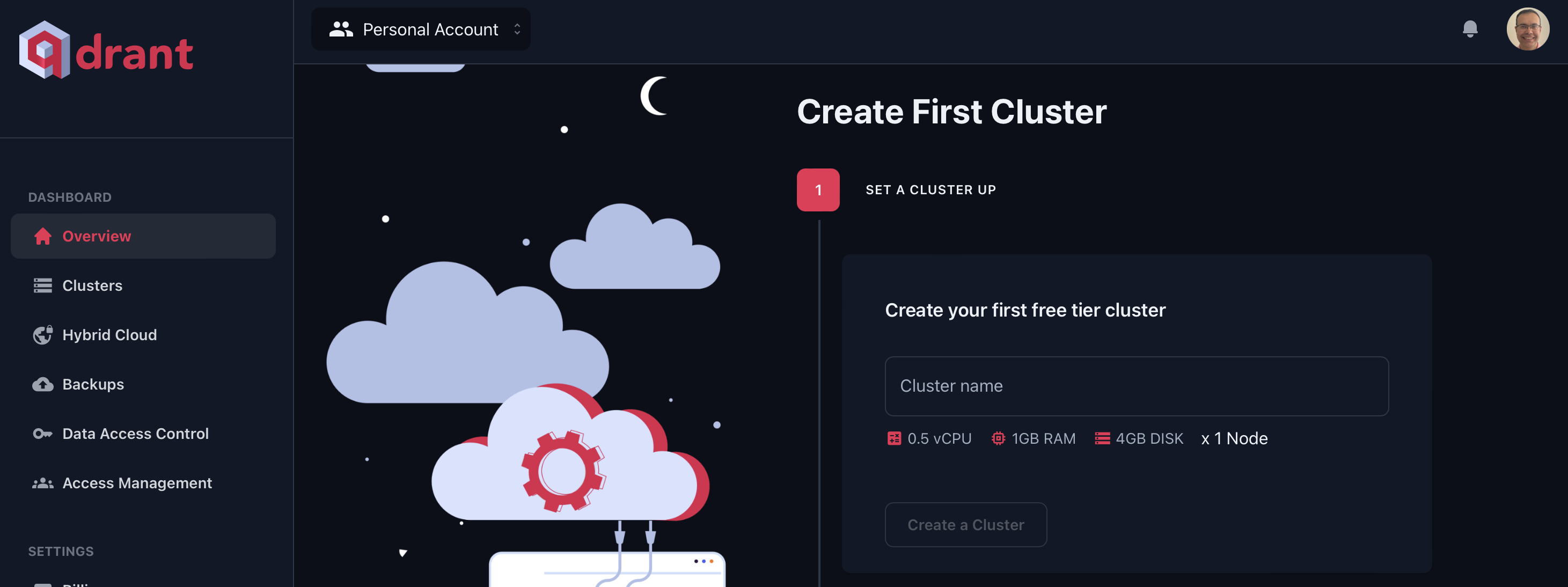
3. Pick a region close to your users or app.
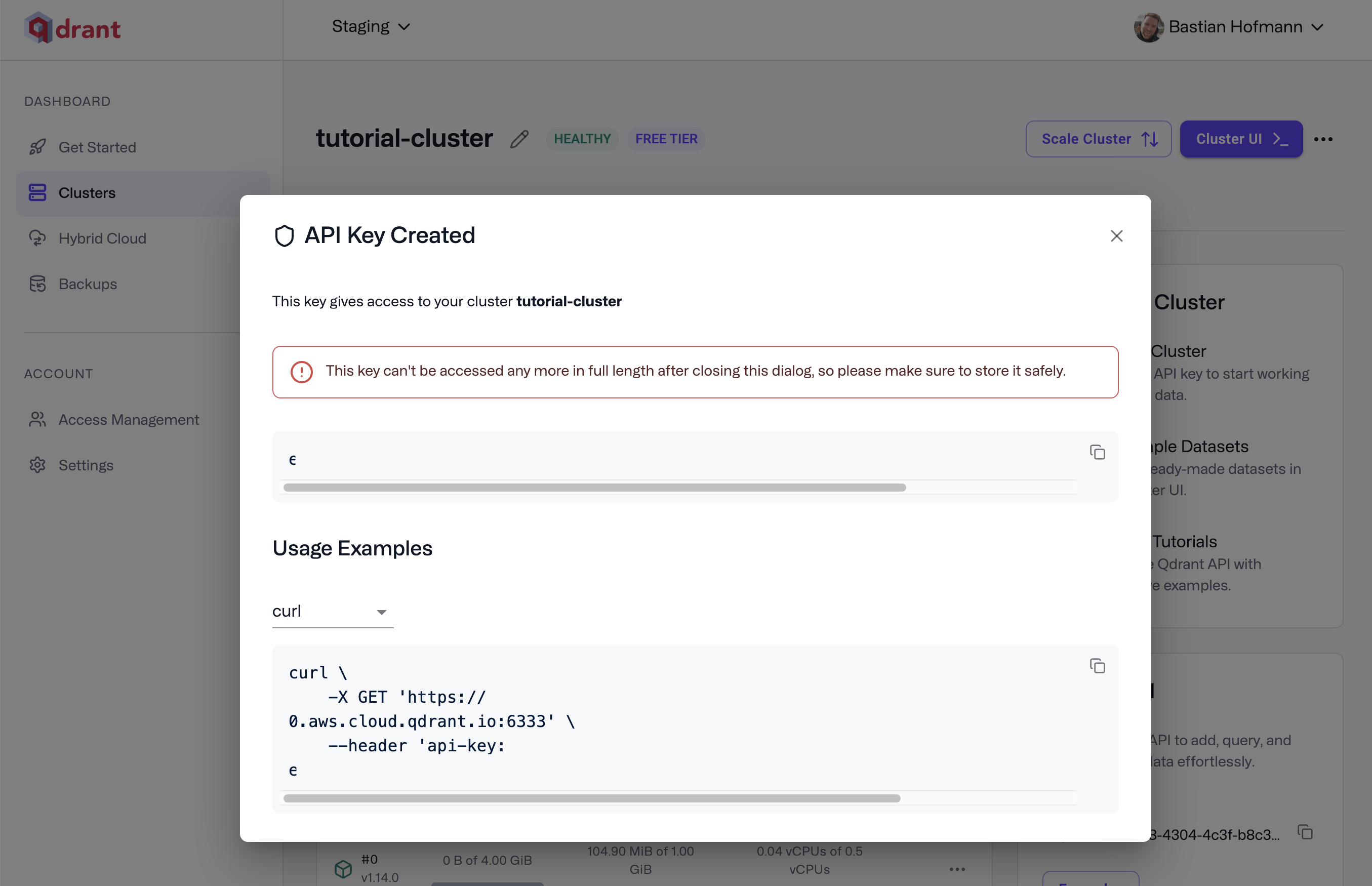
4. When the cluster is ready, copy the API key and store it securely. You can make new keys later from **API Keys** on the cluster page.
## Access the Web UI
1. Click **Cluster UI** in the top-right of the cluster page to open the dashboard.
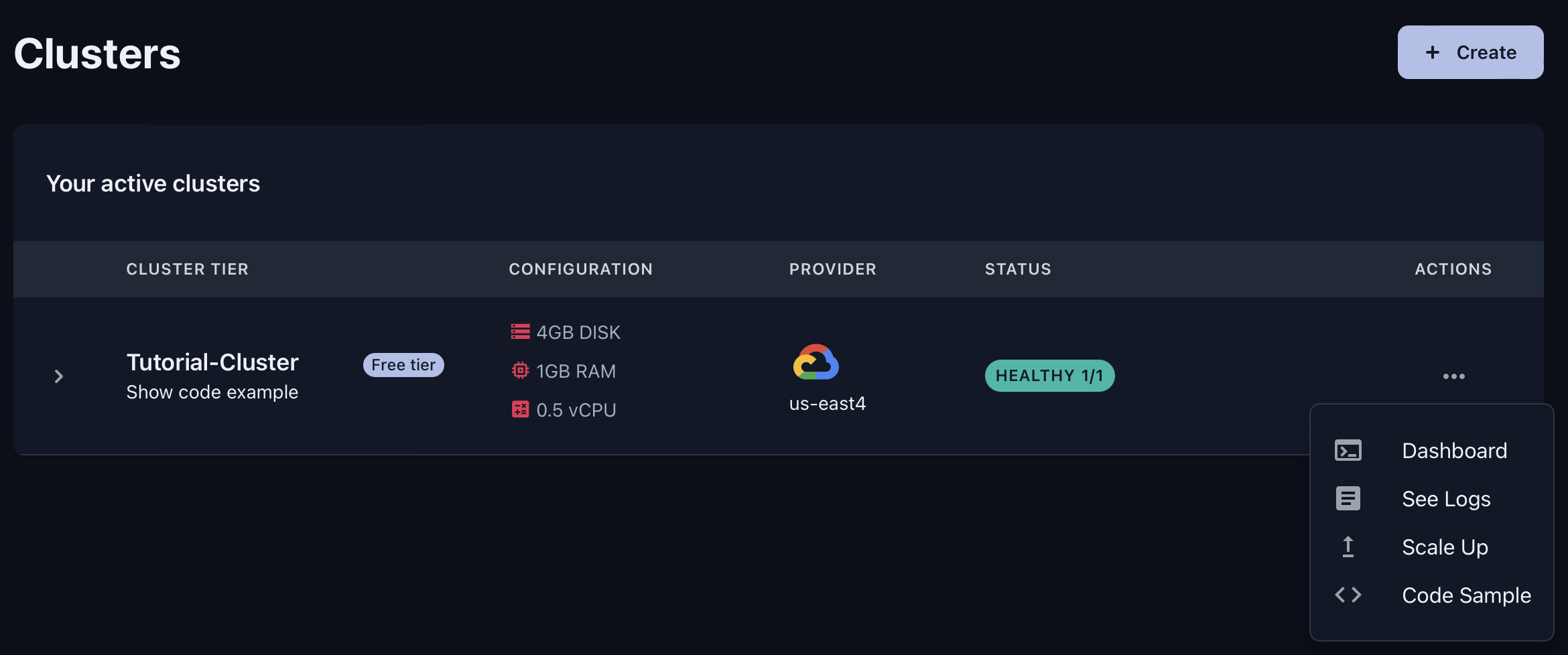
### What you can do in the Web UI
Use the Web UI to manage collections, inspect data, and debug search performance.
#### Main Navigation
**Console**: Run REST calls in the browser. Test endpoints, inspect responses, and debug queries without writing code. Handy for exploring the full API.
**Collections**: See and manage all collections. Create collections, upload snapshots, and track status, size, and configuration at a glance.
**Tutorial**: Follow an interactive walkthrough with sample data. Create a collection, add vectors, and run semantic search with live results.
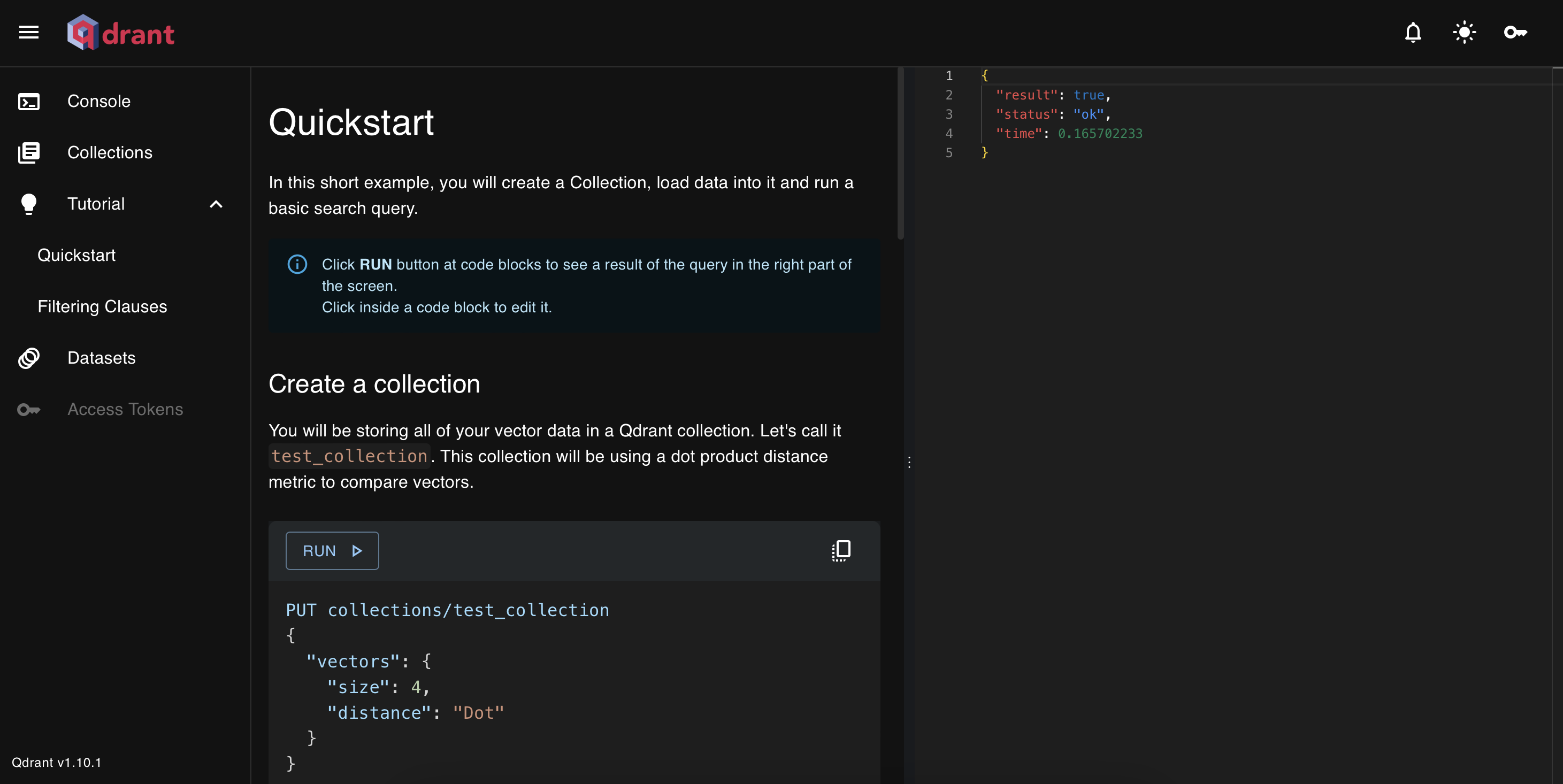
**Datasets**: Bulk-load preconfigured public datasets into your cluster.
#### Inside a Collection
When you open a collection by clicking it's name,
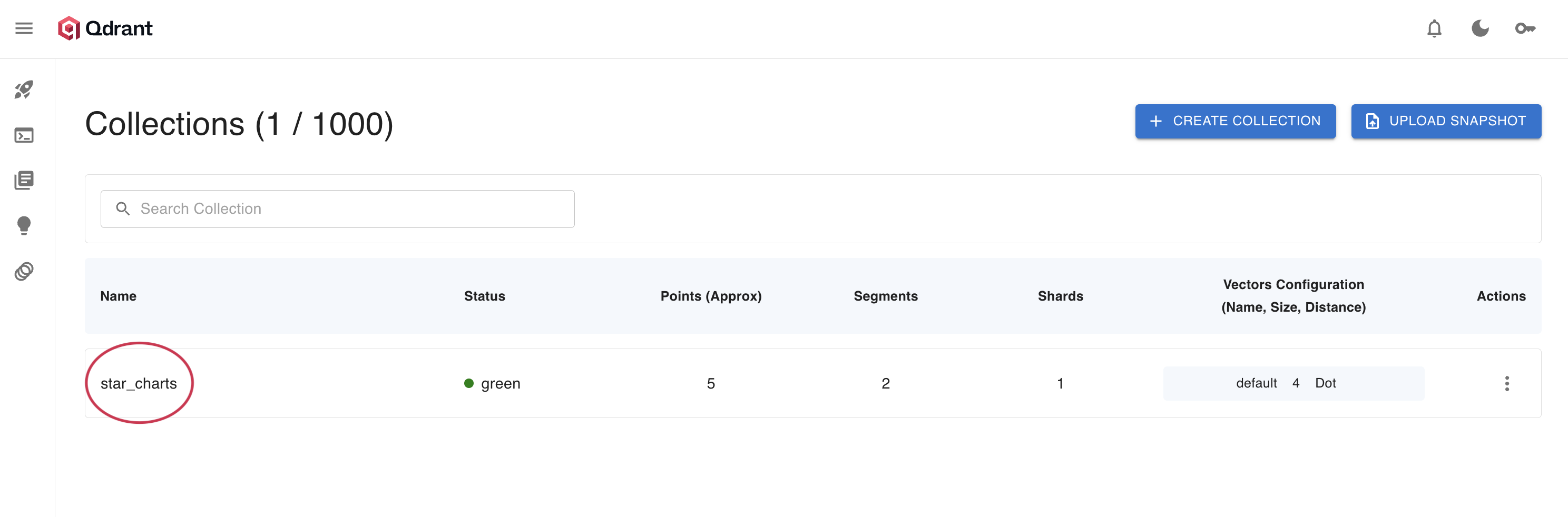
you’ll get a detailed view with these tabs:
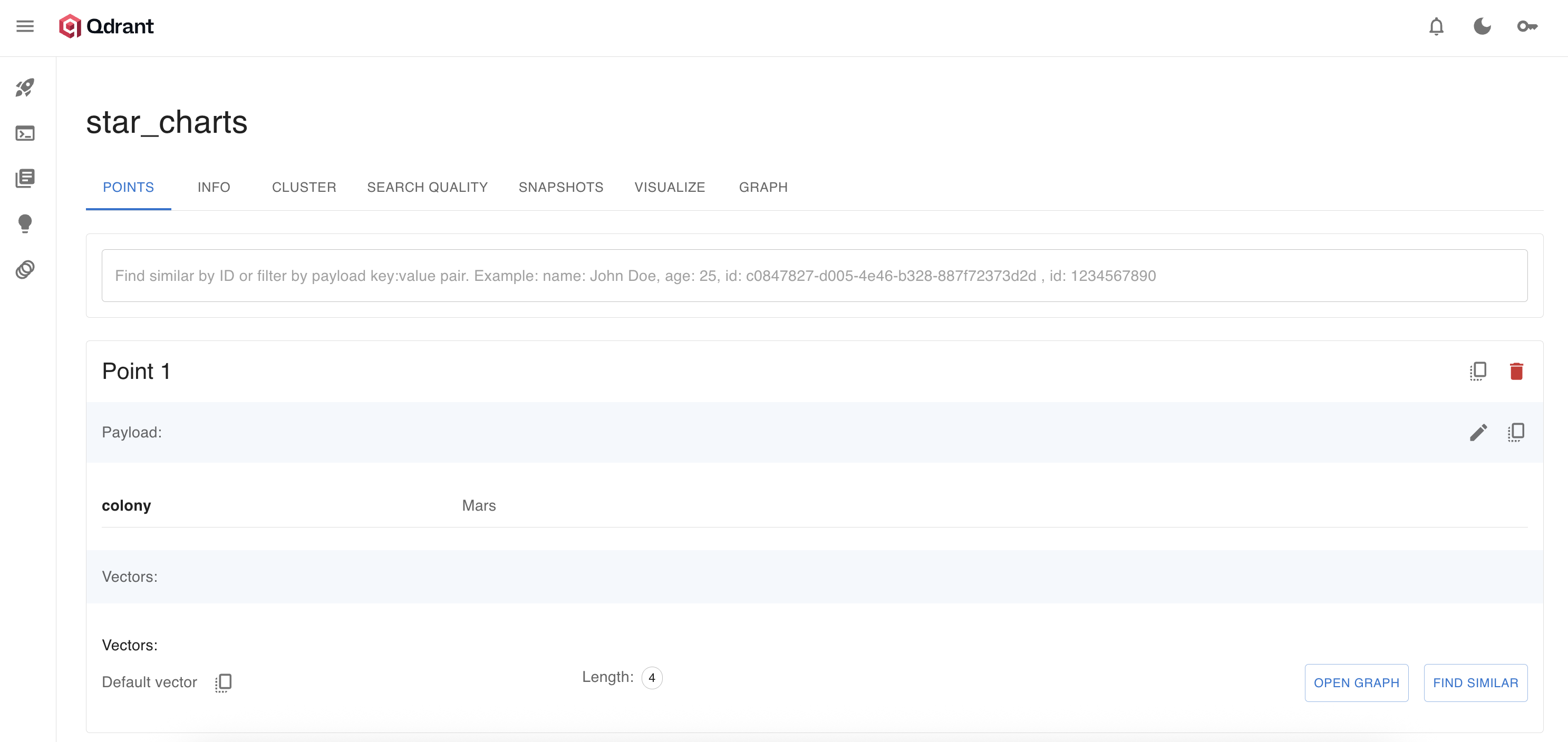
* **Points Tab**: Inspect, search, and manage individual points. Use the search bar to find by ID or filter by payload fields (e.g., `colony: "Mars"`). For each point, you can:
* See its payload and vector(s).
* Click **Find Similar** to run an ad-hoc similarity search.
* Click **Open Graph** to jump to a graph view of its HNSW connections.
* **Info Tab**: Get a full overview of collection health, config, and stats. Key fields:
* `status`: `green` means healthy.
* `points_count`: Number of active points.
* `indexed_vectors_count`: Points currently in the HNSW index. If this lags behind `points_count`, background indexing is still running.
* `config`: JSON view of all parameters, from vector settings to optimizer options.
* **Cluster Tab**: See how shards are placed across nodes. Use it to monitor health, find hot spots, and verify shard placement in distributed setups.
* **Search Quality Tab**: Evaluate and benchmark retrieval precision against ground truth. Tune parameters and measure the impact on accuracy.
* **Snapshots Tab**: Manage backups for this collection. Create a [snapshot](/documentation/operations/snapshots/index.md), restore it later, or migrate it to another cluster.
* **Visualize Tab**: Explore your vector space with an interactive 2D projection. See clusters, spot outliers, and build intuition about your embeddings.
* **Graph Tab**: Explore the HNSW graph interactively. Start from any point, follow nearest neighbors, and see how the graph structure powers fast search.
## Connect from Python
Store credentials in an `.env` file at the root of your working directory or in colab:
```env
QDRANT_URL=https://YOUR-CLUSTER.cloud.qdrant.io:6333
QDRANT_API_KEY=YOUR_API_KEY
```
Load the credentials from the environment and create a Qdrant client:
```python
from qdrant_client import QdrantClient, models
import os
client = QdrantClient(url=os.getenv("QDRANT_URL"), api_key=os.getenv("QDRANT_API_KEY"))
# For Colab:
# from google.colab import userdata
# client = QdrantClient(url=userdata.get("QDRANT_URL"), api_key=userdata.get("QDRANT_API_KEY"))
# Quick health check
collections = client.get_collections()
print(f"Connected to Qdrant Cloud: {len(collections.collections)} collections")
```
## Other ways to connect
You can also send your key in the `Authorization` header:
```bash
# Using api-key header
curl -X GET https://xyz-example.eu-central.aws.cloud.qdrant.io:6333/collections \
--header 'api-key: '
# Using Authorization header
curl -X GET https://xyz-example.eu-central.aws.cloud.qdrant.io:6333/collections \
--header 'Authorization: Bearer '
```
## Quick validation
Check basic connectivity:
```bash
# Service health
curl -s "$QDRANT_URL/healthz" -H "api-key: $QDRANT_API_KEY"
# List collections
curl -s "$QDRANT_URL/collections" -H "api-key: $QDRANT_API_KEY"
```
## Good practices
* Keep secrets out of code; use environment variables or a secret manager.
* Restrict access with IP allow-lists or private networking.
* Rotate API keys regularly from the cluster **Access** tab.
* Use HTTPS only; turn on RBAC and strict limits when exposing endpoints to untrusted clients.
## Common issues
* **Authentication error**: Recheck the API key and the `api-key` header.
* **Connection error**: Confirm cluster status and region URL; some corporate proxies block outbound TLS.
## Qdrant Cloud Inference
Qdrant Cloud also offers **[Cloud Inference](/cloud-inference/index.md)**—managed embedding generation for text and images. Skip running your own embedding models; create vectors in Qdrant Cloud and write them straight into your collections.
Cut steps from your pipeline: send raw text or images to Qdrant, get vectors and search results in one API call. This helps prototypes and production systems alike by ending the separate embedding-infrastructure layer.
Learn more: [Qdrant Cloud Inference](/documentation/cloud/inference/index.md)
 Day 0
Day 0