
Qdrant Cloud Billing & Payments
Qdrant database clusters in Qdrant Cloud are priced based on CPU, memory, and disk storage usage. To get a clearer idea for the pricing structure, based on the amounts of vectors you want to store, please use our Pricing Calculator.
What You Pay For
| Item | How it is billed |
|---|---|
| Cluster | CPU, memory, and disk. Free clusters need no credit card. Estimate with the Pricing Calculator |
| Multi-AZ clusters (Premium) | At a higher rate than single-AZ clusters, to cover the cost of traffic between zones |
| Backups | On AWS and GCP, backups are incremental, so each one stores only the data that changed since the previous one. On Azure, the cost is half of the disk usage when the backup was taken. See Backups |
| Paid inference models | Per 1,000,000 tokens that the model processes. Free models cost nothing. External providers bill you directly through your own API key. See Inference |
| Premium | Premium tier rates under a committed-spend contract with an annual minimum. See Premium Tier |
You can attach a label to a cluster and use it for cost attribution in consumption reports.
Billing
You can pay for your Qdrant Cloud database clusters either with a credit card or through an AWS, GCP, or Azure Marketplace subscription.
Your payment method is charged at the beginning of each month for the previous month’s usage. There is no difference in pricing between the different payment methods.
If a payment fails, your paid clusters can be suspended. See Cluster Suspensions.
If you choose to pay through a marketplace, the Qdrant Cloud usage costs are added as \$0.01 Resource Usage Units to your existing billing for your cloud provider services. E.g. if you create a Qdrant Cluster that costs \$85 in a month, 8,500 Resource Usage Units for Qdrant Cloud will be added to your cloud provider bill. A detailed breakdown of your usage is available in the Qdrant Cloud Console.
Note: Even if you pay using a marketplace subscription, your database clusters will still be deployed into Qdrant-owned infrastructure. The setup and management of Qdrant database clusters will also still be done via the Qdrant Cloud Console UI.
Note: If you choose to pay for your Qdrant Cloud clusters through a cloud provider marketplace, Qdrant Cluster creation is limited to paid clusters in regions of this cloud provider only. This is due to compliance requirements of the cloud provider. If you wish to run clusters in other regions or on other cloud providers, you can create additional accounts using a different payment method.
If you wish to deploy Qdrant database clusters into your own environment from Qdrant Cloud then we recommend our Hybrid Cloud solution.
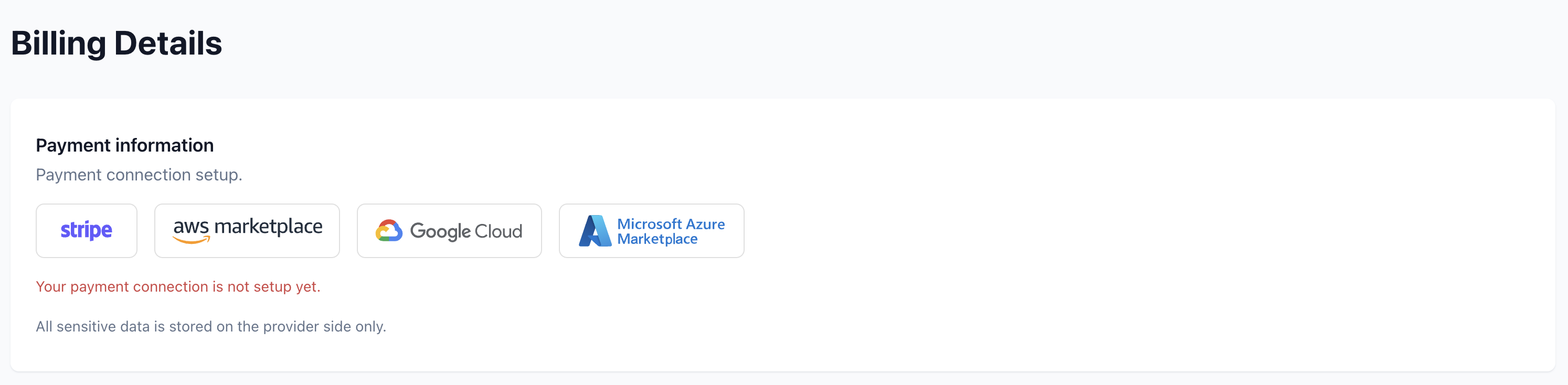
Credit Card
Credit card payments are processed through Stripe. To set up a credit card, go to the Billing Details screen in the Qdrant Cloud Console, select Credit Card as the payment method, and enter your credit card details.
AWS Marketplace
Our AWS Marketplace listing streamlines access to Qdrant for users who rely on Amazon Web Services for hosting and application development.
To subscribe:
- Go to Billing Details screen in the Qdrant Cloud Console
- Select AWS Marketplace as the payment method. You will be redirected to the AWS Marketplace listing for Qdrant.
- Click View purchase options.
- On the next screen, under Purchase, click Subscribe.
- Up top, on the green banner, click Set up your account.
You will be redirected to the Billing Details screen in the Qdrant Cloud Console. From there you can start to create Qdrant database clusters.
GCP Marketplace
Our GCP Marketplace listing streamlines access to Qdrant for users who rely on the Google Cloud Platform for hosting and application development.
To subscribe:
- Go to Billing Details screen in the Qdrant Cloud Console
- Select GCP Marketplace as the payment method. You will be redirected to the GCP Marketplace listing for Qdrant.
- Select Subscribe. (If you have already subscribed, select Manage on Provider.)
- On the next screen, choose options as required, and select Subscribe.
- On the pop-up window that appears, select Sign up with Qdrant.
You will be redirected to the Billing Details screen in the Qdrant Cloud Console. From there you can start to create Qdrant database clusters.
Azure Marketplace
Our Azure Marketplace listing streamlines access to Qdrant for users who rely on Microsoft Azure for hosting and application development.
To subscribe:
- Go to Billing Details screen in the Qdrant Cloud Console
- Select Azure Marketplace as the payment method. You will be redirected to the Azure Marketplace listing for Qdrant.
- Select Subscribe.
- On the next screen, choose options as required, and select Review + Subscribe.
- After reviewing all settings, select Subscribe.
- Once the SaaS subscription is created, select Configure account now.
You will be redirected to the Billing Details screen in the Qdrant Cloud Console. From there you can start to create Qdrant database clusters.
Cluster Suspensions
When a payment fails, it will be retried several times. If it still fails after the retries, you receive a suspension notice, and your clusters are suspended 48 hours later. If you don’t reactivate them, you get a deletion warning seven days after suspension. Clusters are deleted seven days after that.
Free clusters can also be suspended. A free cluster is suspended after one week without use. If you don’t reactivate it, it’s deleted three weeks after the suspension notice. Paid clusters are never suspended for inactivity.
A suspended cluster can’t serve requests. Its data is kept until the cluster is deleted, but scheduled backups don’t run. Once deleted, a cluster can’t be recovered.
Reactivate a Suspended Cluster
How you reactivate a cluster depends on why it was suspended.
Free Clusters
In the Qdrant Cloud Console, open the cluster and select Reactivate your cluster, or select Reactivate in the cluster list. You can also use the Cloud CLI (qcloud cluster unsuspend <CLUSTER_ID>) or the Cloud API (POST /clusters/<CLUSTER_ID>/unsuspend).
Paid Clusters
When Qdrant suspends your clusters for a failed payment, it removes the card on file. To reactivate your clusters:
- On the Billing Details screen in the Qdrant Cloud Console, add a credit card. Use a different card from the one that failed.
- In the cluster list, select Reactivate for each suspended cluster. Adding a card doesn’t automatically reactivate your clusters.
Qdrant charges the outstanding balance to the new card in its next daily billing run, so you don’t need to pay it separately. If that payment fails, your clusters can be suspended again.
If you pay through the AWS, GCP, or Azure Marketplace, the same timeline applies. To reactivate your clusters, switch to a different, valid payment method on the Billing Details screen, then reactivate each cluster. If reactivation still fails, contact Qdrant Support.
 Ready to try Qdrant?