
Your User Profile & Preferences
Your user profile holds personal, user-level settings that apply to you across every Qdrant Cloud account you belong to. These are separate from account settings, which apply to a single account and its resources.
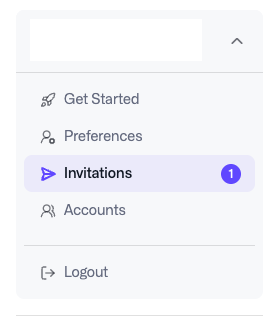
Open the user menu at the bottom left of the Qdrant Cloud Console to access:
- Get Started — the Explore Qdrant Cloud landing page. See Getting Started.
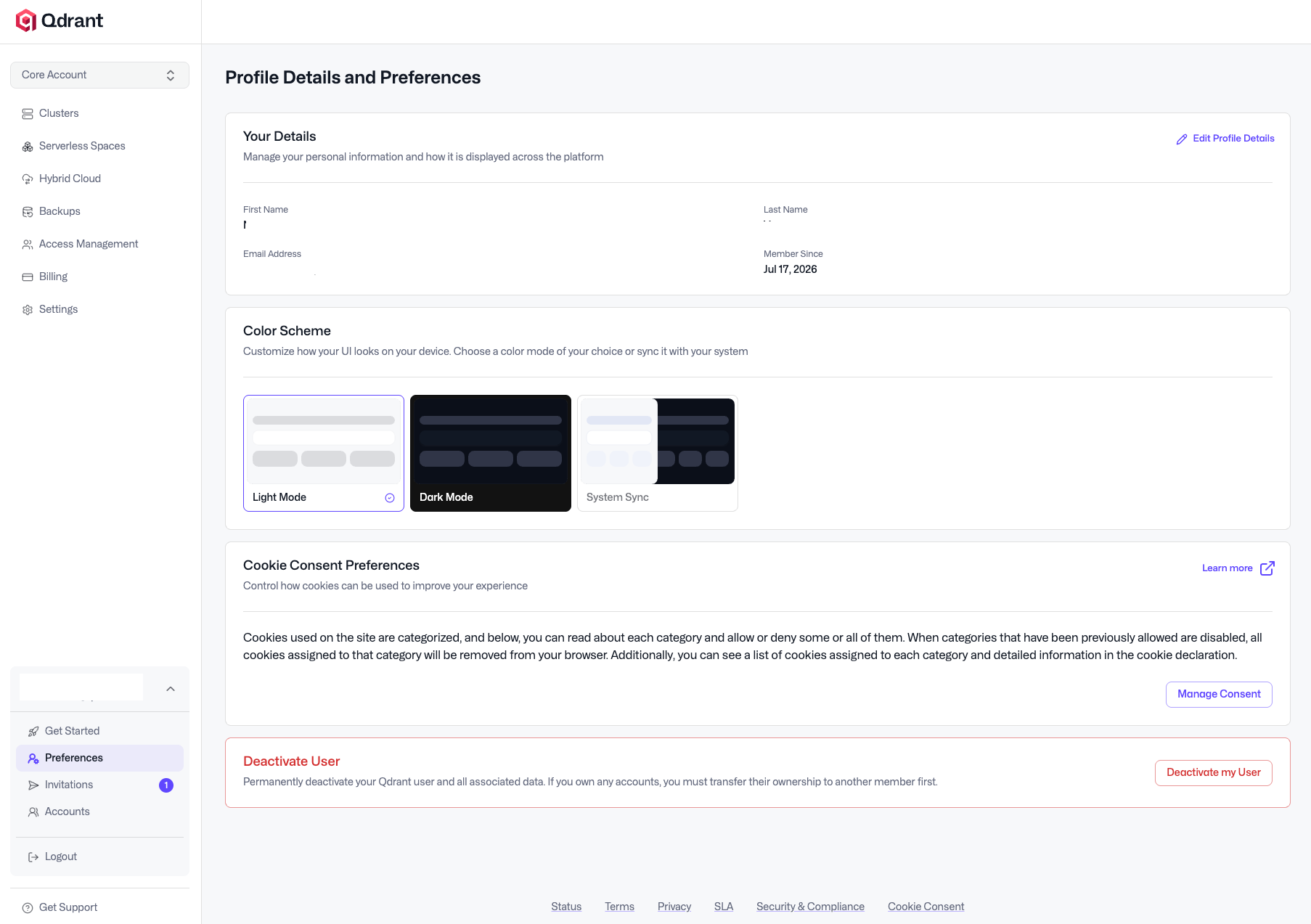
- Preferences — your profile details, color scheme, and cookie consent.
- Invitations — pending invitations to join other accounts.
- Security — secure your login with multi-factor authentication.
- Accounts — the accounts overview. See Managing Accounts.
- Logout.
Profile Details
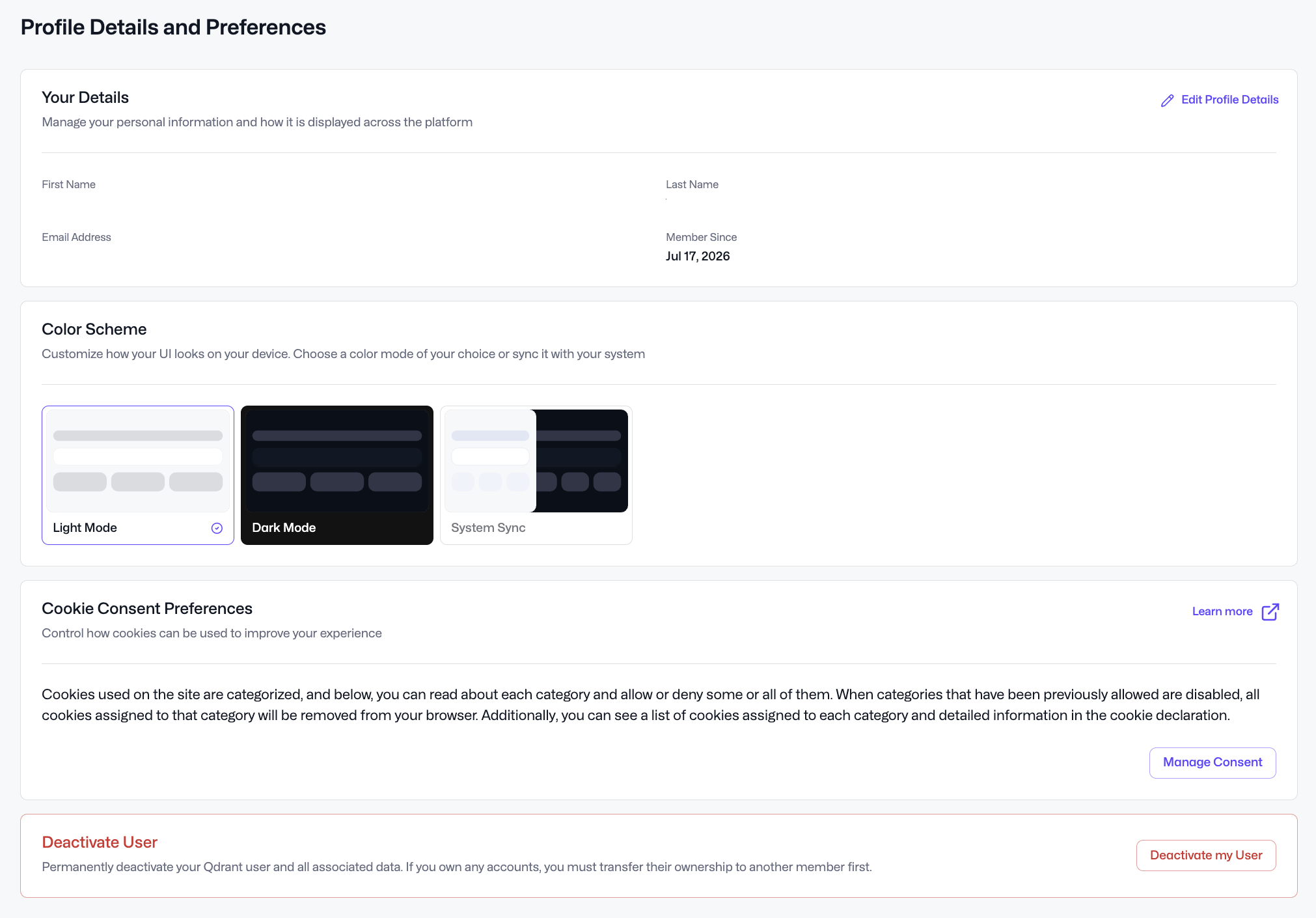
On the Preferences page, the Your details section shows your personal information — first name, last name, email address, and the date you became a member. Use Edit Profile Details to update how your name is displayed across the platform.
Color Scheme
The Qdrant Cloud Console supports light and dark appearances. Under Color Scheme on the Preferences page you can choose:
- Light Mode
- Dark Mode
- System Sync — follow your operating system’s appearance setting.
Your selection applies to the Console on your current device.
Cookie Consent Preferences
The Cookie Consent Preferences section lets you control how cookies are used. Cookies are grouped into categories that you can allow or deny individually. Disabling a previously allowed category removes its cookies from your browser. Use Manage Consent to review the categories and the detailed cookie declaration.
Invitations
When someone invites you to their account, the invitation appears on your Invitations page as a pending invitation, where you can accept it. Once accepted, the account becomes available in your account switcher.
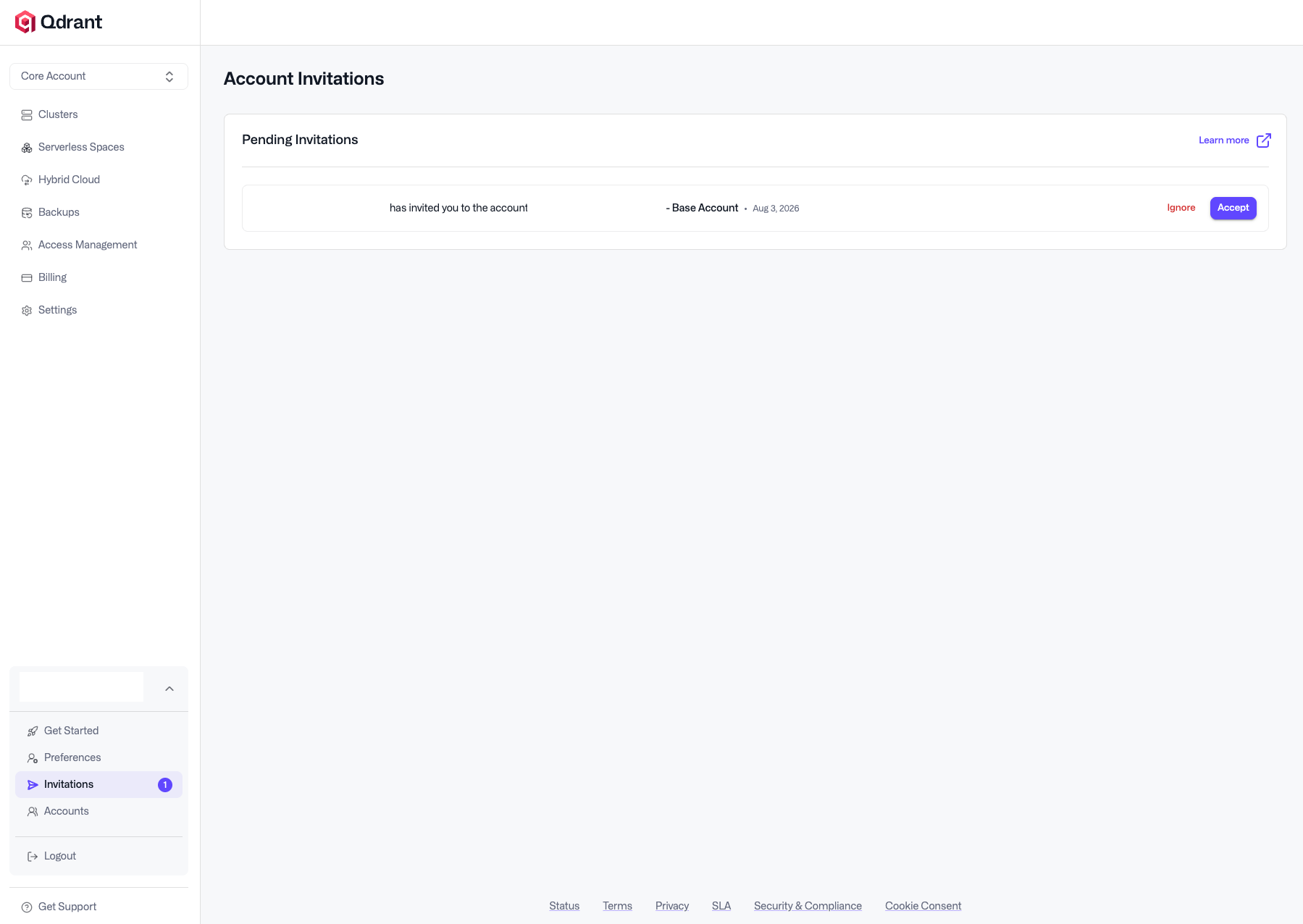
Note: This page is for invitations you have received. To invite other users to an account you manage, use the Access Management page instead. See Inviting Users to an Account.
Security
Use the Security page to protect your login with multi-factor authentication (MFA). Like the rest of your profile, MFA is a personal setting. It applies to your user wherever you sign in, across every account you belong to.
MFA is optional. Until you set up a method, your login works the same as before. Once you enable a method, Qdrant Cloud asks you to complete it every time you log in.
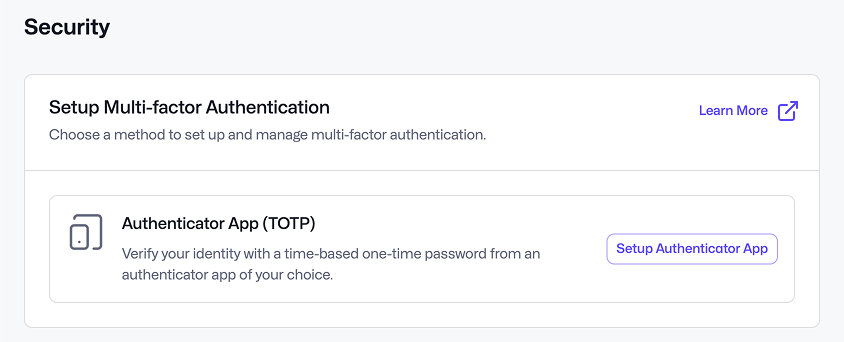
Qdrant Cloud currently supports one MFA method: an authenticator app that generates one-time codes. You can use any authenticator app you like.
Authenticator App
To set up an authenticator app:
- Select Set Up Authenticator App.
- Scan the QR code with your authenticator app.
- Enter the code your app generates to confirm the setup.
Qdrant Cloud then shows you a recovery code. Use it to log in if you lose access to your authenticator app. The code is shown only once, so store it somewhere safe, such as a password manager.
After setup, the method shows as Enabled, and two actions become available:
- Regenerate Recovery Code: Invalidates your current recovery code. You’re asked to log in again, and Qdrant Cloud then issues a new code.
- Disable: Removes the authenticator app and its recovery code from your user. You’re no longer asked for a code when you log in.
Delete User
Use Delete User on the Preferences page to permanently delete your Qdrant user and all associated data. A deleted user cannot be restored.
- No accounts: you are asked to type your email address to confirm the deletion.
- Owner of one or more accounts: for each account you own, choose to transfer its ownership to another member or delete it. Then type your email address to confirm.
- Member of other accounts: you leave those accounts automatically when your user is deleted. You are still asked to type your email address to confirm.
 Ready to try Qdrant?