
Connecting to Qdrant Cloud Clusters
Once you have created a cluster and an API key, you can reach it through the REST API, the gRPC API, or the integrated Cluster UI.
Endpoints and Ports
Each cluster has one cluster endpoint, shown on the Cluster Detail page. It has the form:
<cluster-id>.<region>.<provider>.cloud.qdrant.io
| Protocol | URL | Port |
|---|---|---|
| REST | https://<endpoint> | 6333 or 443 |
| gRPC | <endpoint> with TLS enabled | 6334 |
Always use TLS. In the official clients, enable it with the https option (https: true in .NET, UseTLS: true in Go, true in the Java QdrantGrpcClient builder) or an https:// URL. Pass the API key with every request. See Authenticate With a Key for samples in every language.
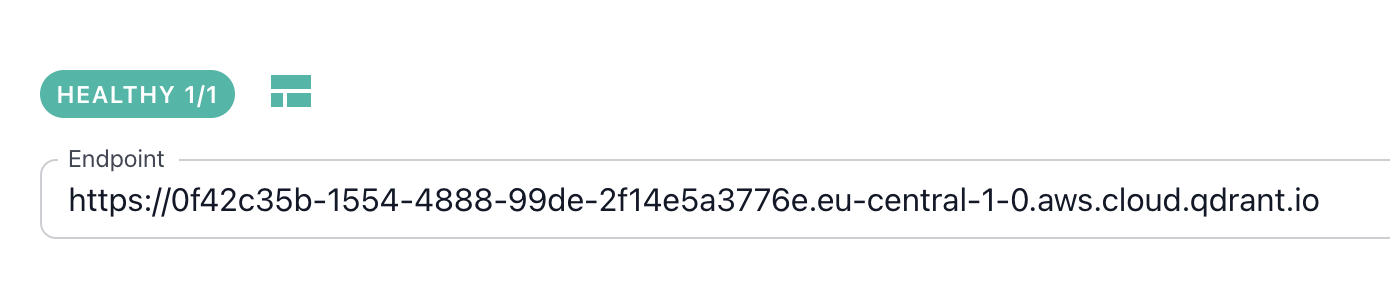
Traffic to the cluster endpoint is load balanced across all healthy nodes, and every node can handle every search and write request. It does not matter which node you land on.
Node-Specific Endpoints
Each node also has its own endpoint, formed by prefixing the cluster endpoint with node-<N>-, starting at node-0-. You can copy them from the Cluster Detail page.
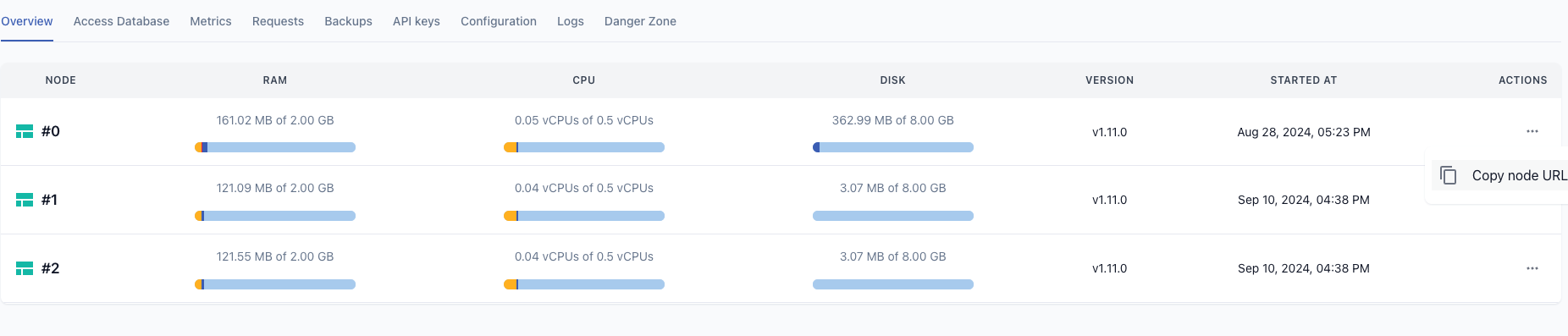
Use the cluster endpoint for everything except the operations that must reach a specific node:
| Operation | Endpoint |
|---|---|
Search, upserts, collection management, /telemetry | Cluster endpoint |
/sys_metrics | Cluster endpoint, queried once per cluster |
/metrics | Each node endpoint, so that you scrape every node. See Monitoring |
| Snapshots on a multi-node cluster | Each node endpoint. See Backups |
| Audit log download | A node endpoint. See Audit Logging |
| Manual shard management | Node endpoints |
Cluster UI
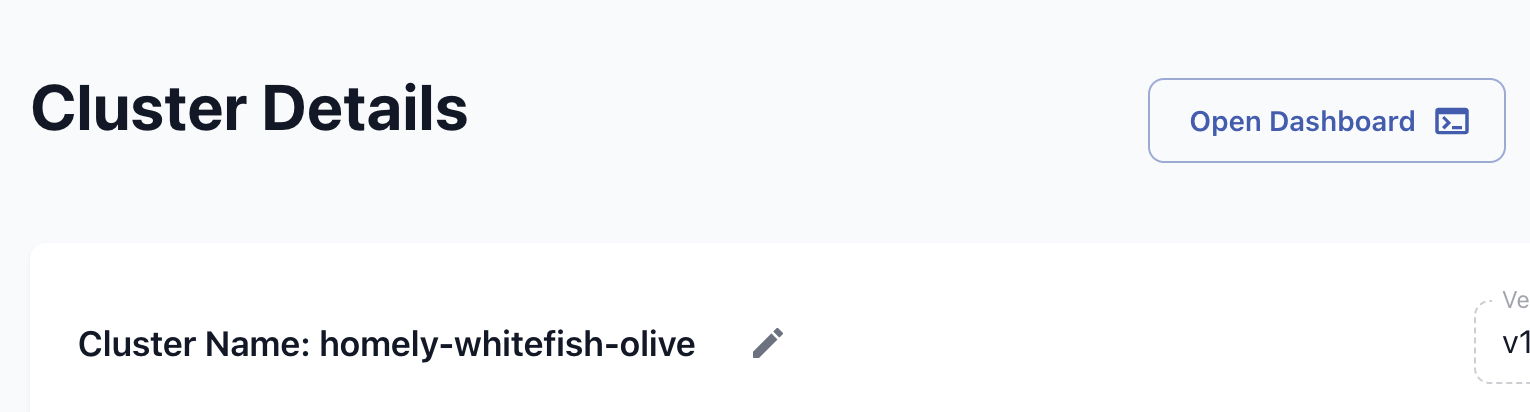
Open the Cluster UI from the Cluster Details page in the Qdrant Cloud Console. Authentication is automatic if your Cloud user has the read:cluster_data or write:cluster_data permission. Without the correct permissions, the UI prompts you for an API key.
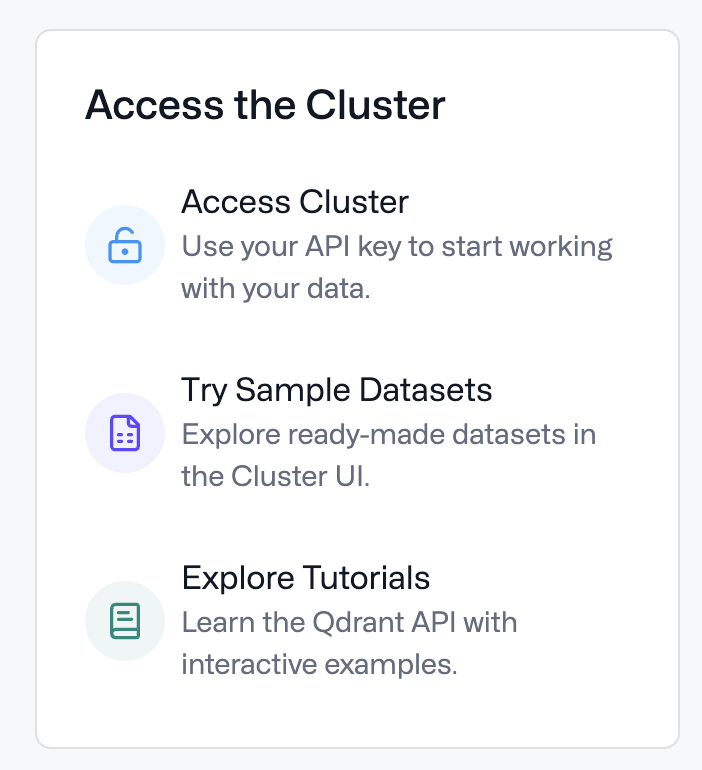
The Overview tab also contains direct links to explore Qdrant tutorials and sample datasets.
Restrict Access by IP Range
By default, any client that holds a valid key can connect from any network. To allow only trusted networks, set Client IP Restrictions in the cluster configuration on the Cluster Detail page. Only the ranges you list can reach the cluster. See Client IP Restrictions for the setting.
For traffic that never crosses the public internet, Premium clusters support private network connectivity.
Troubleshooting Connections
| Symptom | Check |
|---|---|
| The request times out or the connection is refused | The port matches the protocol (6333 or 443 for REST, 6334 for gRPC). Your client’s network is inside the allowed IP ranges. |
| gRPC fails to connect but REST works | TLS is enabled on the gRPC client, and the port is 6334. |
401 Unauthorized | The request carries a key. The key is a complete Database API key for this cluster, not a Cloud Management Key. |
403 Forbidden | The key has not expired. Its permission covers the operation and the collection. A key created moments ago can return 403, so retry. |
For the exact error messages, see Troubleshooting.
 Ready to try Qdrant?