# Create a Cluster
# Creating a Qdrant Cluster in Hybrid Cloud
Once a Hybrid Cloud Environment has been created you can follow the normal process to [create a Qdrant cluster](/documentation/cloud/create-cluster/index.md) in that environment. This page also contains additional information on how to create a [production-ready cluster](/documentation/cloud/create-cluster/index.md#creating-a-production-ready-cluster).
Make sure to select your Hybrid Cloud Environment as the target.
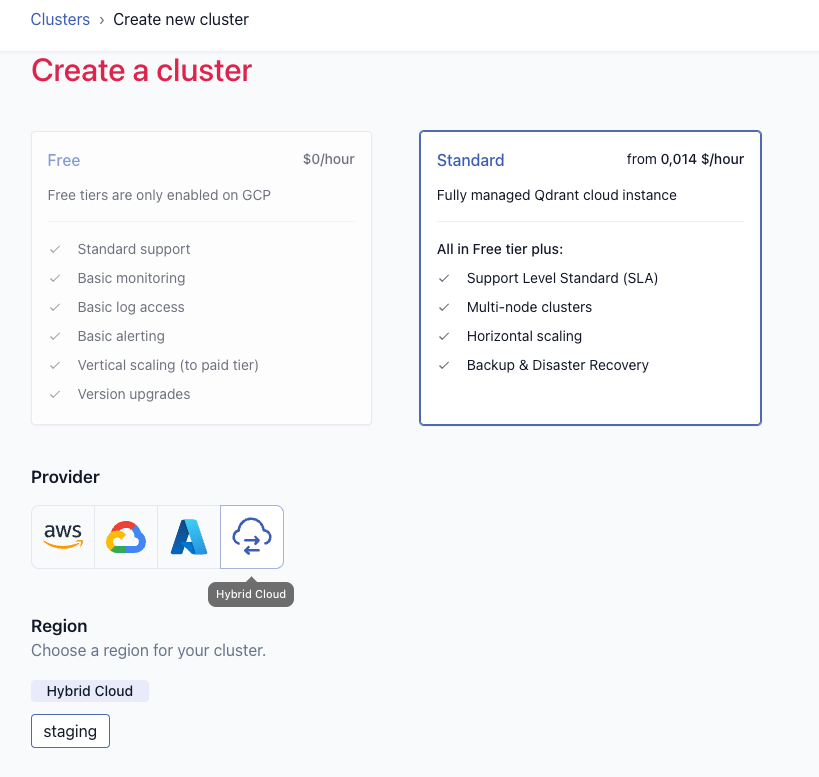
Note that in the "Kubernetes Configuration" section you can additionally configure:
* NodeSelectors for the Qdrant database pods
* Toleration for the Qdrant database pods
* TopologySpreadConstraints for the Qdrant database pods
* Additional labels for the Qdrant database pods
* A service type and annotations for the Qdrant database service
These settings can also be changed after the cluster is created on the cluster detail page.
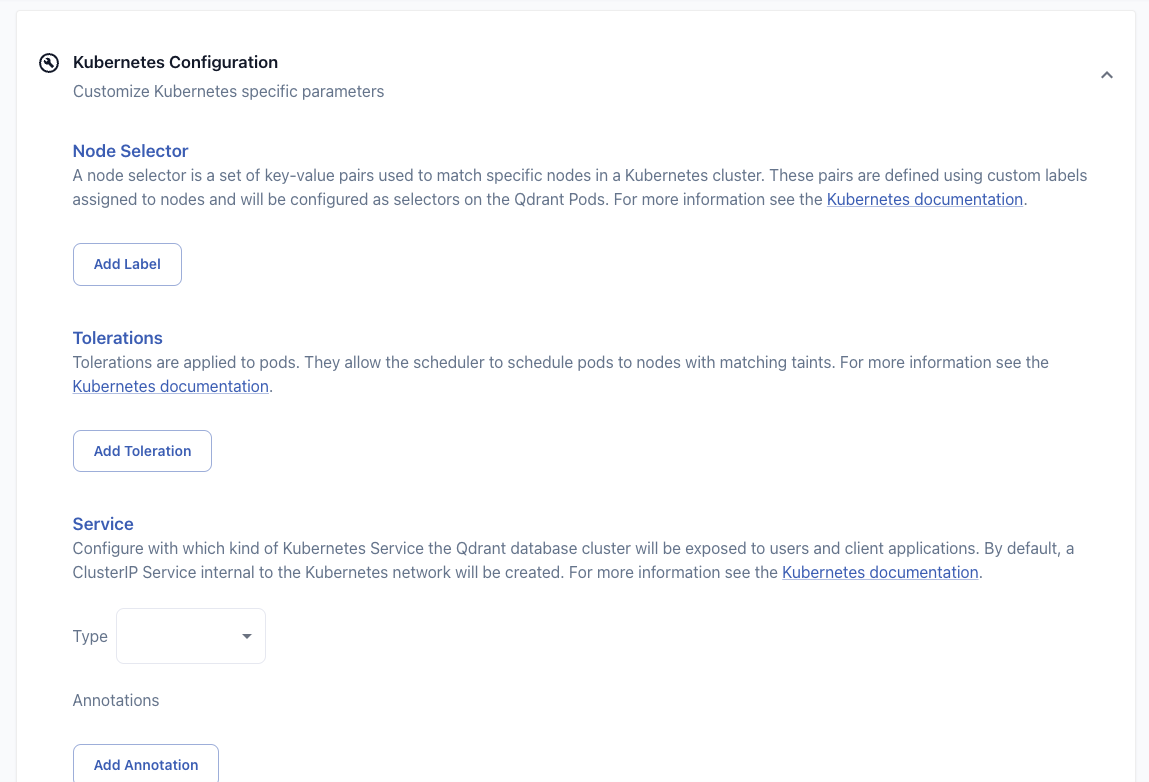
### Scheduling Configuration
When creating or editing a cluster, you can configure Pod to node scheduling for your Kubernetes cluster. This can be useful to ensure that the Qdrant databases will run on dedicated nodes. You can configure the necessary nodeSelectors and tolerations and topologySpreadConstraints in the "Kubernetes Configuration" section during cluster creation, or on the cluster detail page. For more information see [Scheduling Pods to Nodes](https://kubernetes.io/docs/concepts/scheduling-eviction/assign-pod-node/).
### Authentication to your Qdrant Clusters
In Hybrid Cloud the authentication information is provided by Kubernetes secrets.
You can configure authentication for your Qdrant clusters in the "Configuration" section of the Qdrant Cluster detail page. There you can configure the Kubernetes secret name and key to be used as an API key and/or read-only API key.
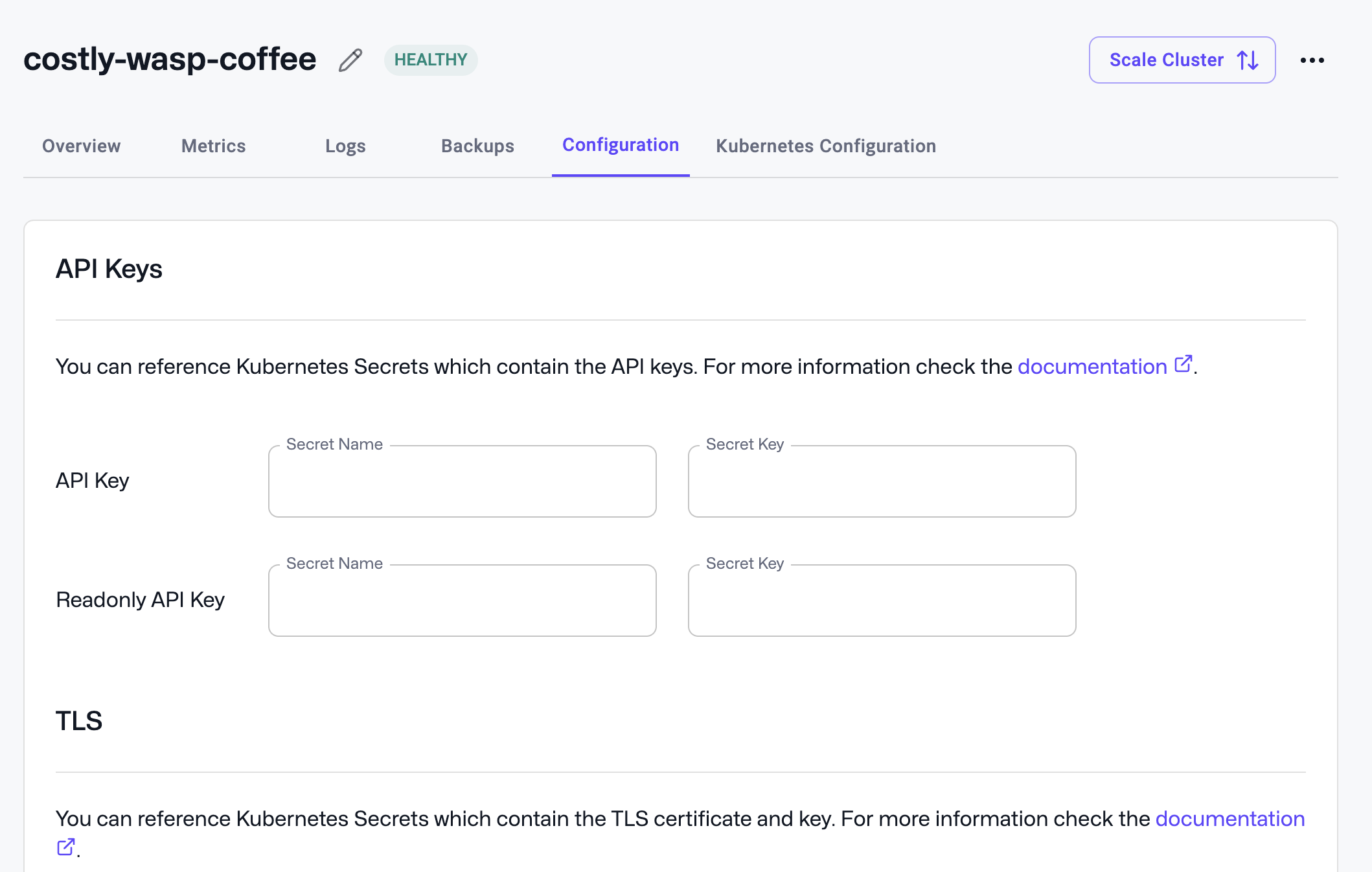
One way to create a secret is with kubectl:
```shell
kubectl create secret generic qdrant-api-key --from-literal=api-key=your-secret-api-key --namespace the-qdrant-namespace
```
The resulting secret will look like this:
```yaml
apiVersion: v1
data:
api-key: ...
kind: Secret
metadata:
name: qdrant-api-key
namespace: the-qdrant-namespace
type: kubernetes.io/generic
```
With this command the secret name would be `qdrant-api-key` and the key would be `api-key`.
If you want to retrieve the secret again, you can also use `kubectl`:
```shell
kubectl get secret qdrant-api-key -o jsonpath="{.data.api-key}" --namespace the-qdrant-namespace | base64 --decode
```
After configuring the API key secret, you can create JWTs with granular access control in the Qdrant Cluster UI. Please refer to the [Granular access control with JWT](/documentation/operations/security/index.md#granular-access-control-with-jwt) documentation for more details.
#### Watch the Video
In this tutorial, we walk you through the steps to expose your Qdrant database cluster running on Qdrant Hybrid Cloud to external applications or users outside your Kubernetes cluster. Learn how to configure TLS certificates for secure communication, set up authentication, and explore different methods like load balancers, ingress, and port configurations.
### Exposing Qdrant clusters to your client applications
You can expose your Qdrant clusters to your client applications using Kubernetes services and ingresses. By default, a `ClusterIP` service is created for each Qdrant cluster.
Within your Kubernetes cluster, you can access the Qdrant cluster using the service name and port:
```
http://qdrant-9a9f48c7-bb90-4fb2-816f-418a46a74b24.qdrant-namespace.svc:6333
```
This endpoint is also visible on the cluster detail page.
If you want to access the database from your local developer machine, you can use `kubectl port-forward` to forward the service port to your local machine:
```shell
kubectl --namespace your-qdrant-namespace port-forward service/qdrant-9a9f48c7-bb90-4fb2-816f-418a46a74b24 6333:6333
```
You can also expose the database outside the Kubernetes cluster with a `LoadBalancer` (if supported in your Kubernetes environment) or `NodePort` service or an ingress.
The service type and necessary annotations can be configured in the "Kubernetes Configuration" section during cluster creation, or on the cluster detail page.
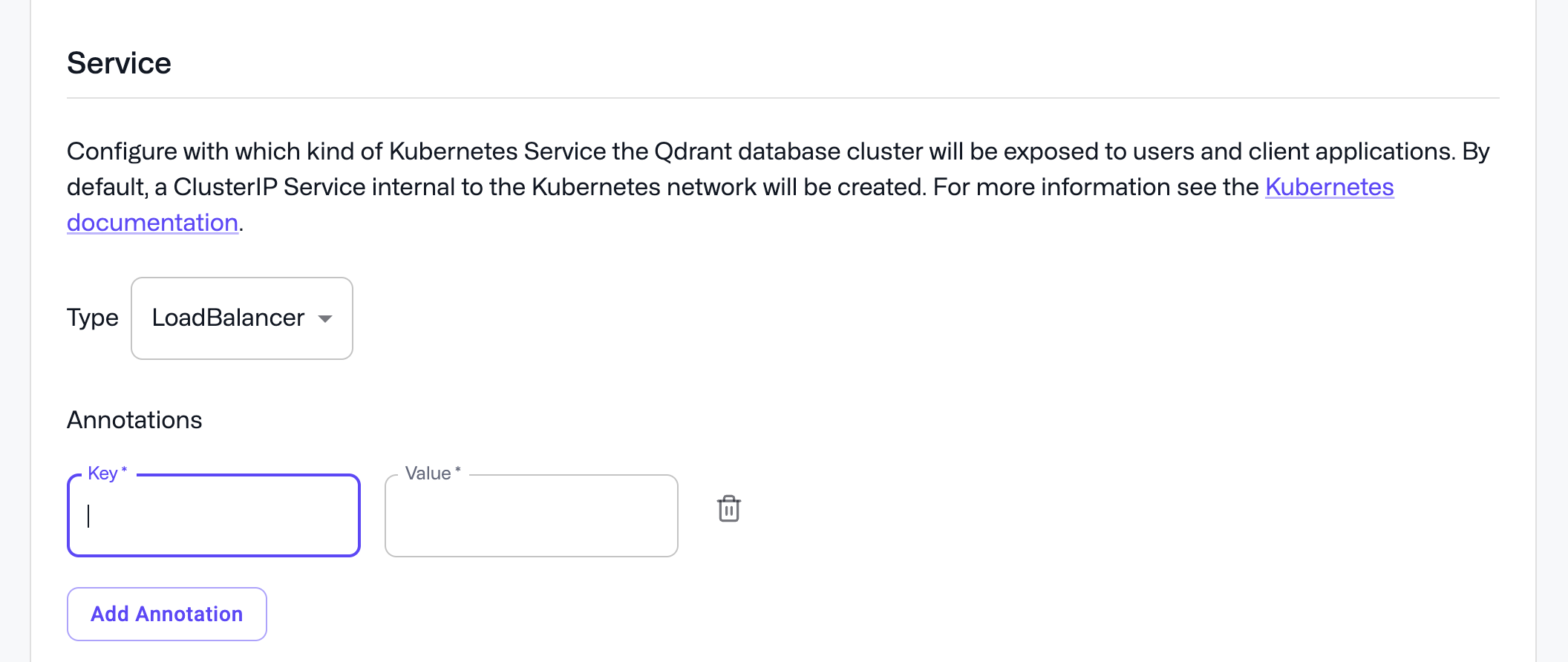
Especially if you create a LoadBalancer Service, you may need to provide annotations for the loadbalancer configration. Please refer to the documention of your cloud provider for more details.
Examples:
* [AWS EKS LoadBalancer annotations](https://kubernetes-sigs.github.io/aws-load-balancer-controller/latest/guide/service/annotations/)
* [Azure AKS Public LoadBalancer annotations](https://learn.microsoft.com/en-us/azure/aks/load-balancer-standard)
* [Azure AKS Internal LoadBalancer annotations](https://learn.microsoft.com/en-us/azure/aks/internal-lb)
* [GCP GKE LoadBalancer annotations](https://cloud.google.com/kubernetes-engine/docs/concepts/service-load-balancer-parameters)
You could also create a Loadbalancer service manually like this:
```yaml
apiVersion: v1
kind: Service
metadata:
name: qdrant-9a9f48c7-bb90-4fb2-816f-418a46a74b24-lb
namespace: qdrant-namespace
spec:
type: LoadBalancer
ports:
- name: http
port: 6333
- name: grpc
port: 6334
selector:
app: qdrant
cluster-id: 9a9f48c7-bb90-4fb2-816f-418a46a74b24
```
An ingress could look like this:
```yaml
apiVersion: networking.k8s.io/v1
kind: Ingress
metadata:
name: qdrant-9a9f48c7-bb90-4fb2-816f-418a46a74b24
namespace: qdrant-namespace
spec:
rules:
- host: qdrant-9a9f48c7-bb90-4fb2-816f-418a46a74b24.your-domain.com
http:
paths:
- path: /
pathType: Prefix
backend:
service:
name: qdrant-9a9f48c7-bb90-4fb2-816f-418a46a74b24
port:
number: 6333
```
Please refer to the Kubernetes, ingress controller and cloud provider documentation for more details.
If you expose the database like this, you will be able to see this also reflected as an endpoint on the cluster detail page. And will see the Qdrant database dashboard link pointing to it.
### Configuring TLS
If you want to configure TLS for accessing your Qdrant database in Hybrid Cloud, there are two options:
* You can offload TLS at the ingress or loadbalancer level.
* You can configure TLS directly in the Qdrant database.
If you want to offload TLS at the ingress or loadbancer level, please refer to their respective documents.
If you want to configure TLS directly in the Qdrant database, you can reference a secret containing the TLS certificate and key in the "Configuration" section of the Qdrant Cluster detail page.
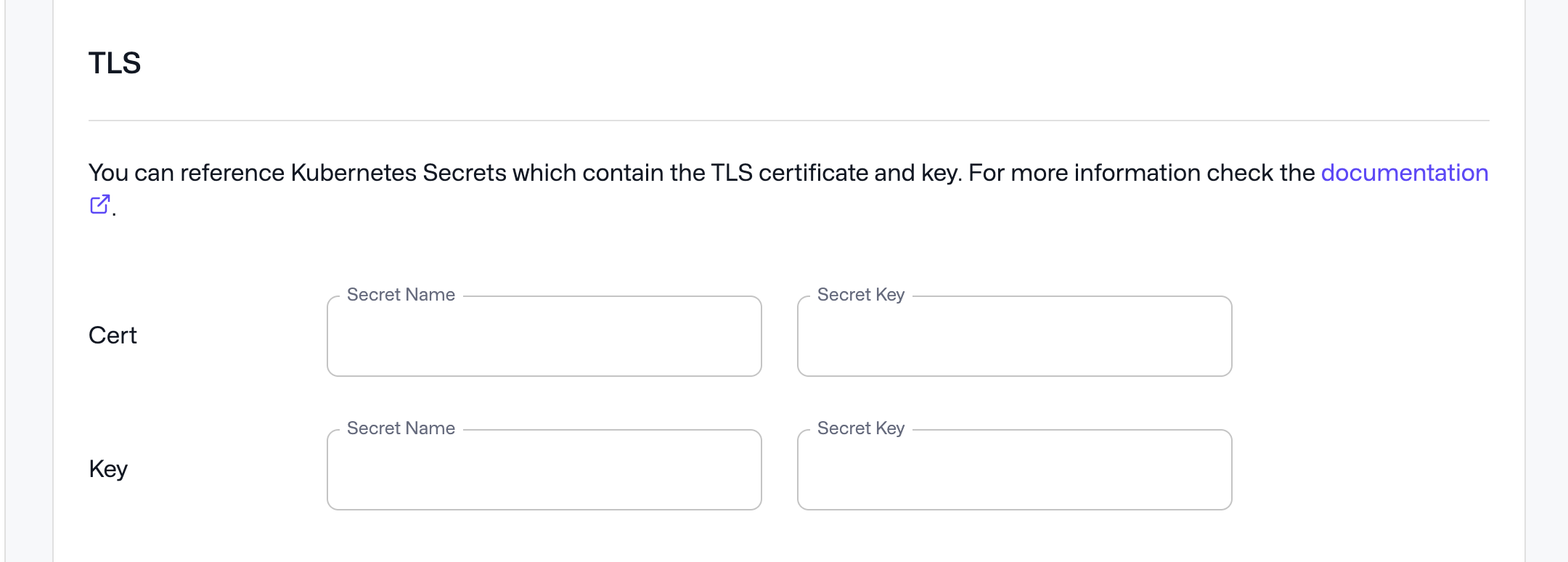
To create such a secret, you can use `kubectl`:
```shell
kubectl create secret tls qdrant-tls --cert=mydomain.com.crt --key=mydomain.com.key --namespace the-qdrant-namespace
```
The resulting secret will look like this:
```yaml
apiVersion: v1
data:
tls.crt: ...
tls.key: ...
kind: Secret
metadata:
name: qdrant-tls
namespace: the-qdrant-namespace
type: kubernetes.io/tls
```
With this command the secret name to enter into the UI would be `qdrant-tls` and the keys would be `tls.crt` and `tls.key`.
### Configuring CPU and memory resource reservations
When creating a Qdrant database cluster, Qdrant Cloud schedules Pods with specific CPU and memory requests and limits to ensure optimal performance. It will use equal requests and limits for stability. Ideally, Kubernetes nodes should match the Pod size, with one database Pod per VM.
By default, Qdrant Cloud will reserve 20% of available CPU and memory on each Pod. This is done to leave room for the operating system, Kubernetes, and system components. This conservative default may need adjustment depending on node size, whereby smaller nodes might require more, and larger nodes less resources reserved.
You can modify this reservation in the “Configuration” section of the Qdrant Cluster detail page.
If you want to check how much resources are available on an empty Kubernetes node, you can use the following command:
```shell
kubectl describe node
```
This will give you a breakdown of the available resources to Kubernetes and how much is already reserved and used for system Pods.