
Optimizer
It is much more efficient to apply changes in batches than perform each change individually, as many other databases do. Qdrant here is no exception. Since Qdrant operates with data structures that are not always easy to change, it is sometimes necessary to rebuild those structures completely.
Storage optimization in Qdrant occurs at the segment level (see storage). In this case, the segment to be optimized remains readable for the time of the rebuild.
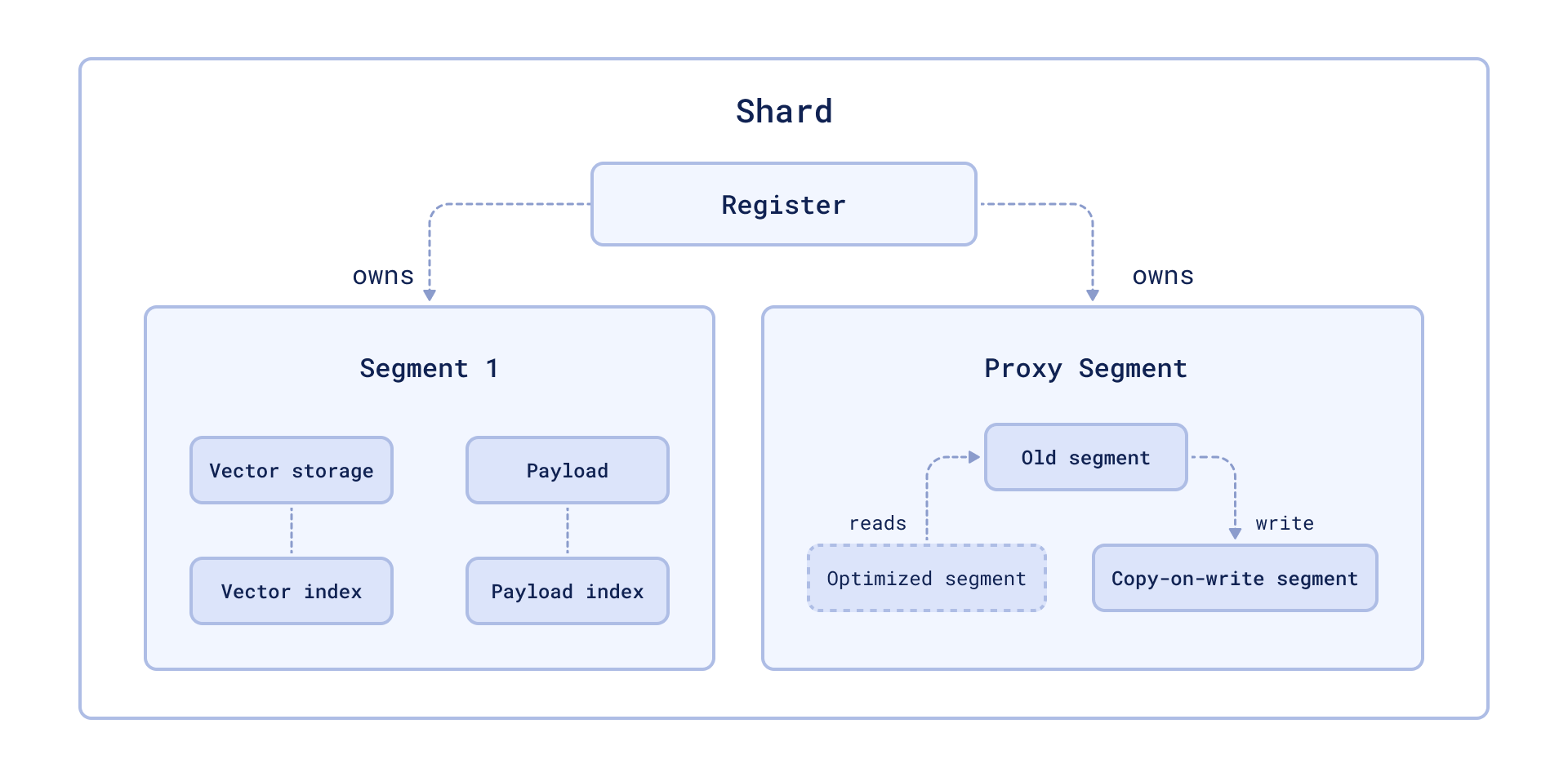
The availability is achieved by wrapping the segment into a proxy that transparently handles data changes. Changed data is placed in the copy-on-write segment, which has priority for retrieval and subsequent updates.
Vacuum Optimizer
The Vacuum Optimizer helps manage storage by handling deleted records. When a record is deleted, it isn’t removed right away but marked as deleted to avoid slow disk operations during queries. While this improves performance, over time, these marked records can build up, wasting memory and slowing down the system.
The Vacuum Optimizer solves this problem by permanently removing marked records and reorganizing storage. This cleanup saves memory and keeps the system running smoothly, especially when large amounts of deleted data build up in the database.
The criteria for starting the optimizer are defined in the configuration file. Two key parameters control its behavior:
storage:
  optimizers:
    # The minimal fraction of deleted vectors in a segment, required to perform segment optimization
    deleted_threshold: 0.2
    # The minimal number of vectors in a segment, required to perform segment optimization
    vacuum_min_vector_number: 1000
deleted_thresholdsets the minimum fraction of deleted records in a segment required to initiate optimization. For example, a value of 0.2 means that 20% of a segment’s records must be marked as deleted for the optimizer to consider running.vacuum_min_vector_numberspecifies the minimum number of vectors a segment must contain to qualify for optimization. For instance, a value of 1000 ensures that only segments with at least 1,000 vectors are optimized.
When these criteria are met, the Optimizer processes the segment by removing deleted records and reorganizing the data to improve efficiency. This process not only enhances the database’s query performance but also reduces memory usage by eliminating redundant data.
Merge Optimizer
Qdrant uses the Merge Optimizer to manage the number of segments in its storage system, ensuring efficient data organization and query performance. Temporary segments may be created during processes like optimization, such as copy-on-write segments, which help facilitate operations.
Qdrant requires at least one small segment to handle frequently updated data efficiently. However, having too many small segments can harm search performance. To address this, the Merge Optimizer works to reduce the number of segments when there are more than optimal.
The target number of segments is specified by the default_segment_number parameter, which typically defaults to the number of CPUs. During optimization, the optimizer may merge the three smallest segments into one, aiming to balance segment size and system performance.
To prevent oversized segments that could slow down indexing, the max_segment_size_kb parameter sets a limit on segment size. Larger segments may improve search performance but can take longer to index. Adjusting this parameter helps strike a balance between indexing speed and search efficiency, especially when dealing with large datasets. When max_segment_size_kb is unset, the limit scales with the number of available CPUs, so it differs between machines. Set it explicitly when you need a predictable segment size.
The criteria for starting the optimizer are defined in the configuration file. Here is an example of parameter values:
storage:
  optimizers:
    # Target amount of segments optimizer will try to keep.
    # Real amount of segments may vary depending on multiple parameters:
    #  - Amount of stored points
    #  - Current write RPS
    #
    # It is recommended to select default number of segments as a factor of the number of search threads,
    # so that each segment would be handled evenly by one of the threads.
    # If `default_segment_number = 0`, will be automatically selected by the number of available CPUs
    default_segment_number: 0

    # Do not create segments larger this size (in KiloBytes).
    # Large segments might require disproportionately long indexation times,
    # therefore it makes sense to limit the size of segments.
    #
    # If indexation speed have more priority for your - make this parameter lower.
    # If search speed is more important - make this parameter higher.
    # Note: 1Kb = 1 vector of size 256
    # If not set, will be automatically selected considering the number of available CPUs.
    max_segment_size_kb: null
default_segment_numberensures that segments align with the search thread count, enabling even distribution of processing across threads.max_segment_size_kbcontrols segment size to optimize both indexing and search performance, depending on system priorities.
Proper configuration of these parameters allows Qdrant to maintain an efficient and responsive storage system.
Indexing Optimizer
Qdrant allows you to choose the type of indexes and data storage methods used depending on the number of records. So, for example, if the number of points is less than 10000, using any index would be less efficient than a brute force scan.
The Indexing Optimizer is used to implement the enabling of indexes and memmap storage when the minimal amount of records is reached.
The criteria for starting the optimizer are defined in the configuration file.
Here is an example of parameter values:
storage:
  optimizers:
    # Maximum size (in kilobytes) of vectors to store in-memory per segment.
    # Segments larger than this threshold will be stored as read-only memmaped file.
    # Memmap storage is disabled by default, to enable it, set this threshold to a reasonable value.
    # To disable memmap storage, set this to `0`.
    # Note: 1Kb = 1 vector of size 256
    memmap_threshold: 200000

    # Maximum size (in KiloBytes) of vectors allowed for plain index.
    # Default value based on experiments and observations.
    # Note: 1Kb = 1 vector of size 256
    # To explicitly disable vector indexing, set to `0`.
    # If not set, the default value will be used.
    indexing_threshold_kb: 10000
Per-Collection Optimizer Configuration
The configuration file determines global defaults for all collections. You can also configure optimizer parameters per collection at creation time, or update them later. For example:
PATCH /collections/{collection_name}
{
    "optimizers_config": {
        "indexing_threshold": 10000
    }
}
curl -X PATCH http://localhost:6333/collections/{collection_name} \
  -H 'Content-Type: application/json' \
  --data-raw '{
    "optimizers_config": {
        "indexing_threshold": 10000
    }
  }'
client.update_collection(
    collection_name="{collection_name}",
    optimizers_config=models.OptimizersConfigDiff(indexing_threshold=10000),
)
client.updateCollection("{collection_name}", {
  optimizers_config: {
    indexing_threshold: 10000,
  },
});
use qdrant_client::qdrant::{OptimizersConfigDiffBuilder, UpdateCollectionBuilder};

client
    .update_collection(
        UpdateCollectionBuilder::new("{collection_name}").optimizers_config(
            OptimizersConfigDiffBuilder::default().indexing_threshold(10000),
        ),
    )
    .await?;
import io.qdrant.client.grpc.Collections.OptimizersConfigDiff;
import io.qdrant.client.grpc.Collections.UpdateCollection;

client
    .updateCollectionAsync(
        UpdateCollection.newBuilder()
            .setCollectionName("{collection_name}")
            .setOptimizersConfig(
                OptimizersConfigDiff.newBuilder().setIndexingThreshold(10000).build())
            .build())
    .get();
using Qdrant.Client;
using Qdrant.Client.Grpc;

await client.UpdateCollectionAsync(
	collectionName: "{collection_name}",
	optimizersConfig: new OptimizersConfigDiff { IndexingThreshold = 10000 }
);
import (
	"context"

	"github.com/qdrant/go-client/qdrant"
)

client.UpdateCollection(context.Background(), &qdrant.UpdateCollection{
	CollectionName: "{collection_name}",
	OptimizersConfig: &qdrant.OptimizersConfigDiff{
		IndexingThreshold: qdrant.PtrOf(uint64(10000)),
	},
})
Prevent Reads from Large Unindexed Segments
Available as of v1.17.1
When a collection receives a high volume of updates, for example, during nightly batch updates or when processing a large backlog of updates after a period of downtime, the optimizer might not be able to index new points fast enough to keep up. When this happens, searches may slow down as Qdrant has to scan through large amounts of unindexed data for every query.
To address this, Qdrant supports querying indexed data only, by setting indexed_only to true. A side effect of searching indexed data only is that it can cause recently updated data to temporarily disappear from search results until it is indexed again (“blinking” points).
To mitigate this, Qdrant supports a prevent_unoptimized mode. When enabled, points written to an unindexed segment that is larger than indexing_threshold are accepted and durably stored but are not visible in search results. These “deferred” points only become visible after the optimizer has indexed the segment.
prevent_unoptimized can be enabled per collection, or globally in the configuration file.
PATCH /collections/{collection_name}
{
    "optimizers_config": {
        "prevent_unoptimized": true
    }
}
curl -X PATCH http://localhost:6333/collections/{collection_name} \
  -H 'Content-Type: application/json' \
  --data-raw '{
    "optimizers_config": {
        "prevent_unoptimized": true
    }
  }'
client.update_collection(
    collection_name="{collection_name}",
    optimizers_config=models.OptimizersConfigDiff(prevent_unoptimized=True),
)
client.updateCollection("{collection_name}", {
  optimizers_config: {
    prevent_unoptimized: true,
  },
});
use qdrant_client::qdrant::{OptimizersConfigDiffBuilder, UpdateCollectionBuilder};

client
    .update_collection(
        UpdateCollectionBuilder::new("{collection_name}").optimizers_config(
            OptimizersConfigDiffBuilder::default().prevent_unoptimized(true),
        ),
    )
    .await?;
import io.qdrant.client.grpc.Collections.OptimizersConfigDiff;
import io.qdrant.client.grpc.Collections.UpdateCollection;

client
    .updateCollectionAsync(
        UpdateCollection.newBuilder()
            .setCollectionName("{collection_name}")
            .setOptimizersConfig(
                OptimizersConfigDiff.newBuilder().setPreventUnoptimized(true).build())
            .build())
    .get();
using Qdrant.Client;
using Qdrant.Client.Grpc;

await client.UpdateCollectionAsync(
	collectionName: "{collection_name}",
	optimizersConfig: new OptimizersConfigDiff { PreventUnoptimized = true }
);
import (
	"context"

	"github.com/qdrant/go-client/qdrant"
)

client.UpdateCollection(context.Background(), &qdrant.UpdateCollection{
	CollectionName: "{collection_name}",
	OptimizersConfig: &qdrant.OptimizersConfigDiff{
		PreventUnoptimized: qdrant.PtrOf(true),
	},
})
With prevent_unoptimized enabled, setting indexed_only to true is not necessary. They are mutually exclusive.
Effect on wait=true
Write requests support a wait parameter that, when set to true, causes the request to return only after the update has been applied and is visible for search. If prevent_unoptimized is enabled, wait should be set to false to avoid potential timeouts and delays.
This is particularly important for the Python, TypeScript/JavaScript, .NET, and Java clients, that set wait to true by default. The Go and Rust clients and the REST API interface already default to false, so no change is needed when using those clients.
Qdrant processes updates in strict order: each update is written to the write-ahead log and then applied sequentially by the update worker, preserving this order.
Under normal conditions, setting wait=true on a write request returns after the update has been applied to a segment. After enabling prevent_unoptimized, the response is held until every deferred point, including the current update, has been indexed and is visible for search. Depending on the volume of pending updates in the update queue and the speed of the optimizer, this can take a significant amount of time and will likely lead to timeouts on the client side. If the client times out, the update can be expected to be durably stored and eventually indexed, but the client will not receive a confirmation for that specific request.
Because the update worker must finish indexing before continuing to consume the queue, a blocked wait=true request also delays all subsequent updates that use wait=true. Updates with wait=false are written to the write-ahead log immediately, but they are not applied until the blocked request unblocks. This head-of-line blocking means that wait=true can stall the entire update pipeline for as long as indexing takes. Use it with caution when prevent_unoptimized is enabled and the cluster is under heavy write load.
A consequence of enabling prevent_unoptimized and setting wait=false is eventual consistency: updates might not be immediately visible. If your application requires a guarantee that the vector will be available for searching immediately after the API responds, you can set wait=true, but be aware of the implications described in this section. Alternatively, you can choose to not enable prevent_unoptimized, but this may lead to slower search performance under heavy write load.
Monitoring Deferred Points
You can check the number of deferred points in a collection via the update_queue section in the response of the collection info API. The same information is also available in telemetry and metrics, enabling dashboards and alerting.
A non-zero deferred point count means the optimizer is processing a backlog. This is expected under heavy write load; monitor the count to confirm that it is decreasing over time.
Optimization Monitoring
Available as of v1.17.0
The /collections/{collection_name}/optimizations API endpoint returns information about the optimization of a specific collection, including:
- A summary of optimization activity, with the number of queued optimizations, queued segments, queued points, and idle segments (segments that need no optimization).
- Details about any currently running optimization, including:
- the specific optimizer
- its status
- the segments involved
- its progress
Optionally, you can use the with query parameter with one or more of the following comma-separated values to retrieve additional information:
queued, to return a list of queued optimizationscompleted, to return a list of completed optimizationsidle_segments, to return a list of idle segments
For example:
GET /collections/{collection_name}/optimizations?with=queued,completed
Web UI
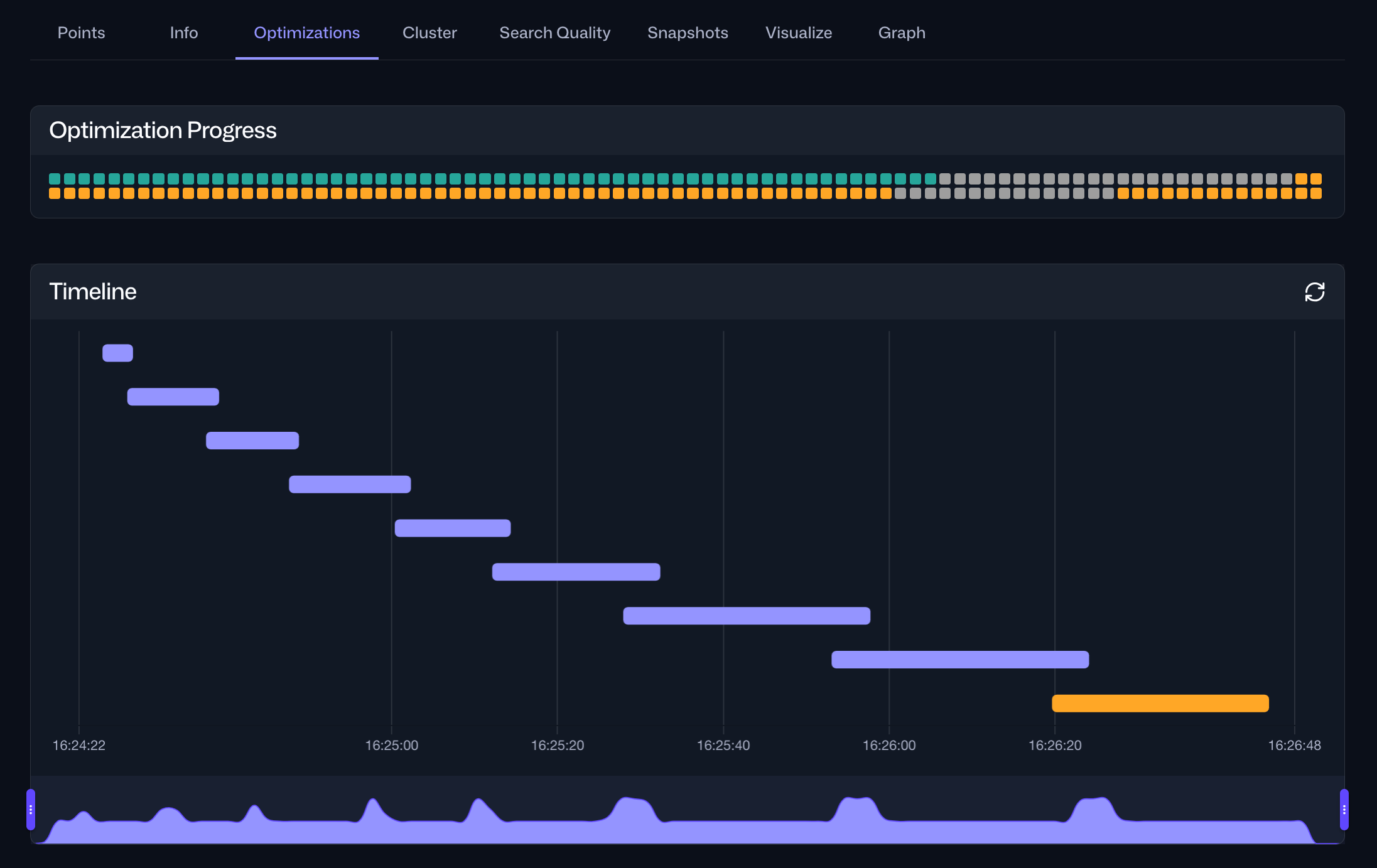
The same information is also accessible via the Optimizations tab within the Collections interface in the Web UI. For a specific collection, this tab provides an overview of the current optimization status and a timeline of current and past optimization cycles:
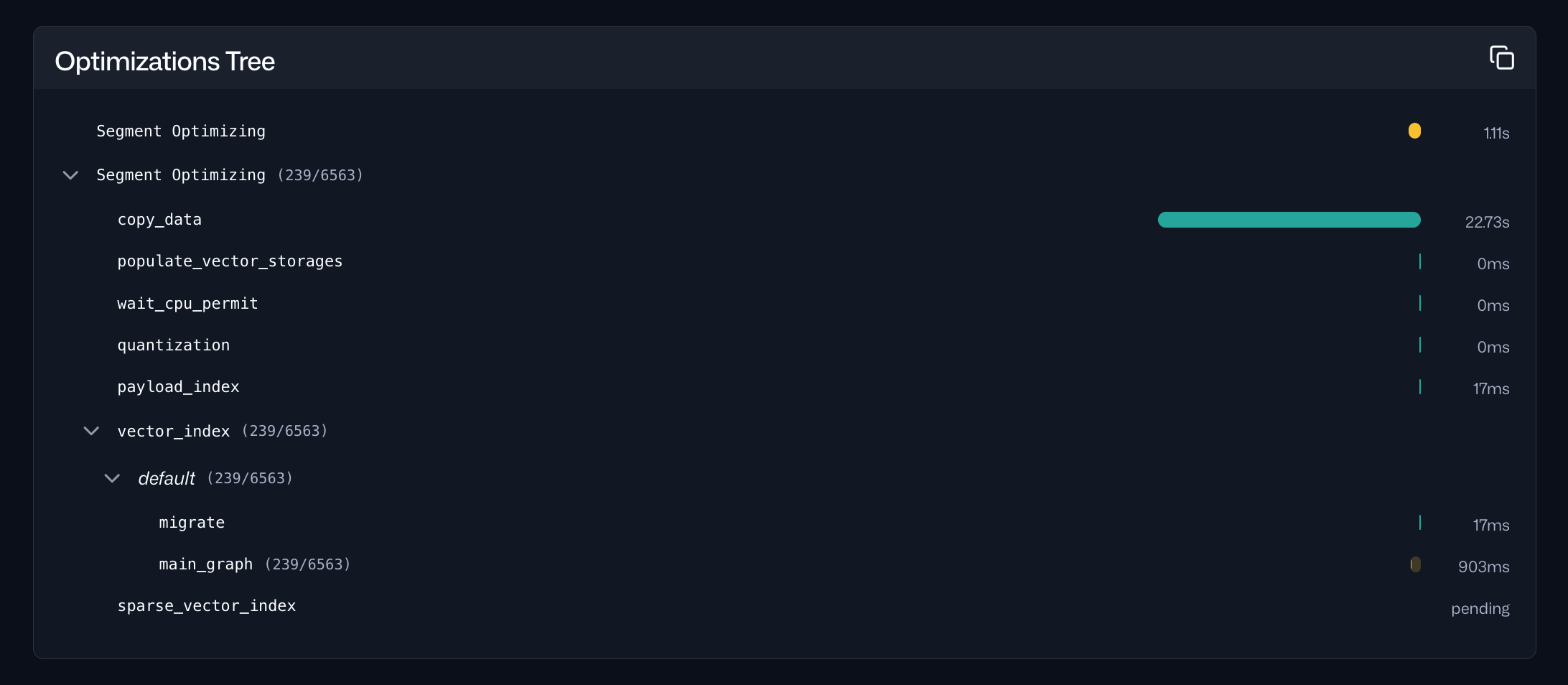
Selecting a specific optimization cycle from the timeline provides detailed information about the tasks performed during that cycle, including their durations:
 Ready to try Qdrant?