> Explore Qdrant's agent skills catalog at https://skills.qdrant.tech/
> Search the documentation at https://skills.qdrant.tech/search?query=your+query+here
> Use this file for an index of the main pages: https://qdrant.tech/llms.txt
# Optimizer
Qdrant [stores](https://qdrant.tech/documentation/manage-data/storage/index.md) the points of a collection in one or more shards, and each shard divides its points into segments. Each segment has its own vector storage, payload storage, vector and payload indexes, and ID tracker. There are two types of segments: appendable and non-appendable. Appendable segments accept new points, while non-appendable segments only support reads and deletes.
For efficiency reasons, Qdrant, like many databases, applies data changes in batches rather than one point at a time. Some of its data structures, such as vector indexes, are hard to update in place, so Qdrant rebuilds them in the background when needed, or when you call [`optimize`](https://qdrant.tech/documentation/edge/edge-api/configuration/index.md#optimize) on Qdrant Edge.
The optimizer handles these rebuilds and works at the segment level.
It selects one or more segments that can be improved and rebuilds them into a single new segment, for example to index it, compact it, or reduce the number of segments.
The segments being optimized remain readable while the rebuild is in progress.
To keep them available, Qdrant wraps each segment in a proxy that transparently handles data changes.
The proxy writes changed data to a copy-on-write segment, which has priority for retrieval and subsequent updates.
Qdrant has four optimizers, described in the following sections. In each round of optimization, at most one optimizer selects a given segment. Every rebuild removes deleted points and applies the current collection configuration, whichever optimizer selected the segment.
## Indexing Optimizer
The indexing optimizer builds a vector index for a segment once its vector data exceeds the indexing threshold. New points go to an appendable segment, which has no vector index. While a segment is small, a full scan is fast, and building an index would cost more than it saves. As the segment grows, scans get slower and an index starts to pay off.
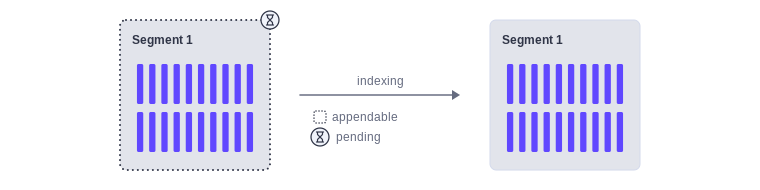
*The appendable segment grows until it crosses the indexing threshold. The indexing optimizer then builds an HNSW index for it, and a new appendable segment takes the new points.*
The indexing optimizer also moves vectors to disk when their [memory placement](https://qdrant.tech/documentation/ops-configuration/memory-tiers/index.md) requires it, converts large sparse vector indexes from their mutable in-memory form to an immutable form, and rebuilds segments that hold [deferred points](#prevent-reads-from-large-unindexed-segments).
The `indexing_threshold` parameter sets the indexing threshold, in kilobytes. For example, to set it for an existing collection:
```http
PATCH /collections/{collection_name}
{
"optimizers_config": {
"indexing_threshold": 10000
}
}
```
> This snippet is also available in Bash, Python, Typescript, Rust, Java, Csharp, and Go. See the [full snippet](https://qdrant.tech/documentation/snippets/update-collection/simple/index.md).
## Vacuum Optimizer
The vacuum optimizer helps manage storage by handling deleted points. When you delete a point, Qdrant doesn't remove it right away but marks it as deleted, to avoid slow disk operations during queries. While this improves performance, over time, these marked points can build up, wasting memory and slowing down the system.
The vacuum optimizer solves this problem by permanently removing marked points and reorganizing storage. This cleanup saves memory, especially when large amounts of deleted data build up in the database.
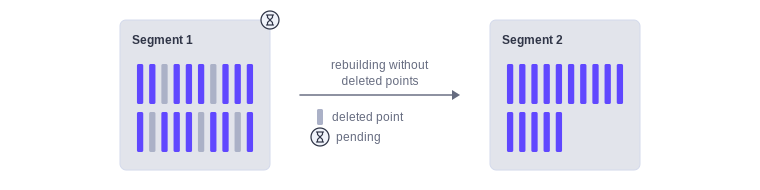
*Deleted points are initially only marked as deleted. Once the fraction of deleted points in a segment exceeds the `deleted_threshold`, the vacuum optimizer rebuilds the segment without them.*
Two parameters control when the optimizer runs:
- `deleted_threshold` sets the minimum fraction of deleted points in a segment required to initiate optimization. For example, a value of 0.2 means that more than 20% of a segment's points must be marked as deleted for the optimizer to consider running.
- `vacuum_min_vector_number` specifies the minimum number of points a segment must contain to qualify for optimization. For example, a value of 1000 ensures that only segments with at least 1,000 points are optimized.
- Both parameters also apply to each vector index in a segment, counting vectors deleted from points that still exist.
When a segment meets these criteria, the optimizer rebuilds it without the deleted points.
To set these parameters for an existing collection:
```http
PATCH /collections/{collection_name}
{
"optimizers_config": {
"deleted_threshold": 0.2,
"vacuum_min_vector_number": 1000
}
}
```
> This snippet is also available in Bash, Python, Typescript, Rust, Java, Csharp, and Go. See the [full snippet](https://qdrant.tech/documentation/snippets/update-collection/vacuum-thresholds/index.md).
## Merge Optimizer
Qdrant uses the merge optimizer to manage the number of segments in its storage system, ensuring efficient data organization and query performance.
Qdrant requires at least one small segment to handle frequently updated data efficiently. However, having too many small segments can harm search performance. To address this, the merge optimizer reduces the number of segments when there are more than optimal.
The `default_segment_number` parameter specifies the target number of segments. Its default depends on the number of available CPUs. When there are more segments than this target, the optimizer merges the smallest segments into larger ones, without exceeding the maximum segment size.
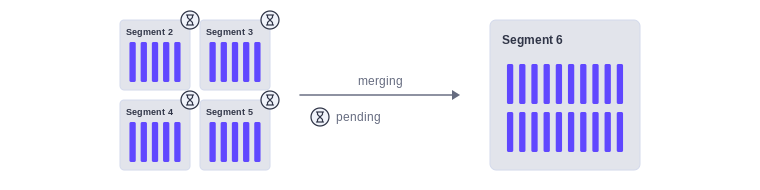
*The shard has more segments than the target, so the merge optimizer rebuilds the smallest ones as a single new segment.*
To prevent oversized segments that could slow down indexing, the `max_segment_size` parameter sets a limit on segment size, in kilobytes. Larger segments may improve search performance but can take longer to index. Use this parameter to balance indexing speed against search efficiency, especially with large datasets. When `max_segment_size` is unset, the limit scales with the number of available CPUs, so it differs between machines. Set it explicitly when you need a predictable segment size.
To set these parameters for an existing collection:
```http
PATCH /collections/{collection_name}
{
"optimizers_config": {
"default_segment_number": 4,
"max_segment_size": 1000000
}
}
```
> This snippet is also available in Bash, Python, Typescript, Rust, Java, Csharp, and Go. See the [full snippet](https://qdrant.tech/documentation/snippets/update-collection/segment-number-and-size/index.md).
## Config Mismatch Optimizer
When you [update collection parameters](https://qdrant.tech/documentation/manage-data/collections/index.md#update-collection-parameters), existing segments keep the configuration they were built with. The config mismatch optimizer finds segments whose configuration no longer matches the collection configuration and rebuilds them with the new settings.
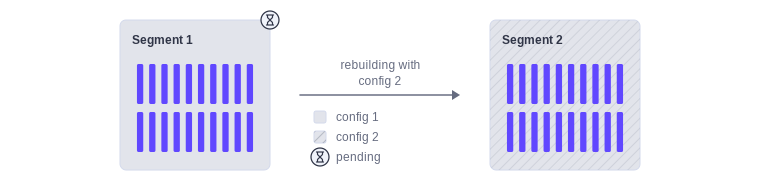
*After a change to the HNSW configuration, new segments are indexed with the new configuration, and the config mismatch optimizer rebuilds older segments one at a time, largest first.*
The optimizer rebuilds a segment when any of the following differs from the collection configuration:
- [HNSW parameters](https://qdrant.tech/documentation/manage-data/indexing/index.md#vector-index): `m`, `ef_construct`, `full_scan_threshold`, `payload_m`, or `inline_storage`.
- [Quantization parameters](https://qdrant.tech/documentation/manage-data/quantization/index.md), or whether quantization is enabled.
- The [memory placement](https://qdrant.tech/documentation/ops-configuration/memory-tiers/index.md) of dense vectors, HNSW graphs, sparse vector indexes, or payloads.
Each rebuild is a full optimization of the segment, so changing these parameters on a large collection can cause a long period of optimization activity.
This optimizer has no configuration parameters.
## Optimizer Configuration
You can configure optimizer parameters per collection at [creation time](https://qdrant.tech/documentation/manage-data/collections/index.md#create-a-collection), or [update](https://qdrant.tech/documentation/manage-data/collections/index.md#update-collection-parameters) them later. For example:
```http
PATCH /collections/{collection_name}
{
"optimizers_config": {
"indexing_threshold": 10000
}
}
```
> This snippet is also available in Bash, Python, Typescript, Rust, Java, Csharp, and Go. See the [full snippet](https://qdrant.tech/documentation/snippets/update-collection/simple/index.md).
Self-hosted Qdrant also supports setting global defaults for all collections in the [configuration file](https://qdrant.tech/documentation/ops-configuration/configuration/index.md). Qdrant applies these defaults when it creates a collection, so changing them doesn't affect existing collections. For example:
```yaml
storage:
performance:
# CPU budget, how many CPUs (threads) to allocate for an optimization job.
# If 0 - auto selection, keep 1 or more CPUs unallocated depending on CPU size
# If negative - subtract this number of CPUs from the available CPUs.
# If positive - use this exact number of CPUs.
optimizer_cpu_budget: 0
optimizers:
# The minimal fraction of deleted vectors in a segment, required to perform segment optimization
deleted_threshold: 0.2
# The minimal number of vectors in a segment, required to perform segment optimization
vacuum_min_vector_number: 1000
# Target amount of segments optimizer will try to keep.
# Real amount of segments may vary depending on multiple parameters:
# - Amount of stored points
# - Current write RPS
#
# It is recommended to select default number of segments as a factor of the number of search threads,
# so that each segment would be handled evenly by one of the threads.
# If `default_segment_number = 0`, will be automatically selected by the number of available CPUs
default_segment_number: 0
# Do not create segments larger than this size (in KiloBytes).
# Large segments might require disproportionately long indexation times,
# therefore it makes sense to limit the size of segments.
#
# If indexation speed have more priority for your - make this parameter lower.
# If search speed is more important - make this parameter higher.
# Note: 1Kb = 1 vector of size 256
# If not set, will be automatically selected considering the number of available CPUs.
max_segment_size_kb: null
# Maximum size (in KiloBytes) of vectors allowed for plain index.
# Default value based on experiments and observations.
# Note: 1Kb = 1 vector of size 256
# To explicitly disable vector indexing, set to `0`.
# If not set, the default value will be used.
indexing_threshold_kb: 10000
# Max number of threads (jobs) for running optimizations per shard.
# Note: each optimization job will also use `max_indexing_threads` threads by itself for index building.
# If null - have no limit and choose dynamically to saturate CPU.
# If 0 - no optimization threads, optimizations will be disabled.
max_optimization_threads: null
```
## Optimizer Resource Usage
Three settings control how much CPU the optimizer uses:
- `optimizer_cpu_budget`: the number of CPUs available to all optimization jobs on a node. By default, Qdrant leaves one or more CPUs free, depending on the number of CPUs. Set it in the Cloud Console or in the configuration file under `storage.performance`.
- `max_optimization_threads`: the maximum number of optimization jobs that run in parallel per shard. By default, there's no limit other than `optimizer_cpu_budget`.
- `max_indexing_threads`: the number of threads each optimization job uses to build the HNSW index. Set it in the [HNSW configuration](https://qdrant.tech/documentation/manage-data/indexing/index.md#vector-index). By default, it depends on the number of available CPUs.
For guidance on balancing optimization against search load, see [Troubleshoot Read-Write Contention](https://qdrant.tech/documentation/ops-optimization/read-write-contention/index.md).
## Prevent Reads from Large Unindexed Segments
*Available as of v1.17.1*
Sometimes a collection receives a high volume of updates, for example, during nightly batch updates or while processing a backlog of updates after a period of downtime. The optimizer might then be unable to index new points fast enough to keep up. When this happens, searches may slow down, because Qdrant has to scan large amounts of unindexed data for every query.
To address this, Qdrant supports [querying indexed data only](https://qdrant.tech/documentation/search/low-latency-search/index.md#query-indexed-data-only), by setting `indexed_only` to `true`. A side effect of searching indexed data only is that it can cause recently updated data to temporarily disappear from search results until Qdrant indexes it again (**blinking** points).
To mitigate this, Qdrant supports a `prevent_unoptimized` mode. When it's enabled, Qdrant accepts and durably stores points written to an unindexed segment that is larger than `indexing_threshold` (or `max_segment_size`, if that's set and smaller), but does not return them in search results. These **deferred** points only become visible after the optimizer has indexed the segment.
You can enable `prevent_unoptimized` per collection, or globally in the configuration file.
```http
PATCH /collections/{collection_name}
{
"optimizers_config": {
"prevent_unoptimized": true
}
}
```
> This snippet is also available in Bash, Python, Typescript, Rust, Java, Csharp, and Go. See the [full snippet](https://qdrant.tech/documentation/snippets/update-collection/prevent-unoptimized/index.md).
With `prevent_unoptimized` enabled, setting `indexed_only` to `true` is not necessary. They are mutually exclusive.
### Effect on `wait=true`
Write requests support a [`wait` parameter](https://qdrant.tech/documentation/manage-data/points/index.md#awaiting-result) that, when set to `true`, causes the request to return only after the update has been applied and is visible for search. If `prevent_unoptimized` is enabled, set `wait` to `false` to avoid potential timeouts and delays.
This is particularly important for the Python, TypeScript/JavaScript, .NET, and Java clients, which set `wait` to `true` by default. The Go and Rust clients and the REST API already default to `false`, so you don't need to change anything when using those.
Qdrant processes updates in strict order: it writes each update to the write-ahead log, and the update worker then applies the updates sequentially, preserving this order.
Under normal conditions, a write request with `wait=true` returns after Qdrant has applied the update to a segment. With `prevent_unoptimized` enabled, Qdrant holds the response until it has indexed every deferred point, including the current update, and made them visible for search. Depending on the volume of pending updates in the update queue and the speed of the optimizer, this can take a significant amount of time. It will likely lead to timeouts on the client side. If the client times out, Qdrant still stores the update durably and eventually indexes it, but the client will not receive a confirmation for that specific request.
Because the update worker must finish indexing before continuing to consume the queue, a blocked `wait=true` request also delays all subsequent updates that use `wait=true`. Updates with `wait=false` are written to the write-ahead log immediately, but they are not applied until the blocked request unblocks. This head-of-line blocking means that `wait=true` can stall the entire update pipeline for as long as indexing takes. Use it with caution when `prevent_unoptimized` is enabled and the cluster is under heavy write load.
A consequence of enabling `prevent_unoptimized` and setting `wait=false` is eventual consistency: updates might not be immediately visible. If your application requires a guarantee that the vector will be available for searching immediately after the API responds, you can set `wait=true`, but be aware of the implications described in this section. Alternatively, you can choose to not enable `prevent_unoptimized`, but this may lead to slower search performance under heavy write load.
### Monitoring Deferred Points
You can check the number of deferred points in a collection in the `update_queue` section of the response from the [collection info API](https://qdrant.tech/documentation/manage-data/collections/index.md#collection-info). The same information is also available in [telemetry and metrics](https://qdrant.tech/documentation/ops-monitoring/monitoring/index.md), enabling dashboards and alerting.
A non-zero deferred point count means the optimizer is processing a backlog. This is expected under heavy write load; monitor the count to confirm that it is decreasing over time.
## Optimization Monitoring
*Available as of v1.17.0*
The `/collections/{collection_name}/optimizations` API endpoint returns information about the optimization of a specific collection, including:
- A summary of optimization activity, with the number of queued optimizations, queued segments, queued points, and idle segments (segments that need no optimization).
- Details about any currently running optimization, including:
- the specific optimizer (`merge`, `indexing`, `vacuum`, or `config mismatch`)
- its status
- the segments involved
- its progress
Optionally, you can use the `with` query parameter with one or more of the following comma-separated values to retrieve additional information:
- `queued`, to return a list of queued optimizations
- `completed`, to return a list of completed optimizations. By default, it returns the 16 most recent. Use the `completed_limit` query parameter to change this number.
- `idle_segments`, to return a list of idle segments
For example:
```http
GET /collections/{collection_name}/optimizations?with=queued,completed
```
Furthermore, the [collection info API](https://qdrant.tech/documentation/manage-data/collections/index.md#collection-info) reports the state of the optimizers in the `optimizer_status` field. It's `ok` when the optimizers are working normally. If an optimization fails, it contains an `error` message and the collection status turns red.
### Web UI
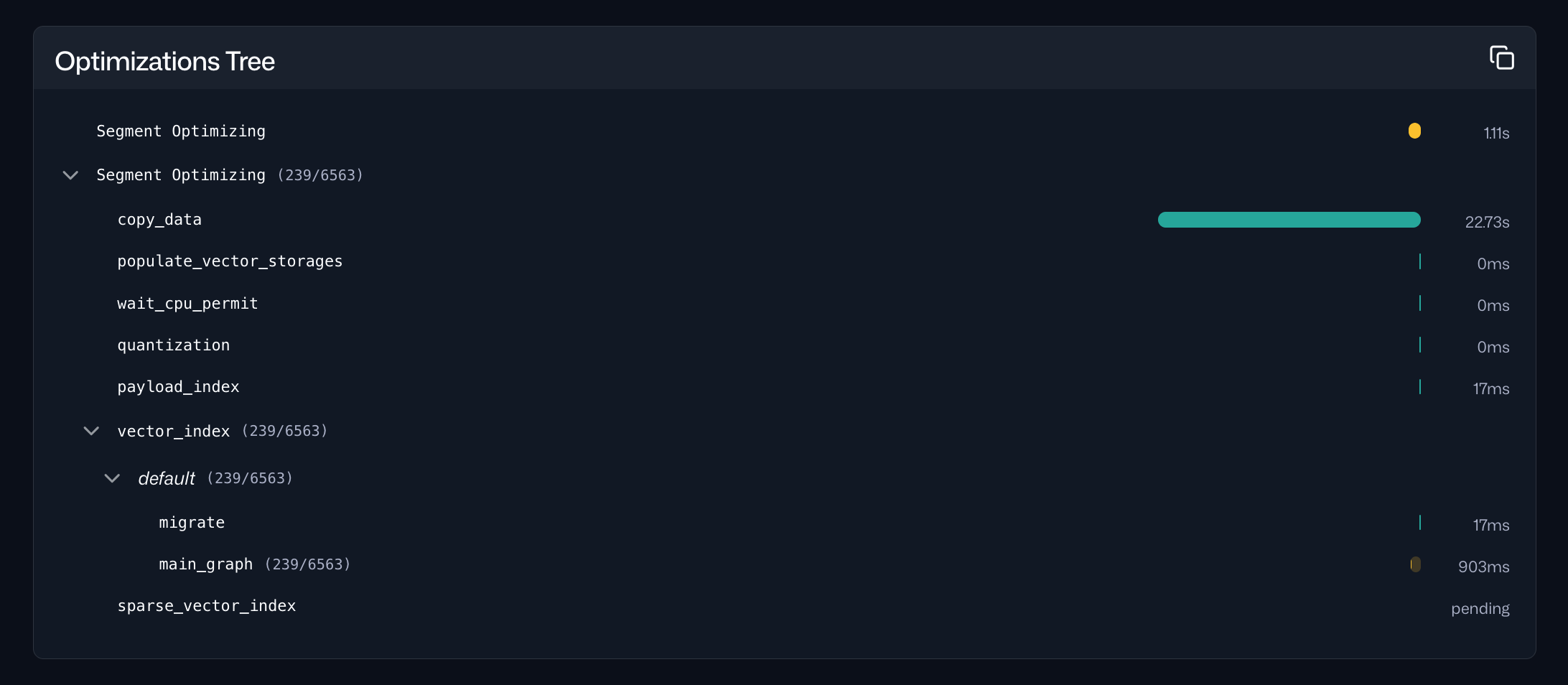
The same information is also available in the **Optimizations** tab of the **Collections** interface in [the Web UI](https://qdrant.tech/documentation/web-ui/index.md). For a specific collection, this tab provides an overview of the current optimization status and a timeline of current and past optimization cycles:
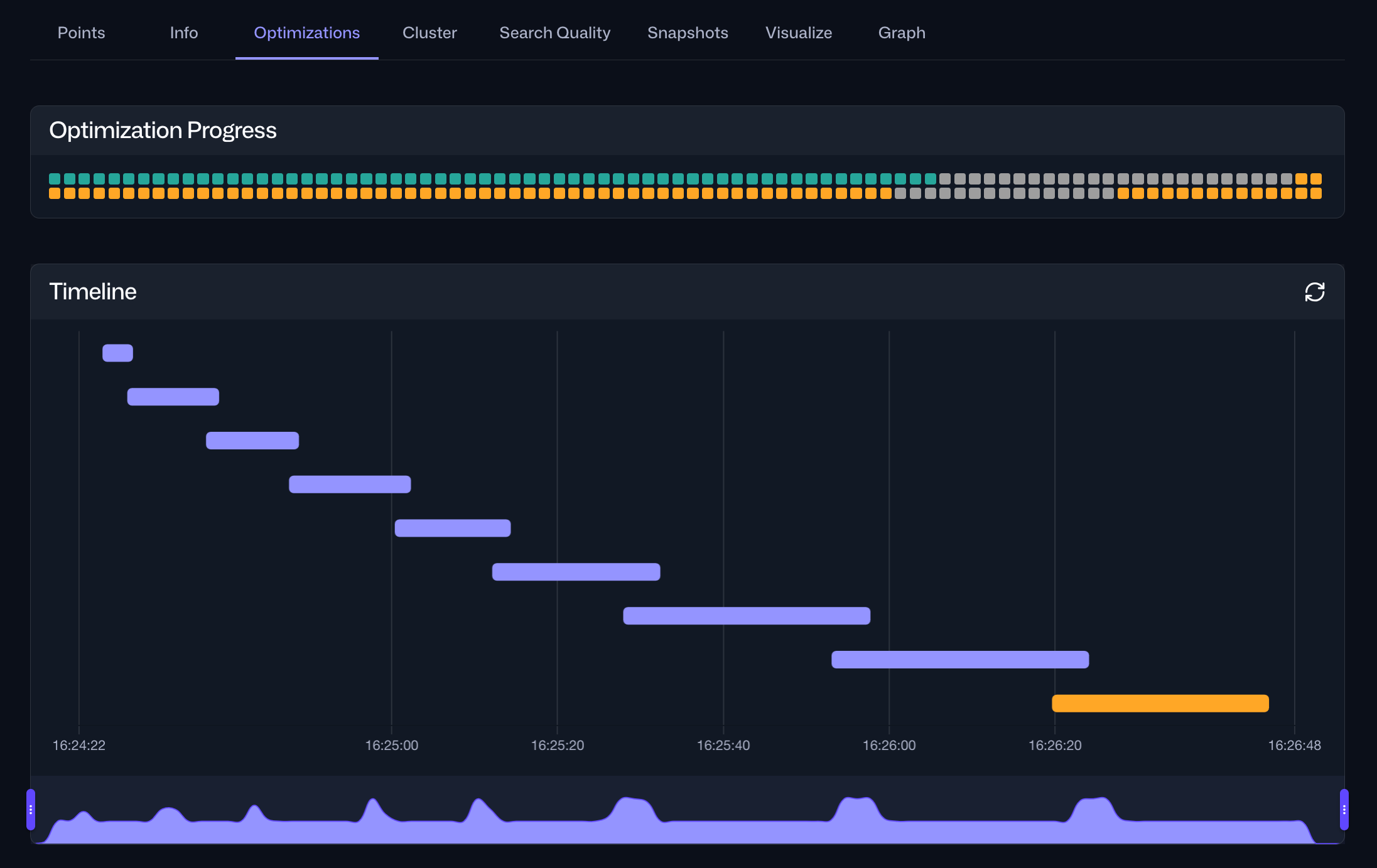
Selecting a specific optimization cycle from the timeline provides detailed information about the tasks performed during that cycle, including their durations: