# Salesforce Mulesoft
# Salesforce Mulesoft
[MuleSoft Anypoint](https://www.salesforce.com/in/mulesoft/anypoint-platform/) is an integration platform to connect applications, data, and devices across on-premises and cloud environments. It provides a unified platform to build, manage, and secure APIs and integrations, making digital transformation smoother and more scalable.
[MAC Project](https://mac-project.ai) is an open-source initiative to bring AI capabilities into the MuleSoft ecosystem. It provides connectors to add AI capabilities to an Anypoint project by integrating LLMs, vector databases including Qdrant.
## Setup
To use Qdrant with Anypoint, you can install the [Mulesoft Vectors connector](https://mac-project.ai/docs/ms-vectors). Paste the following Maven Dependency into your Mule application pom file.
```xml
io.github.mulesoft-ai-chain-project
mule4-vectors-connector
0.3.0
mule-plugin
```
The project will now rebuild with the connector. You also need to install the optional dependencies for the Qdrant connector.
```xml
...
...
org.mule.tools.maven
mule-maven-plugin
4.3.0
true
io.github.mulesoft-ai-chain-project
mule4-vectors-connector
dev.langchain4j
langchain4j-qdrant
0.35.0
...
```
## Usage
The MuleSoft Vectors connector is shipped with 3 different categories of operations: Document, Embedding and Store. For each category a dedicated configuration must be defined.
The store configuration allows to pick-up the right vector store option among the available ones. When configuring the connection to a specific vector store it's also possible to test it.
Go to the `Global Elements` in your MuleSoft project, and create a new configuration. In the `Connector Configuration`, you will find the `MuleSoft Vectors Connector Store` config.
Upon selecting `Qdrant`, you'll be presented with the following parameters to set up the connection to a Qdrant instance.
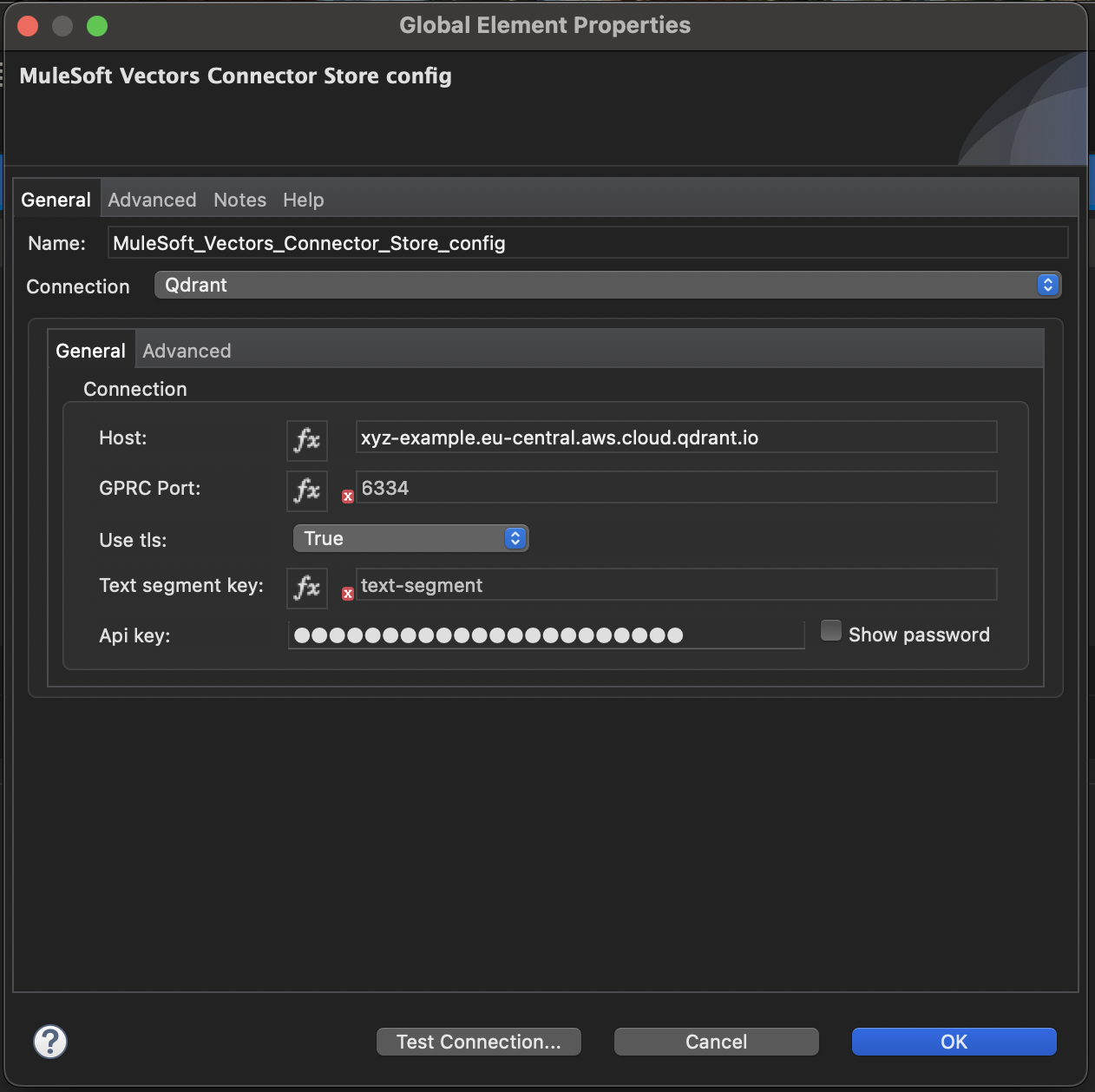
Once a connection is set up, you can now use the following Qdrant operations in your workflows.
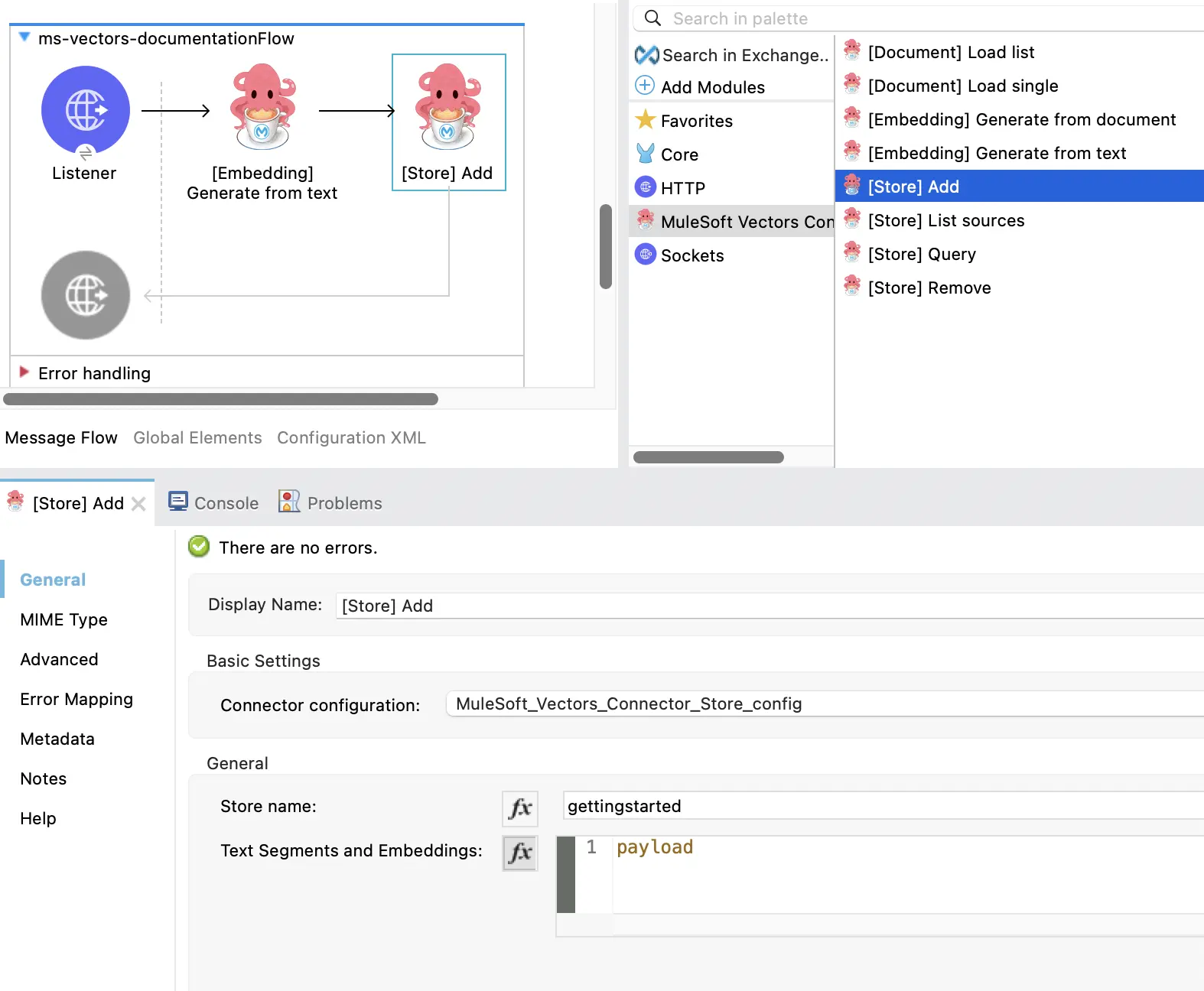
### Store Add
The Add operation adds a document or text to a collection.
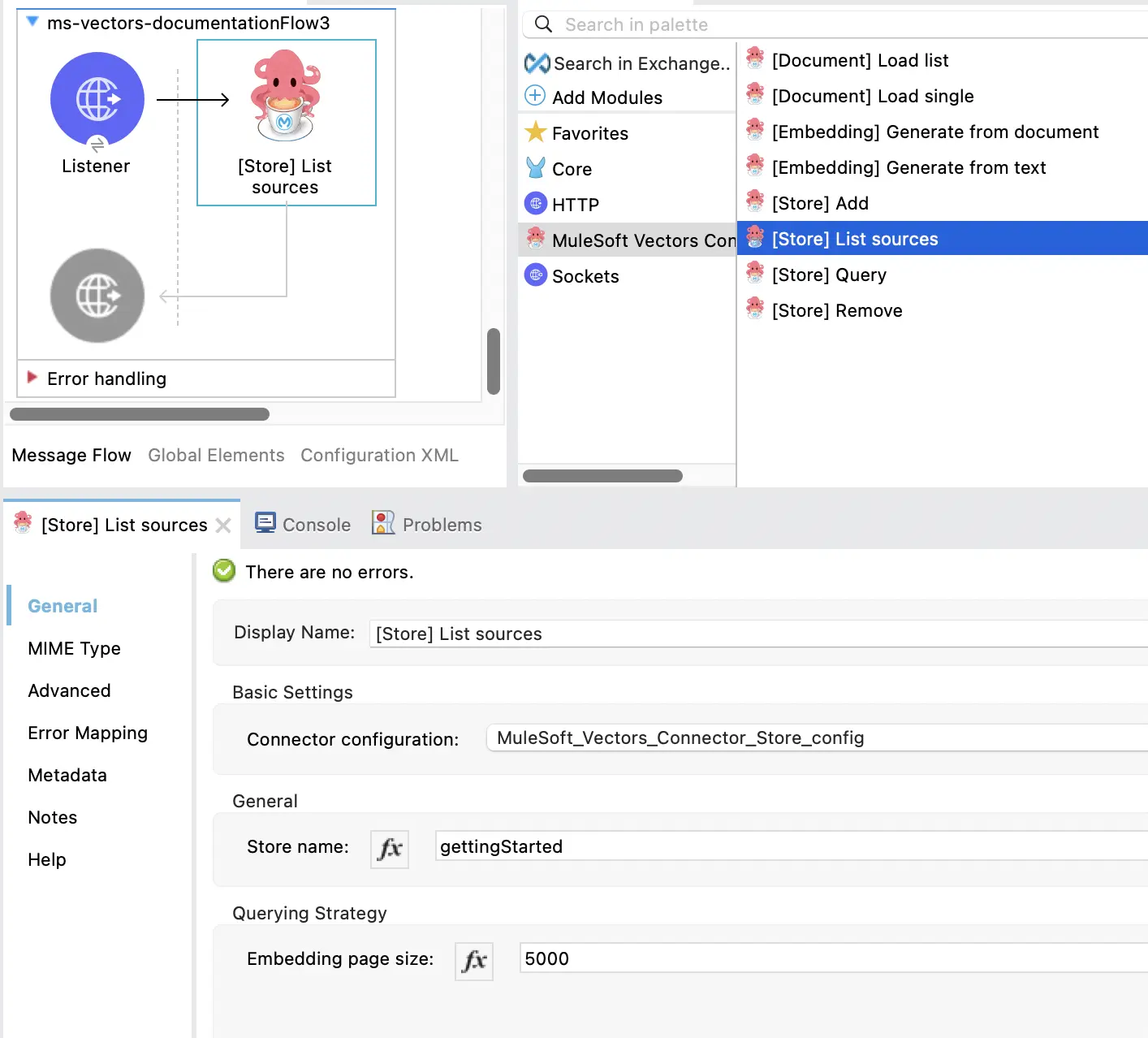
### Store List
The List sources operation lists all entries in a collection.
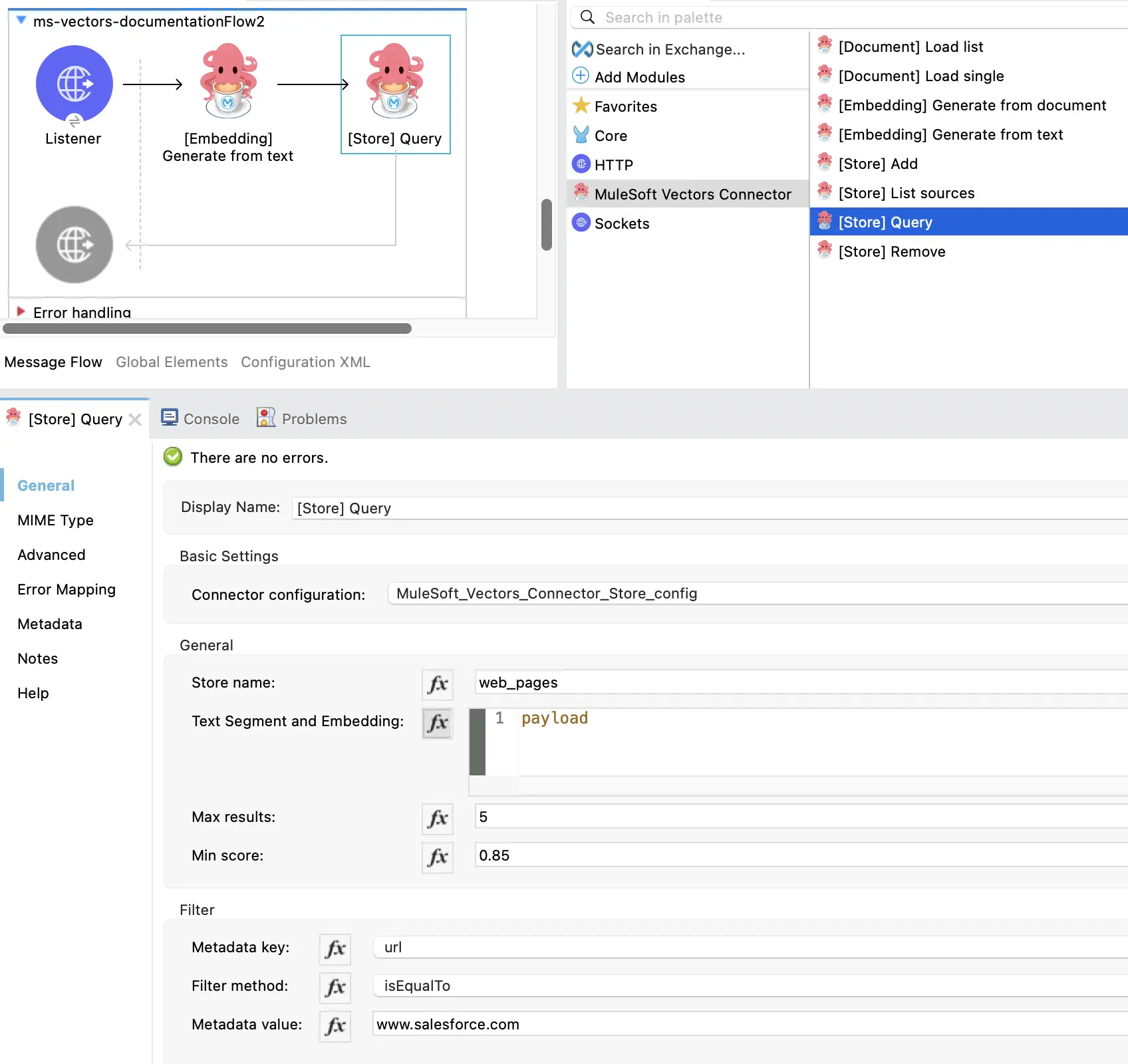
### Store Query
The Query operation retrieves information from a collection based on a query a embedding and an optional filter.
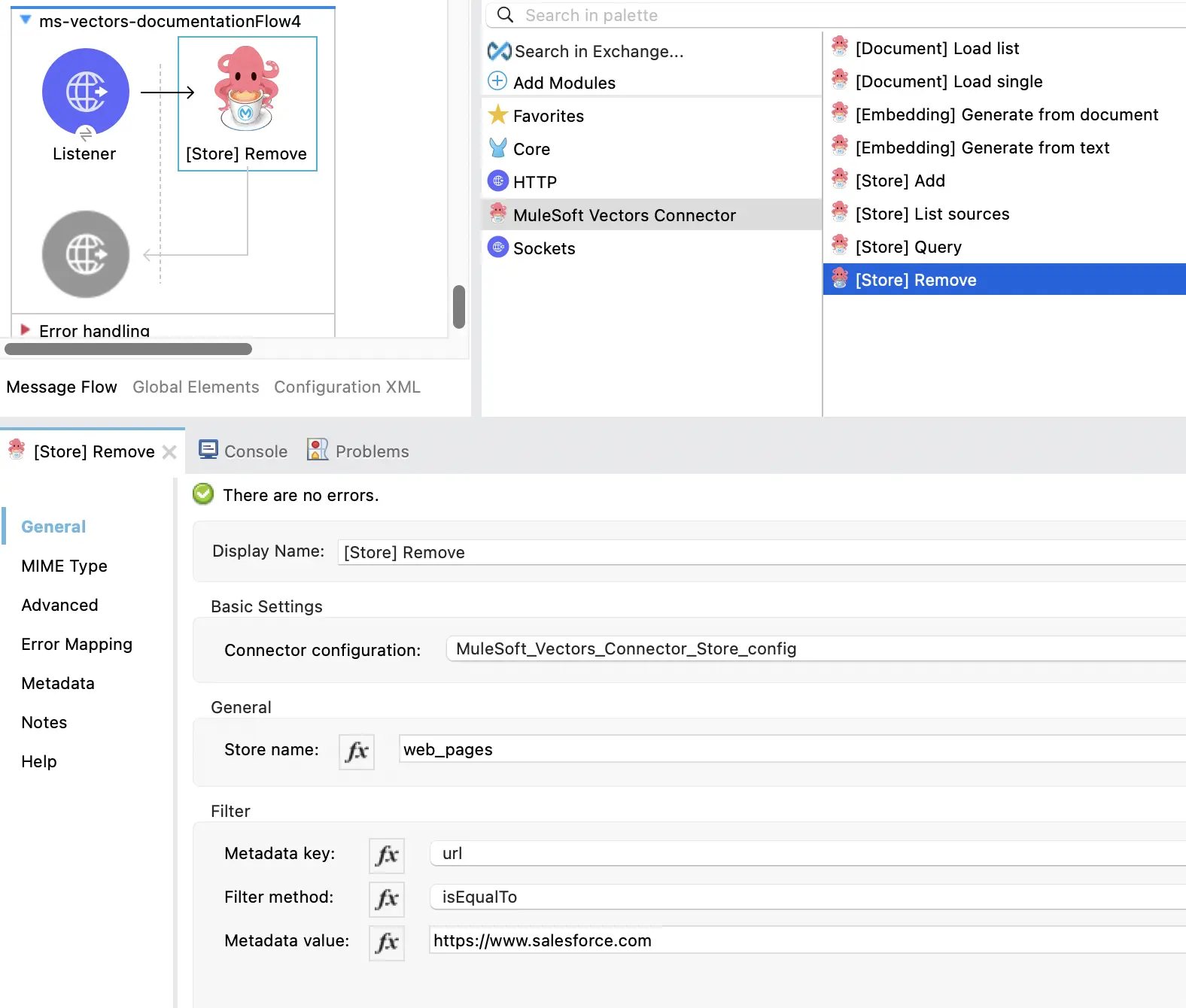
### Store Remove
The Remove operation remove all entries from a collection based on a filter.
## Further reading
- [Mulesoft Anypoint Studio](https://docs.mulesoft.com/studio/latest/)
- [MAC Project](https://mac-project.ai)