
Bulk Uploading Data to Qdrant

Why Bulk Uploading Matters
When you start using Qdrant at scale, one of the first challenges you may run into is uploading large amounts of data efficiently. Small uploads are usually straightforward, but bulk ingestion introduces a different set of concerns. As millions of vectors, payloads, and indexes are written into a collection, the system has to manage memory usage, disk writes, background optimization, and search availability at the same time.
If this process is not planned carefully, bulk uploads can create pressure on RAM, slow down ingestion, increase query latency, or cause the optimizer to fall behind. In more constrained environments, large uploads can even lead to out-of-memory issues or unstable performance.
The goal is not simply to upload data as fast as possible. The goal is to upload data in a way that is predictable and safe for the workload you are running. This guide helps you decide which settings fit your upload. For the mechanics of each technique, see Bulk Upload Vectors to a Qdrant Collection.
The examples use the memory setting introduced in Qdrant v1.19. If you run an older version, see the legacy settings that map to it.
Why Vector Type Matters
Before we get into the options, it’s important to remember that not all vectors behave the same way during ingestion. Dense and sparse vectors use different indexing approaches, which means they can create different performance considerations during bulk uploads.
Dense vectors rely on HNSW for fast similarity search. During a large upload, the background optimizer builds and updates this index as new segments are written. This can add CPU and memory pressure while uploads are in progress.
Sparse vectors use a separate indexing approach, and the sparse index is updated as points are written. This means sparse vector ingestion should not be treated the same way as dense HNSW indexing.
Choosing the Right Bulk Upload Strategy
Before we go through the options, understand there is no single configuration that works best for every bulk upload. The right approach depends on what you are trying to improve: upload speed, memory usage, search availability, or a balance of all three.
The safest approach is to choose the right strategy for the workload instead of relying on one universal setting.
Option 1: Reduce Memory Pressure
Dense vectors
Memory usage can become one of the first bottlenecks during a large upload. Dense vectors are usually fixed-size embeddings, and when millions of them are inserted into a collection, the raw vector data alone can take up a large amount of RAM.
When your vectors do not all fit in RAM, put them in the cold memory tier when you create the collection. Qdrant then stores incoming vectors on disk from the start, instead of relying on the background optimizer to move them to disk later.
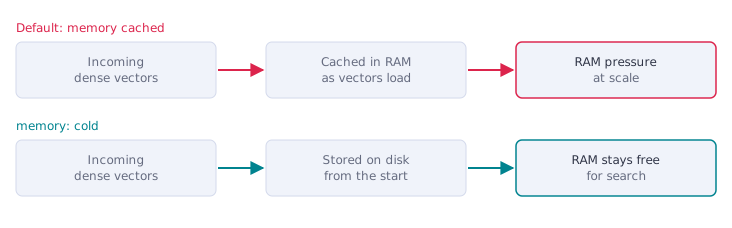
In Python, set memory to cold in VectorParams:
client.create_collection(
    collection_name="my_collection",
    vectors_config=models.VectorParams(
        size=768,
        distance=models.Distance.COSINE,
        memory=models.Memory.COLD,
    ),
)
Best fit: Large dense vector uploads where raw vector data may put pressure on RAM.
Watch for: Search performance may depend more on disk access, especially if the workload needs to read original vectors often. You can usually balance this with quantization, but the important part for bulk uploads is that vector storage is handled safely from the beginning.
Option 2: Create Payload Indexes (Before Uploading)
Dense vectors
Create payload indexes before uploading points when you already know which fields will be used for filtering. Qdrant builds extra HNSW links for each payload index to keep filtered vector search accurate and fast.
If those indexes are created after a large dataset has already been uploaded, the links do not exist, and filtered search falls back to slower query-time strategies until the HNSW graph is rebuilt. Rebuilding the graph after the fact is resource-intensive and can take a long time.
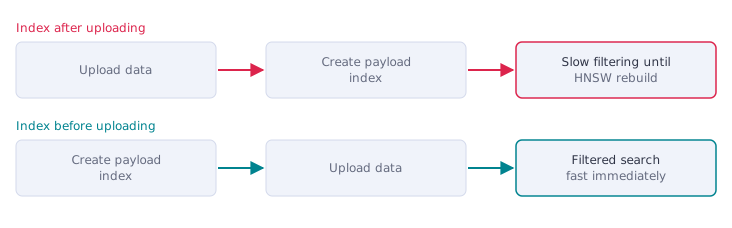
Create the payload index before uploading:
client.create_payload_index(
    collection_name="my_collection",
    field_name="category",
    field_schema=models.PayloadSchemaType.KEYWORD,
)
Best fit: Workloads that already know which payload fields will be used for filtering, such as category, tenant ID, document type, source, or user ID.
Watch for: Payload indexes should be intentional. Indexing fields that are not used for filtering can add extra work without helping the upload or search path.
Option 3: Quantization to Balance Memory and Search Performance
Dense vectors
Storing original vectors on disk can help reduce memory pressure during large uploads. However, this can also make search more dependent on disk access, especially when Qdrant needs to read the original vectors frequently.
Quantization can help balance this tradeoff. Qdrant keeps a compressed copy of each vector pinned in RAM for search, while the original vectors stay on disk and are read only to rescore the top results.
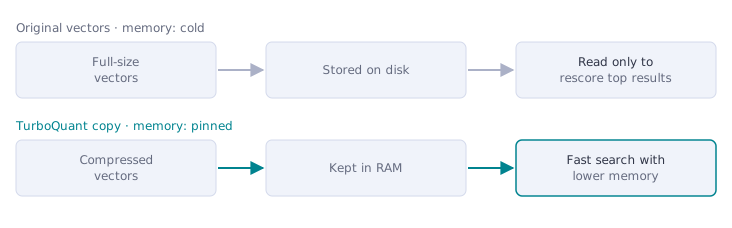
In Python, configure TurboQuant when creating the collection. The bits parameter sets the compression level: BITS8 stays closest to full precision, BITS4 is the default, and BITS1 gives the most compression.
client.create_collection(
    collection_name="my_collection",
    vectors_config=models.VectorParams(
        size=768,
        distance=models.Distance.COSINE,
        memory=models.Memory.COLD,
    ),
    quantization_config=models.TurboQuantization(
        turbo=models.TurboQuantQuantizationConfig(
            bits=models.TurboQuantBitSize.BITS4,
            memory=models.Memory.PINNED,
        )
    ),
)
Best fit: Dense vector workloads that need lower memory usage while still keeping search performance practical.
Watch for: Quantization can affect precision depending on the workload and configuration. For many use cases, this tradeoff is worth it, but search quality and latency should be tested with real data.
Option 4: Reduce Sparse Index Memory During Uploads
Sparse vectors
For large sparse vector workloads, one option is to store the sparse vector index on disk. The sparse index is pinned in RAM by default, so this can help reduce memory usage when the index becomes large.
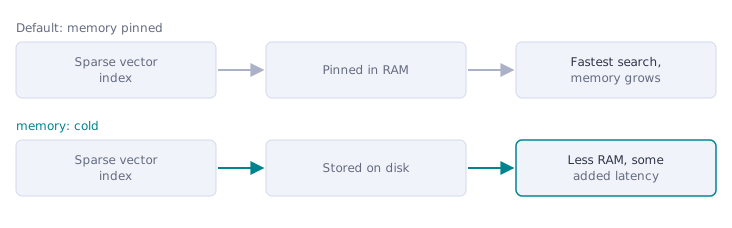
Set the sparse index to the cold tier:
client.create_collection(
    collection_name="my_collection",
    vectors_config={},
    sparse_vectors_config={
        "text": models.SparseVectorParams(
            index=models.SparseIndexParams(
                memory=models.Memory.COLD,
            )
        )
    },
)
Best fit: Large sparse vector workloads where the sparse index is putting pressure on memory.
Watch for: Storing the sparse index on disk may slow down search because queries can depend more on disk access. If sparse vector search is latency-sensitive, keeping the sparse index in memory may be better.
Throughput Choices
The options above depend on your vector type, memory limits, and search needs. Batching, parallelism, and sharding change how fast data gets in. Batching helps almost every upload. Parallelism and sharding are workload choices: they help when a single upload stream cannot keep Qdrant busy, and they add CPU, memory, and coordination overhead when it can. Bulk Upload Vectors covers the mechanics of each one.
Tip: Connect with
QdrantClient(url, prefer_grpc=True)for bulk work. gRPC has lower overhead than HTTP and is meaningfully faster for large uploads.
Batch Your Uploads
Dense & sparse vectors
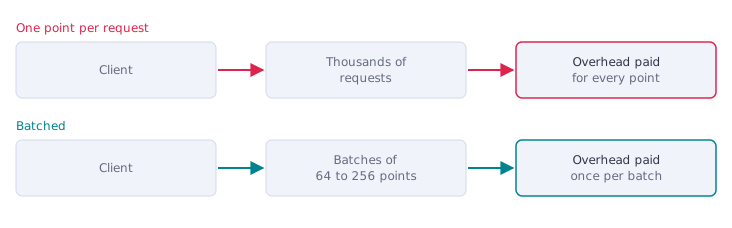
Each request carries overhead for the network round trip and the write path, so uploading points one at a time is slow. Upload points in batches instead.
client.upload_points(
    collection_name="my_collection",
    points=points,
    batch_size=256,
)
Best fit: Almost every bulk upload.
Watch for: A batch size of 64 to 256 points is a reasonable starting range. Larger batches can improve throughput but increase memory usage and make retries more expensive if a request fails.
Parallelize Uploads
Dense & sparse vectors
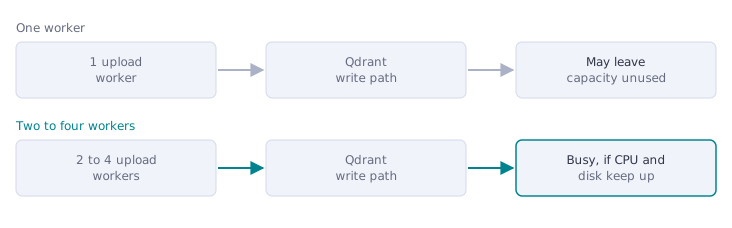
A single upload stream may not keep Qdrant’s write path busy. Two to four workers, each sending its own stream of batches, can raise throughput, especially when the collection has multiple shards.
The Python client parallelizes for you with the parallel argument. It starts worker processes, so on Windows and macOS, run the upload under an if __name__ == "__main__": guard, or the workers can hang without an error.
client.upload_points(
    collection_name="my_collection",
    points=points,
    batch_size=256,
    parallel=4,
)
Best fit: Large uploads where one worker does not keep the server busy. Check by watching CPU and disk on the server while one worker uploads.
Watch for: Too much parallelism can create extra pressure on CPU, memory, disk I/O, and network resources. Start with two to four workers, then increase only while throughput keeps rising.
Use Multiple Shards for Larger Uploads
Dense & sparse vectors
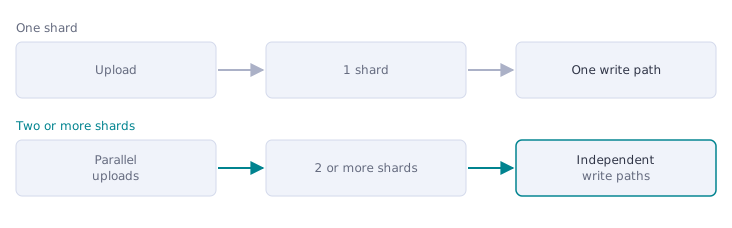
Each shard has its own write-ahead log and update worker, so a collection with multiple shards can process writes in parallel. Sharding matters most when you spread a collection across two or more nodes, or when one shard’s write path is the bottleneck.
Set the shard count when creating the collection:
client.create_collection(
    collection_name="my_collection",
    vectors_config=models.VectorParams(
        size=768,
        distance=models.Distance.COSINE,
        memory=models.Memory.COLD,
    ),
    shard_number=2,
)
Best fit: Larger uploads where you want more ingestion parallelism, especially when paired with parallel upload workers.
Watch for: More shards are not always better. Each shard adds overhead, so the shard count should match the size of the deployment and the amount of write parallelism you actually need. Two to four shards per machine is a reasonable start.
Defer HNSW Indexing During Ingestion
While you upload, the optimizer builds HNSW indexes for new segments in the background, and that work competes with ingestion for CPU and memory. If nothing needs to search the collection until the upload finishes, defer indexing: create the collection with indexing_threshold set to 0, upload, and then set it back.
client.create_collection(
    collection_name="my_collection",
    vectors_config=models.VectorParams(
        size=768,
        distance=models.Distance.COSINE,
        memory=models.Memory.COLD,
    ),
    optimizers_config=models.OptimizersConfigDiff(indexing_threshold=0),
)

# ...upload your points...

client.update_collection(
    collection_name="my_collection",
    optimizers_config=models.OptimizersConfigDiff(indexing_threshold=10000),
)
The default indexing_threshold is 10,000 KB. While indexing is off, searches on the collection run as full scans, so defer indexing only when the collection does not need to serve queries during the upload. If it does, keep indexing on and see Read-Write Contention for settings that protect search latency.
Confirm the Upload Has Finished
The upload call returns before the optimizer finishes indexing. Before you serve production traffic, check that Qdrant has caught up:
- Collection status:
yellowmeans the optimizer is still working, andgreenmeans it is done. Agreystatus means optimizations are pending but paused, often after a restart; send any update to trigger them. - Indexed vectors: right after you turn indexing back on, the status can still read
greenfor a moment before the optimizer starts. Wait untilindexed_vectors_countfrom collection info has caught up with your vector count. - Optimization queue: as of v1.17, the
/collections/{collection_name}/optimizationsendpoint shows queued and running optimizations. When nothing is queued or running, indexing is complete. See optimization monitoring.
Small collections may never be indexed: Qdrant builds an HNSW index only for segments larger than indexing_threshold, so an indexed_vectors_count of 0 is expected when your data is small.
Choosing the Right Mix
| Your situation | Start with |
|---|---|
| Dense vectors don’t all fit in RAM | Option 1: cold vectors, plus Option 3 if search needs to stay fast |
| You filter on payload fields | Option 2: create the payload indexes before uploading |
| The sparse index puts pressure on RAM | Option 4: cold sparse index |
| Nothing searches the collection during the upload | Defer HNSW indexing until the upload finishes |
| One upload stream doesn’t keep the server busy | Parallel workers, then more shards for a multi-node cluster |
| Any bulk upload | Batch your uploads, then confirm the upload has finished |
Still deciding exactly what to configure for your workload? Qdrant’s Agent Skills provide hands-on, scenario-based guidance that walks you through the specific settings for your situation.
It’s Not One-Size-Fits-All
Bulk uploads are not just about sending as much data as possible into Qdrant. As datasets grow, the upload process also needs to account for memory usage, indexing behavior, disk writes, search availability, and overall system stability.
The safest approach is to choose the right strategy for the workload instead of relying on one universal configuration. Dense vectors, sparse vectors, and hybrid setups can all create different performance considerations during ingestion.
By designing the collection and upload process before ingestion starts, you can make bulk uploads more efficient, more stable, and easier to scale as your dataset grows. To size your deployment, use the Qdrant sizing calculator.
 Ready to try Qdrant?