
Filtering in Vector Search: When to Use What
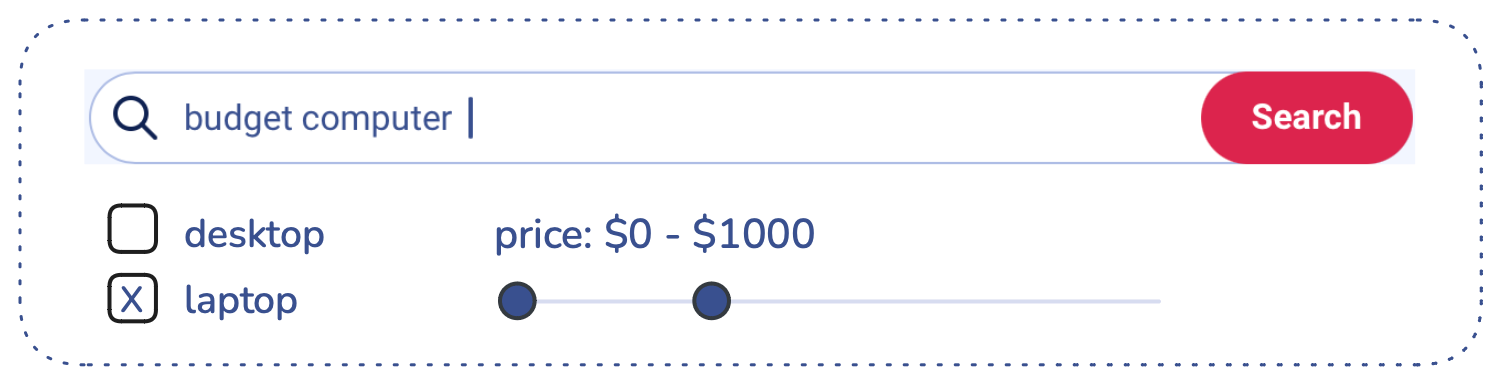
Imagine you sell computer hardware. A shopper looking for laptops under $1000 wants similar laptops, but a plain vector search can still return laptops over $1000. A payload filter guarantees that every result meets the constraint:
POST /collections/online_store/points/query
{
  "query": [0.2, 0.1, 0.9, 0.7],
  "filter": {
    "must": [
      { "key": "category", "match": { "value": "laptop" } },
      { "key": "price", "range": { "lte": 1000 } }
    ]
  },
  "limit": 3,
  "with_payload": true
}
This guide covers the decisions around a filter like this one: which fields to index, how Qdrant runs the search, and when to change the defaults. For the syntax of every filter condition, see the filtering documentation.
Quick Reference
| Situation | What to do | Details |
|---|---|---|
| You filter on a field in dense vector search | Create a payload index on it, before you ingest data | Index Every Field You Filter On |
| You filter on a field only in sparse search | Index it with enable_hnsw: false | Payload indexes |
| You added an index to a collection that already has data | Rebuild the HNSW index to get the filter edges | Rebuild the HNSW index |
| Many customers share one collection | Index the tenant field with is_tenant: true | Use One Collection for Many Tenants |
| A query combines two or more strict filters and recall drops | Turn on ACORN for that query | Turn On ACORN for Strict Combined Filters |
| You filter on a float field | Use range, not match | Common Pitfalls |
| You filter on fields inside an array of objects | Use a nested condition | Common Pitfalls |
| You need matching points without ranking | Use scroll or count with the filter | Scroll points |
Filter During the Search, Not Before or After
There are two traditional ways to combine a filter with vector search, and both have a cost.
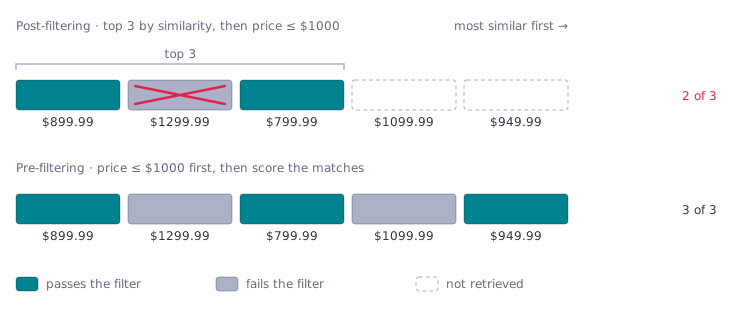
- Post-filtering runs the vector search first and then drops results that fail the filter. If many of the top results fail, you get fewer results than you asked for.
- Pre-filtering applies the filter first and then compares the query with every matching point. Results are exact, but scoring every match is expensive when many points pass the filter.
The diagram ranks five laptops by similarity to the query vector [0.2, 0.1, 0.9, 0.7].
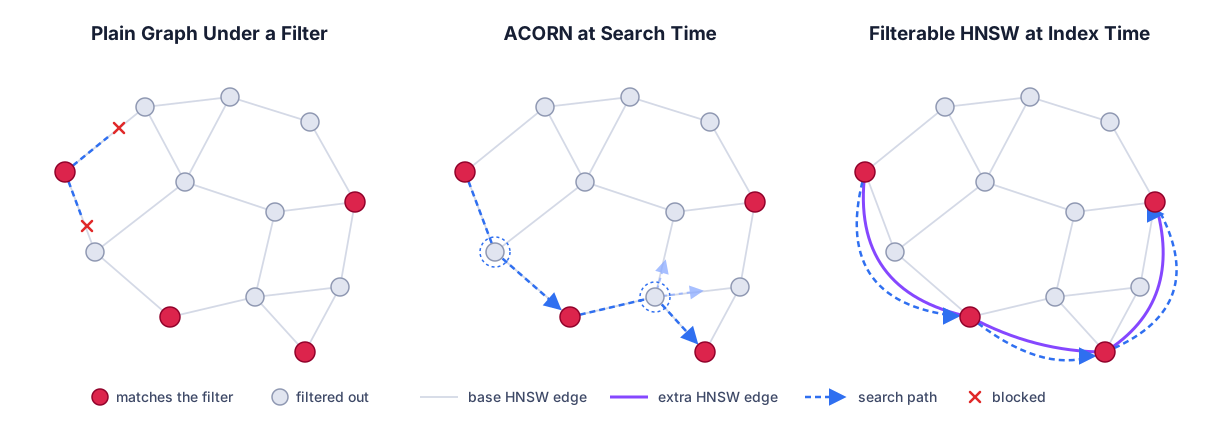
Qdrant filters during the search, so you do not have to choose. Its query planner either scores the matching points directly when few points match, or searches the HNSW graph while skipping points that fail the filter. To keep that graph walk from getting stuck, Qdrant builds a filterable HNSW index: extra edges between points that share a value of an indexed payload field. When a single field’s edges are not enough, ACORN can step through filtered-out neighbors at search time.
Index Every Field You Filter On
Qdrant uses payload indexes in three ways: to find matching points without scanning every payload, to estimate how many points a filter matches so the query planner can pick a strategy, and to build the extra filterable HNSW edges.
- Index every field you filter on in dense vector search. Without an index, the planner cannot estimate how many points match, and Qdrant has to read payloads to evaluate the filter. You can make Qdrant reject queries that filter on unindexed fields, so a missing index surfaces as an error instead of a slow query.
- Match the index type to the values and conditions. Use
keywordfor exact matches on strings,integerorfloatfor ranges, andbool,datetime,uuid,geo, ortextfor those value types. The payload index documentation lists every type and its parameters. - Create payload indexes before you ingest data. Qdrant builds the extra filterable HNSW edges only for fields that are indexed when the graph is built. An index added later still serves filters, but the graph has no extra edges for it until you rebuild the HNSW index.
- Skip the extra edges for fields you filter only in sparse search. Sparse vector search does not use the HNSW graph, so set
enable_hnswtofalseon those payload indexes to save memory and indexing time. This option is available as of v1.17. - Mark a tenant field and a principal field. Use
is_tenantfor the field that separates customers in a shared collection, andis_principalfor the field most of your queries filter on, such as a timestamp. Both let Qdrant organize storage around the field.
Here is how to create a payload index for the category field:
PUT /collections/online_store/index
{
    "field_name": "category",
    "field_schema": "keyword"
}
from qdrant_client import QdrantClient

client = QdrantClient(url="http://localhost:6333")

client.create_payload_index(
   collection_name="online_store",
   field_name="category",
   field_schema="keyword",
)
Let the Query Planner Choose
For each filtered query, the query planner estimates the filter cardinality, the number of points that satisfy the filter, from the payload indexes. It plans each segment of the collection separately.
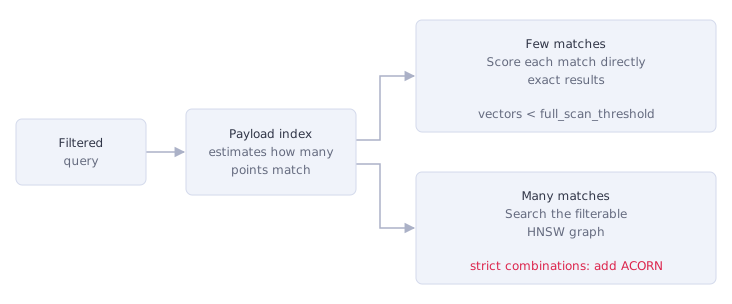
- Few points match: if the vectors of the estimated matches take up less than
full_scan_threshold, Qdrant scores each match directly and returns exact results. The default is 10,000 KB, about 10,000 vectors of 256 dimensions or 2,500 vectors of 1024 dimensions. - Many points match: Qdrant searches the filterable HNSW graph and skips points that fail the filter.
- A small share of points match, but too many to score directly: this is where the graph can fall apart, especially with two or more strict filters. Turn on ACORN for these queries.
The defaults suit most collections. You can change full_scan_threshold in the collection’s HNSW configuration.
Turn On ACORN for Strict Combined Filters
Filterable HNSW builds extra edges for each indexed field separately, not for combinations of fields. When a query combines two or more strict filters, the points that satisfy all of them may not be connected in the graph, and recall drops. The same can happen when a collection holds many deleted points.
ACORN, available as of v1.16, fixes this at search time: when a neighbor is filtered out, the search also looks at that neighbor’s neighbors. That costs extra work per query, so use it where it pays off.
- Turn ACORN on for queries that combine two or more strict filters, or for collections with many deleted points, when filtered recall is lower than you need.
- Leave it off for single-field filters with payload indexes, because the filterable HNSW edges already cover them.
To check whether you need it, run a sample of your filtered queries twice: once as usual and once with "params": { "exact": true }, which scores every matching point and gives the true top results. If the normal results miss too many of the exact ones, turn on ACORN and compare again.
ACORN is off by default. Once enabled, it runs only when the estimated share of matching points is below max_selectivity, which defaults to 0.4:
POST /collections/online_store/points/query
{
    "query": [0.2, 0.1, 0.9, 0.7],
    "filter": {
        "must": [
            { "key": "category", "match": { "value": "laptop" } },
            { "key": "price", "range": { "lte": 1000 } }
        ]
    },
    "params": {
        "acorn": { "enable": true, "max_selectivity": 0.4 }
    },
    "limit": 3
}
To see how ACORN and filterable HNSW compare on real filters, read Filtered Vector Search: What ACORN Fixes, and What Fixes ACORN.
Use One Collection for Many Tenants
Do not create a separate collection for each customer in the same cluster. With many tenants, this exhausts the cluster’s resources and can lead to out-of-memory errors.
Store all tenants in one collection, give each point a tenant field such as user_id, filter every query by it, and mark it as the tenant field when you index it:
PUT /collections/{collection_name}/index
{
   "field_name": "user_id",
   "field_schema": {
       "type": "keyword",
       "is_tenant": true
   }
}
With is_tenant set, Qdrant keeps each tenant’s points together, which makes tenant-filtered queries faster. See multitenancy for the full setup.
Common Pitfalls
- Floats need
range, notmatch. Qdrant rejects amatchcondition with a float value such as11.99. To find an exact stored value, set both bounds to it:"range": { "gte": 11.99, "lte": 11.99 }. If values carry rounding errors, use a small window instead. For money, you can also store whole cents as an integer. - Conditions on an array of objects need
nested. Two plain conditions such asdiet[].foodismeatanddiet[].likesistruecan each match a different element of the array. To require both on the same element, use a nested object filter. - Multiple values do not create duplicates. When a field holds several values, such as a product in red, blue, and green, the point matches if any value satisfies the condition, and it appears once in the results.
- Ordering by a field needs a range index.
scrollwithorder_byfails on a field without a payload index that supports ranges, and it returns nonext_page_offset. See ordering points by payload key.
Filters also work outside search: you can delete, count, or update the payload of every point that matches one.
Further Reading
- Filtering documentation: every filter condition and clause, with examples for each client.
- Payload indexes: index types, their parameters, and the tenant and principal options.
- Query planning: how Qdrant picks a search strategy for each segment.
- Filtered Vector Search: What ACORN Fixes, and What Fixes ACORN: benchmarks of ACORN and filterable HNSW on real filters.
- Filterable HNSW: the article behind Qdrant’s extra filter edges.
- Multitenant search: how to serve many tenants from one collection.
Try Filtering in a Live Cluster
The easiest way to try filtering is in a free Qdrant Cloud cluster. The interactive tutorial in the dashboard shows you how to create a collection, add data, and run filters.
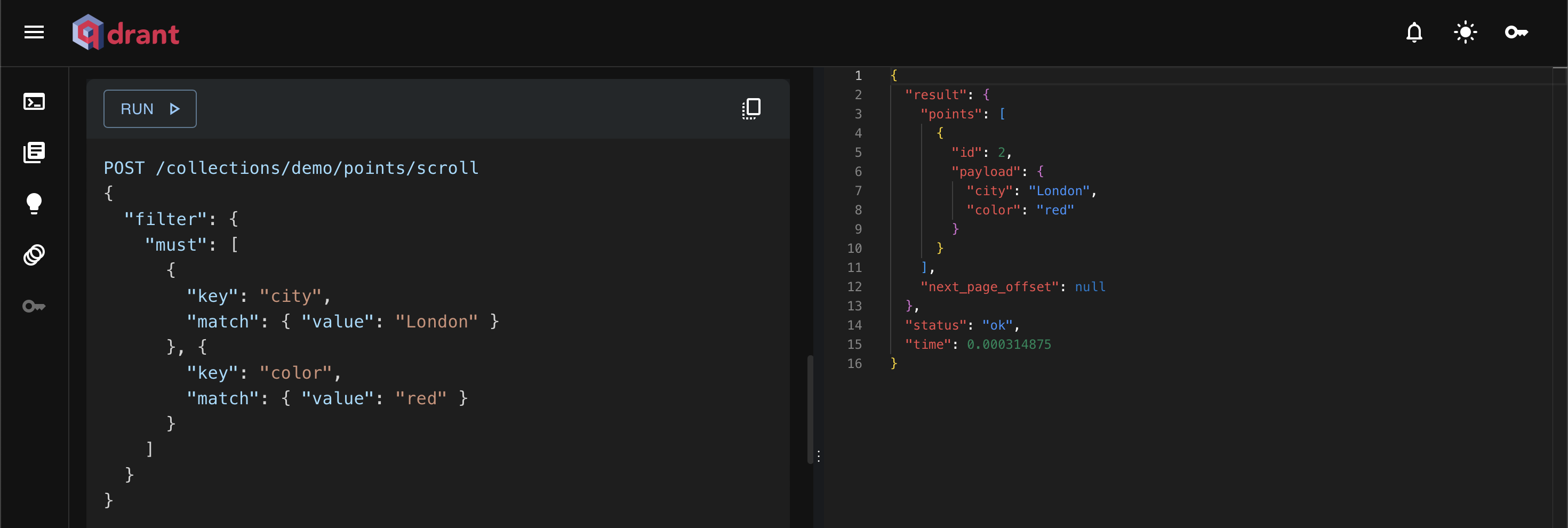

 Ready to try Qdrant?