> Explore Qdrant's agent skills catalog at https://skills.qdrant.tech/
> Search the documentation at https://skills.qdrant.tech/search?query=your+query+here
> Use this file to discover all available pages: https://qdrant.tech/llms.txt
# Securing and Exposing a Hybrid Cloud Cluster
A new Qdrant cluster on Hybrid Cloud starts with no API key and no TLS, and that's by design: the cluster only lives on a `ClusterIP` Service inside your Kubernetes network by default, so it isn't reachable from outside your cluster in the first place. The moment you expose it, internally or externally, you're responsible for securing it.
This tutorial walks through that process end to end, on a real cluster: enabling authentication, adding TLS at the database, and terminating TLS at an ingress controller in front of it.
## Prerequisites
- A running Hybrid Cloud cluster with `kubectl` access configured.
- `openssl` for generating an API key. `mkcert` for generating a self-signed TLS certificate (or `openssl` directly, see later).
- Helm, if you don't already have an ingress controller installed.
Set your cluster name once so the commands below can reference it:
```bash
export KUBENS="your-kubernetes-namespace"
export CLUSTER_NAME=$(kubectl get qdrantclusters -n $KUBENS -o jsonpath='{.items[0].metadata.name}')
```
## Check the Starting State
Confirm what's actually running before changing anything:
```bash
kubectl get svc -n $KUBENS
```
You should see a `ClusterIP` Service for the cluster and no `EXTERNAL-IP`. Then check the cluster spec for any existing auth or TLS configuration:
```bash
kubectl get qdrantcluster $CLUSTER_NAME -n $KUBENS -o yaml
```
On a fresh cluster, `spec.config` won't have an `api_key` or TLS field yet.
## Enable API Key Authentication
Generate a key and store it as a Kubernetes secret:
```bash
API_KEY=$(openssl rand -hex 24)
kubectl create secret generic qdrant-api-key \
--from-literal=api-key=$API_KEY \
--namespace $KUBENS
```
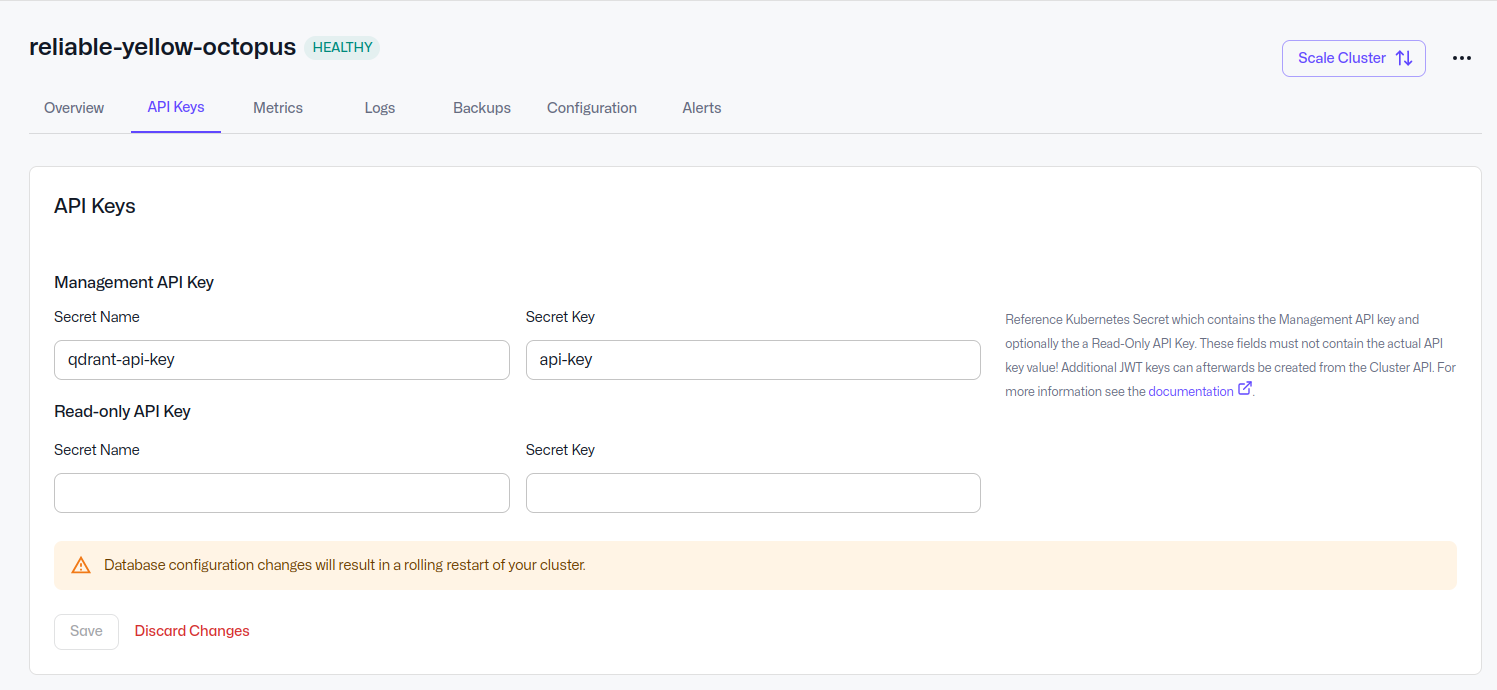
In the Cluster Detail page, go to **Configuration → API Keys** and create a Management API Key (or a Read-Only API Key, depending on your needs), referencing the `qdrant-api-key` secret and its `api-key` key, per [Authentication to your Qdrant Clusters](https://qdrant.tech/documentation/hybrid-cloud/hybrid-cloud-cluster-creation/index.md#authentication-to-your-qdrant-clusters). Save, then confirm the config was patched:
```bash
kubectl get qdrantcluster $CLUSTER_NAME -n $KUBENS -o yaml | grep -A5 "service:"
```
### Verify
Port-forward to the cluster and confirm a request without the key is rejected, and a request with it succeeds:
```bash
kubectl port-forward -n $KUBENS svc/$CLUSTER_NAME 6333:6333
```
```bash
curl -i http://localhost:6333/collections
# HTTP/1.1 401 Unauthorized
curl -i http://localhost:6333/collections -H "api-key: $API_KEY"
# HTTP/1.1 200 OK
```
## Add TLS at the Qdrant Level
In this step, we will need to generate an SSL certificate: for this tutorial we will be using a self-signed one from `mkcert`, which is fine for testing but should not be used in production. Use a certificate from your internal CA or a public issuer like Let's Encrypt instead, keeping in mind Let's Encrypt can't issue certificates for internal Kubernetes DNS names, which matters if you also configure peer-to-peer TLS between nodes.
```bash
mkcert -install
mkcert -cert-file qdrant.crt -key-file qdrant.key localhost 127.0.0.1 $CLUSTER_NAME.$KUBENS.svc.cluster.local
kubectl create secret tls qdrant-tls \
--cert=qdrant.crt \
--key=qdrant.key \
--namespace $KUBENS
```
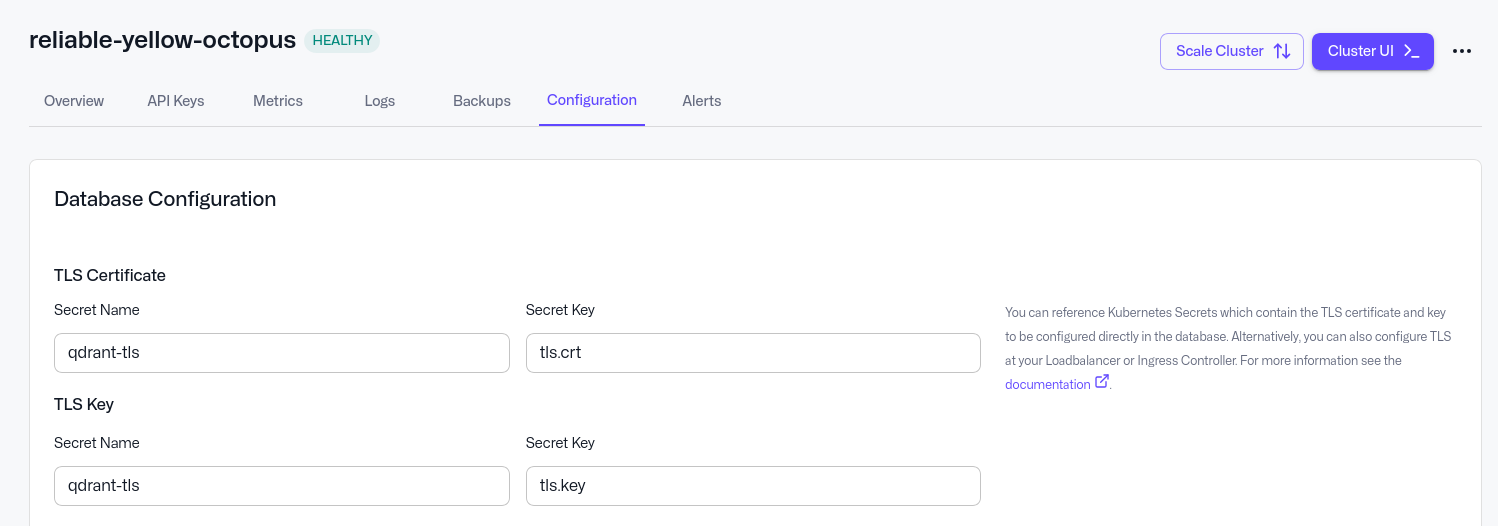
As with the API key, reference this secret through the Cloud Console rather than patching the CR directly: **Configuration → TLS**, secret `qdrant-tls`, keys `tls.crt` / `tls.key`, per [Configuring TLS](https://qdrant.tech/documentation/hybrid-cloud/hybrid-cloud-cluster-creation/index.md#configuring-tls).
### Verify
Saving the TLS configuration triggers a rolling restart of the cluster. The port-forward you opened earlier stays attached to the old pod, so it stops working once that pod is replaced. Wait for the new pods to be ready:
```bash
kubectl get pods -n $KUBENS -w
```
Then stop the old port-forward (`Ctrl+C`) and open a new one:
```bash
kubectl port-forward -n $KUBENS svc/$CLUSTER_NAME 6333:6333
```
Call the cluster over plain HTTP first:
```bash
curl -i http://localhost:6333/collections -H "api-key: $API_KEY"
```
Expect this request to fail with a TLS or connection error, because Qdrant now only accepts HTTPS on this port. The exact curl message depends on your curl build and TLS library, for example `Received HTTP/0.9 when not allowed` or `Empty reply from server`. Switch to HTTPS and the request succeeds:
```bash
curl -ik https://localhost:6333/collections -H "api-key: $API_KEY"
# HTTP/2 200
```
`-k` skips certificate verification, needed here only because the cert is self-signed and its root wasn't trusted in this shell.
## Expose the Cluster Through an Ingress
Qdrant now speaks TLS, but to reach it from outside the Kubernetes cluster, we need to put an ingress controller in front of it, terminating or passing through TLS at the edge. This tutorial uses [Traefik](https://traefik.io/traefik), which works the same way across cloud providers.
If you don't already have it installed:
```bash
helm repo add traefik https://traefik.github.io/charts
helm repo update
helm install traefik traefik/traefik \
--namespace traefik \
--create-namespace
```
Verify that the service is available and get the external IP:
```bash
kubectl get svc -n traefik
```
This creates a `LoadBalancer`-type Service, which means your cloud provider provisions a real external load balancer for it. That has a cost, so don't leave test infrastructure like this running if you don't need it. Note the `EXTERNAL-IP` (or hostname, on AWS) once it's assigned, which can take a minute or two.
### Trust Qdrant's Certificate
Since Qdrant already has TLS on with a self-signed certificate, Traefik needs to be told to trust it, or the connection between Traefik and the Qdrant instance will fail. Create a `ServersTransport` resource for this:
```bash
kubectl apply -f - <-qdrant-insecure-transport@kubernetescrd` |
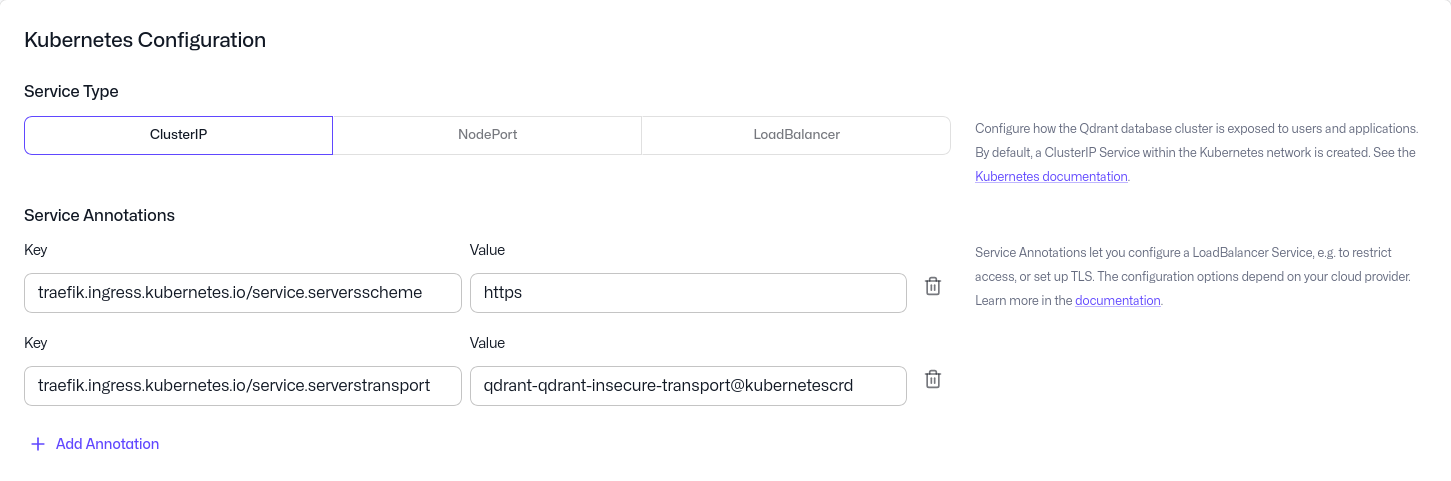
The `serverstransport` value has to follow Traefik's `-@kubernetescrd` format, so it changes with the namespace you created the `ServersTransport` in. Print the exact value for your setup with:
```bash
echo "$KUBENS-qdrant-insecure-transport@kubernetescrd"
```
### Create the ingress
```bash
kubectl apply -f - <.sslip.io
http:
paths:
- path: /
pathType: Prefix
backend:
service:
name: $CLUSTER_NAME
port:
number: 6333
EOF
```
The `host` field doesn't create DNS, it's a string Traefik matches against the incoming request's `Host` header. Nothing resolves `qdrant.local` or any other placeholder domain unless DNS actually points somewhere. [sslp.io](https://sslip.io) is a wildcard DNS service that resolves `anything..sslip.io` to `` automatically, useful for testing without owning a domain or configuring DNS. In production, replace it with a real domain pointed at your ingress's external address.
### Verify
```bash
curl -ik https://qdrant..sslip.io/collections -H "api-key: $API_KEY"
# HTTP/2 200
```
This request goes through two TLS connections, each with its own certificate. Between Traefik and Qdrant, Traefik uses the `mkcert` certificate you created earlier and skips verification through the `ServersTransport`. Between your client and Traefik, the Ingress has no `tls:` block, so Traefik serves its own default self-signed certificate (`TRAEFIK DEFAULT CERT`). The `-k` flag hides that second certificate from you. Run the same command with `-v` instead of `-k` to see which certificate Traefik presents.
## Next Steps
This covers authentication and TLS for a single cluster reachable from outside your Kubernetes network. From here, two things are worth doing before this goes to production:
1. replace both self-signed certificates with ones from a trusted CA: the `mkcert` certificate on Qdrant (then drop the `ServersTransport` and its annotation), and Traefik's default certificate at the edge (add a `tls:` block to the Ingress that references a certificate for your domain)
2. set up a domain (and related DNS records) for the ingress-controller to resolve to
To further configure, scale and upgrade your cluster, check out the [dedicated documentation](https://qdrant.tech/documentation/hybrid-cloud/configure-scale-upgrade/index.md)