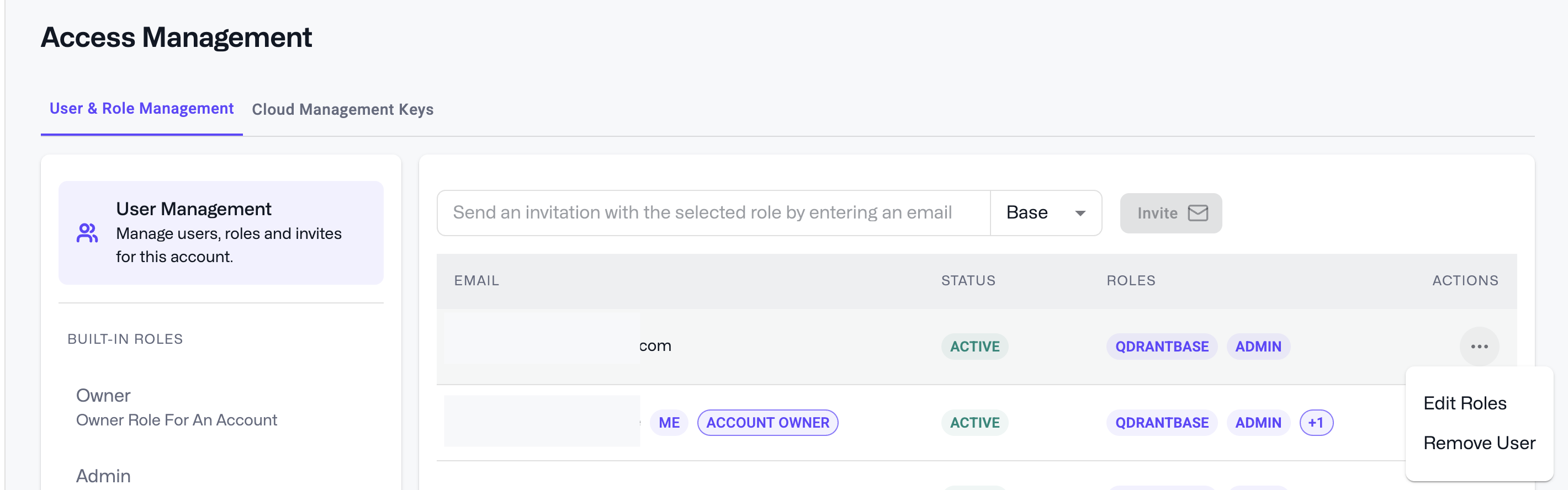
User Management
💡 You can access this in Access Management > User & Role Management if available see this page for details.
Inviting Users to an Account
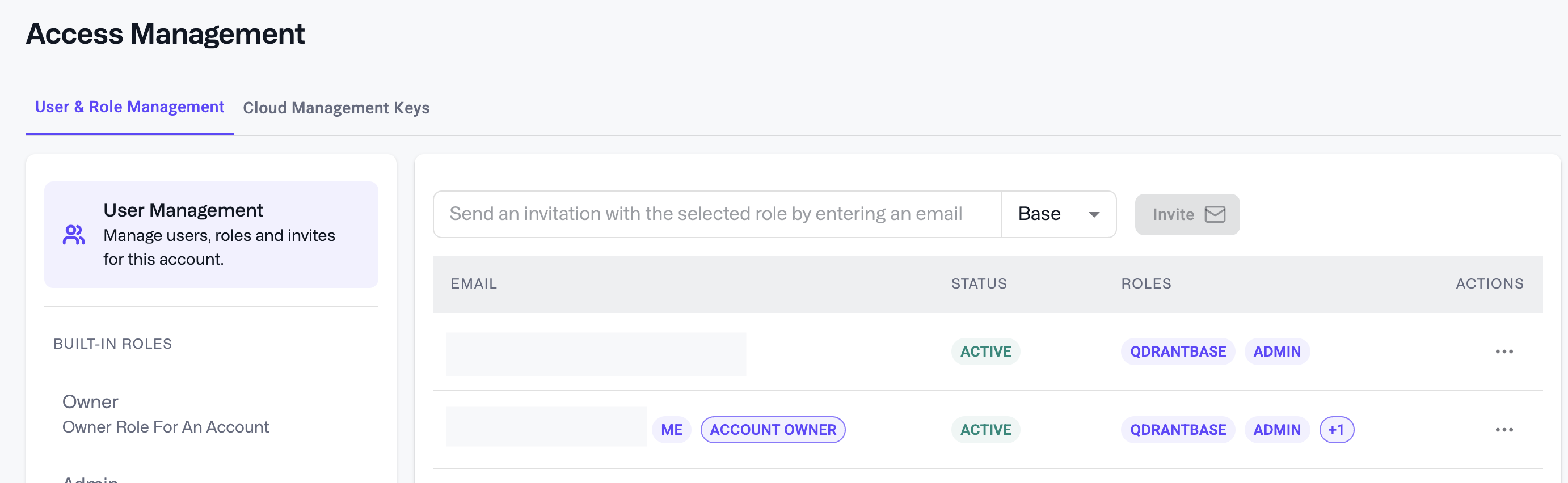
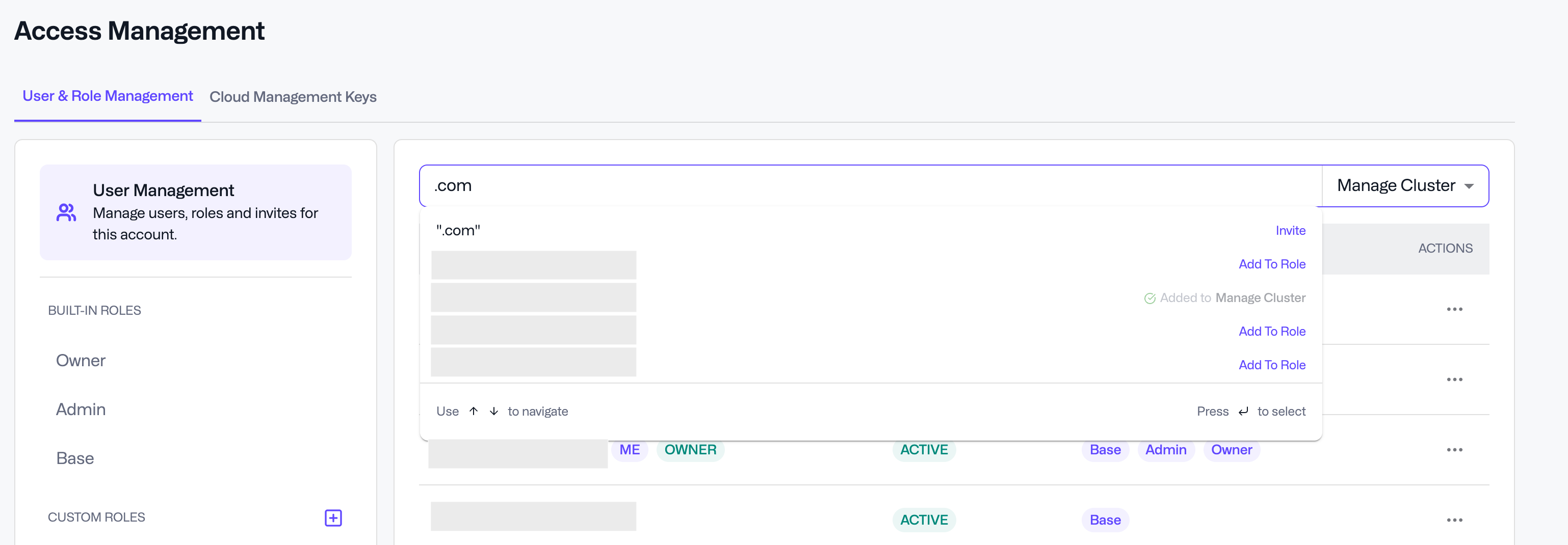
Account users can be managed via the User Management section. Start by selecting a role from the dropdown and then type the name of the user you wish to manage. For users who are not in your account you will have the option to invite them. For users already in your account you can add them to the role, or see if the role has already been assigned to them.
Accepting an Invitation
After inviting a user, they will receive an email prompting them to join the account. After clicking the link in the email, they are directed to the Qdrant Cloud portal, where a banner at the top of the page enables them to accept or decline the invitation.
Inviting Users from a Role
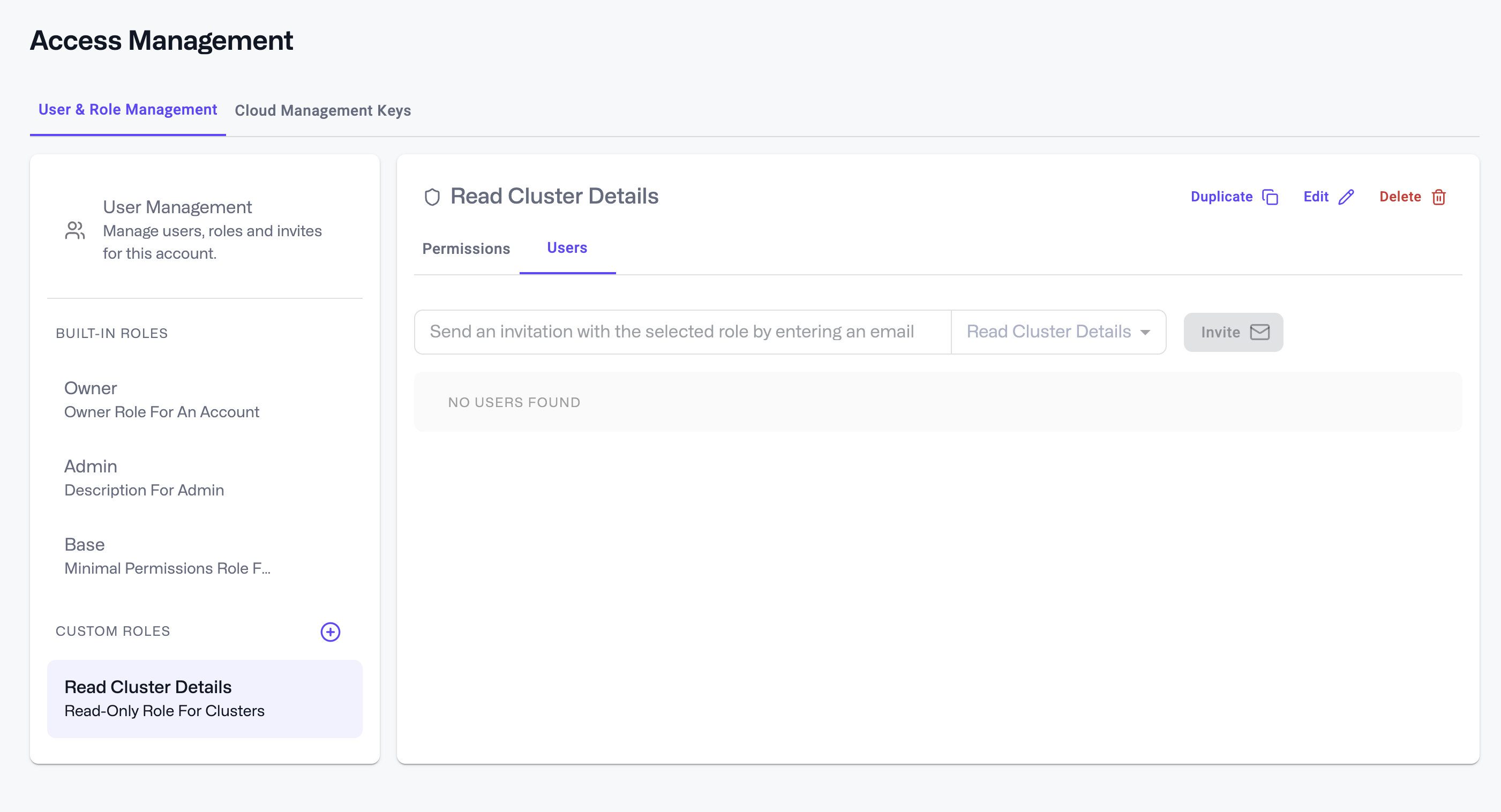
Users can be invited attached to a specific role by inviting them through the Role Details page - just click on the Users tab and follow the prompts.
Once accepted, they’ll be assigned that role’s permissions, along with the base role.
Revoking an Invitation
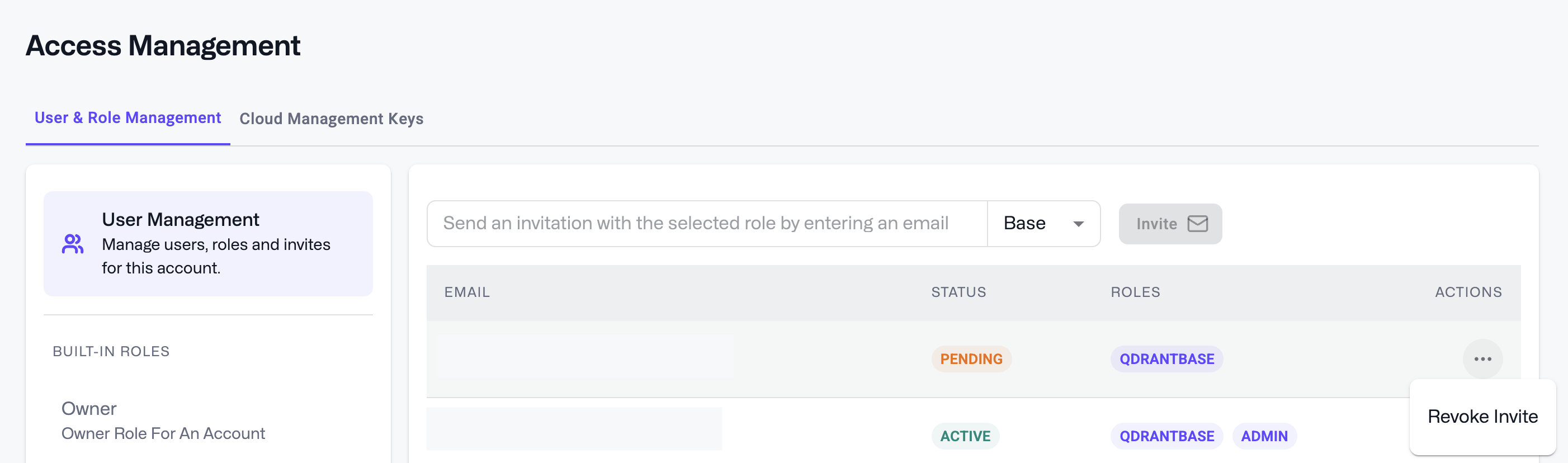
Before being accepted, an Admin/Owner can cancel a pending invite directly on either the User Management or Role Details page.
Updating a User’s Roles
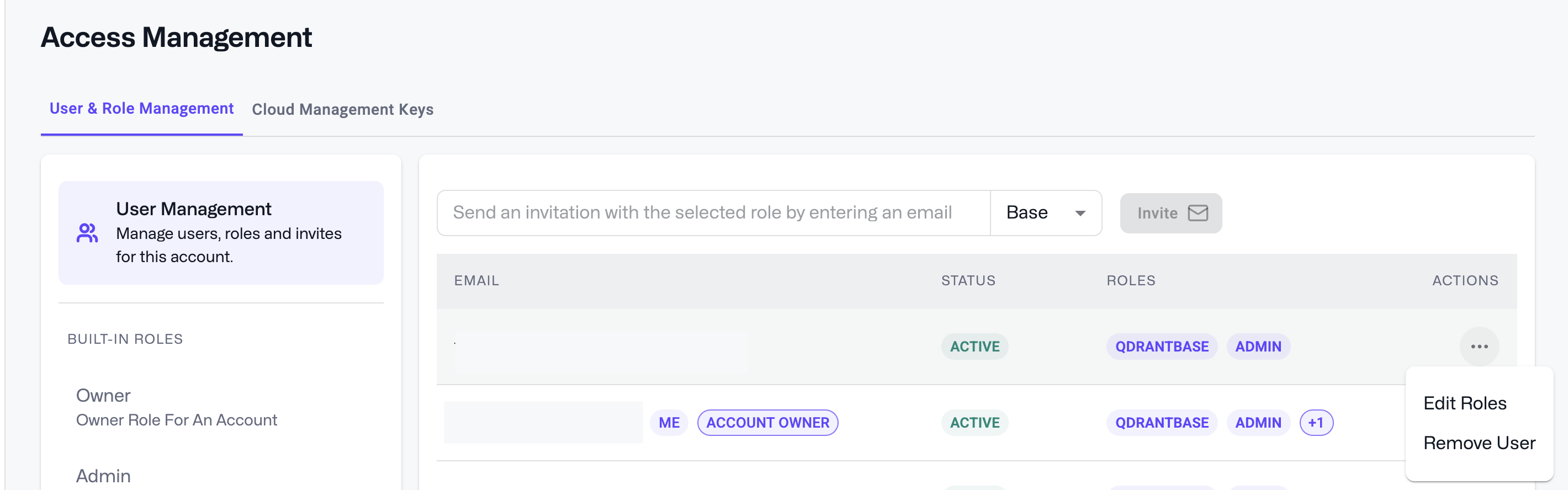
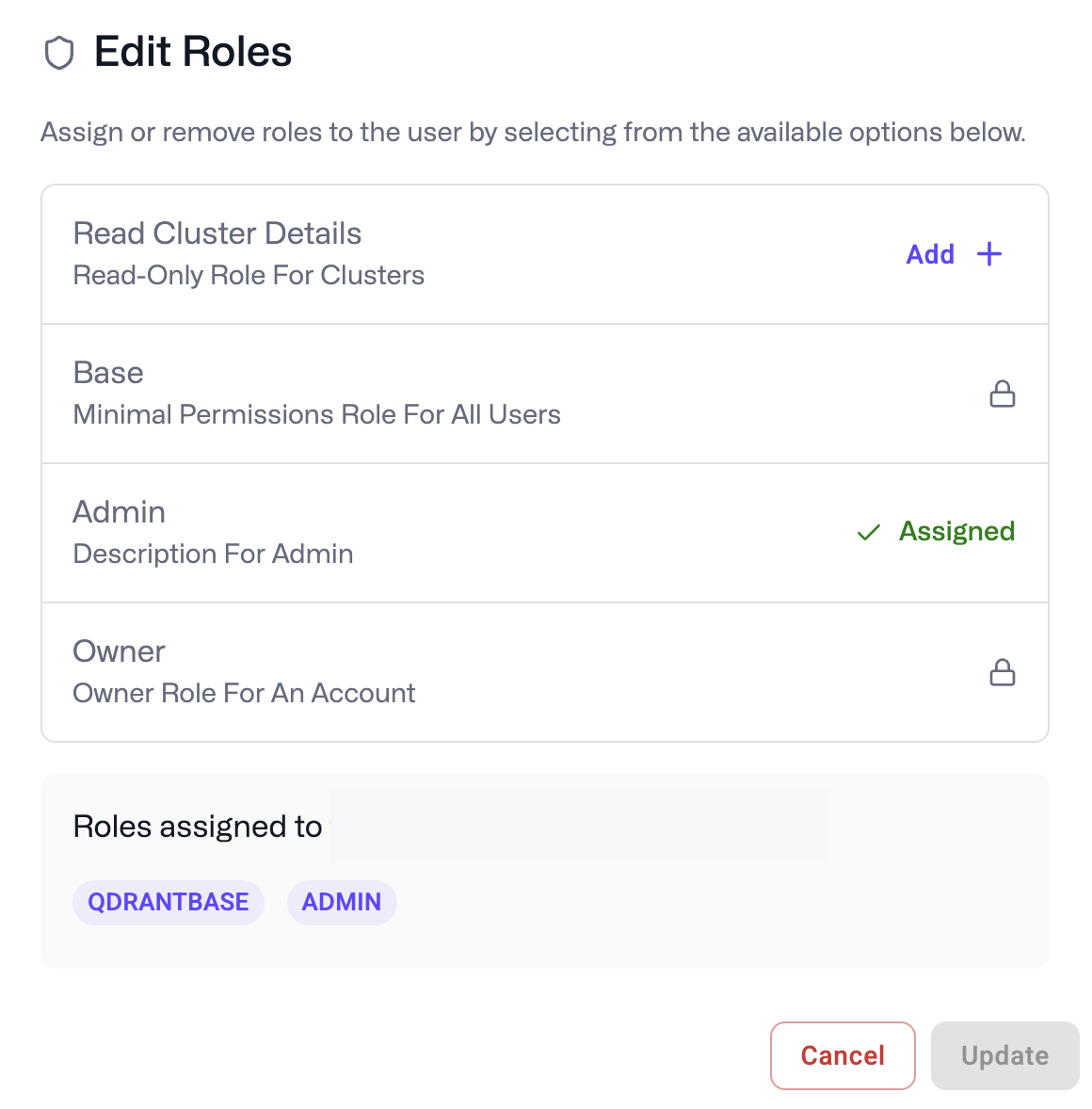
Authorized users can give or take away roles from users in User Management.
Making a User the Owner of an Account
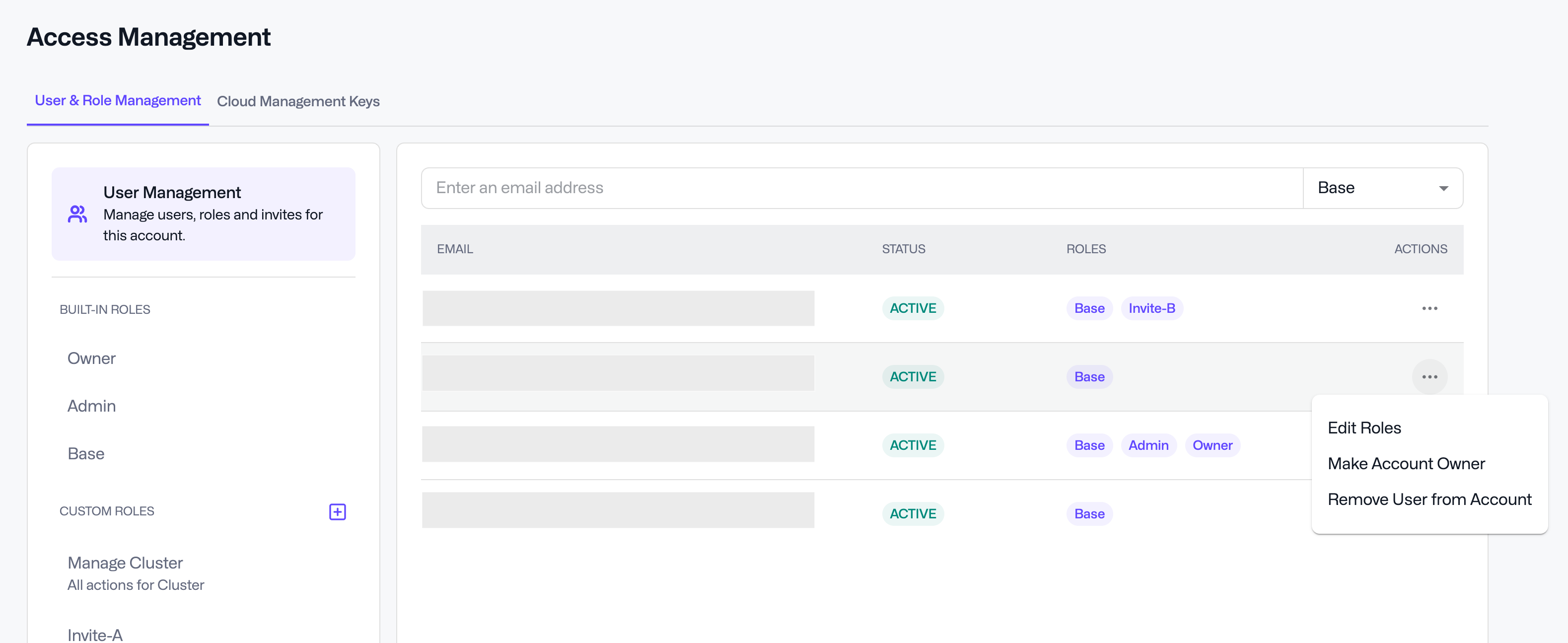
Only account owners are allowed to transfer ownership of an account, this can be done via the User Management page. There can only be one account owner per account.
Removing a User from an Account
Users can be removed from an account by clicking on their name in either User Management (via Actions). This option is only available after they’ve accepted the invitation to join, ensuring that only active users can be removed.